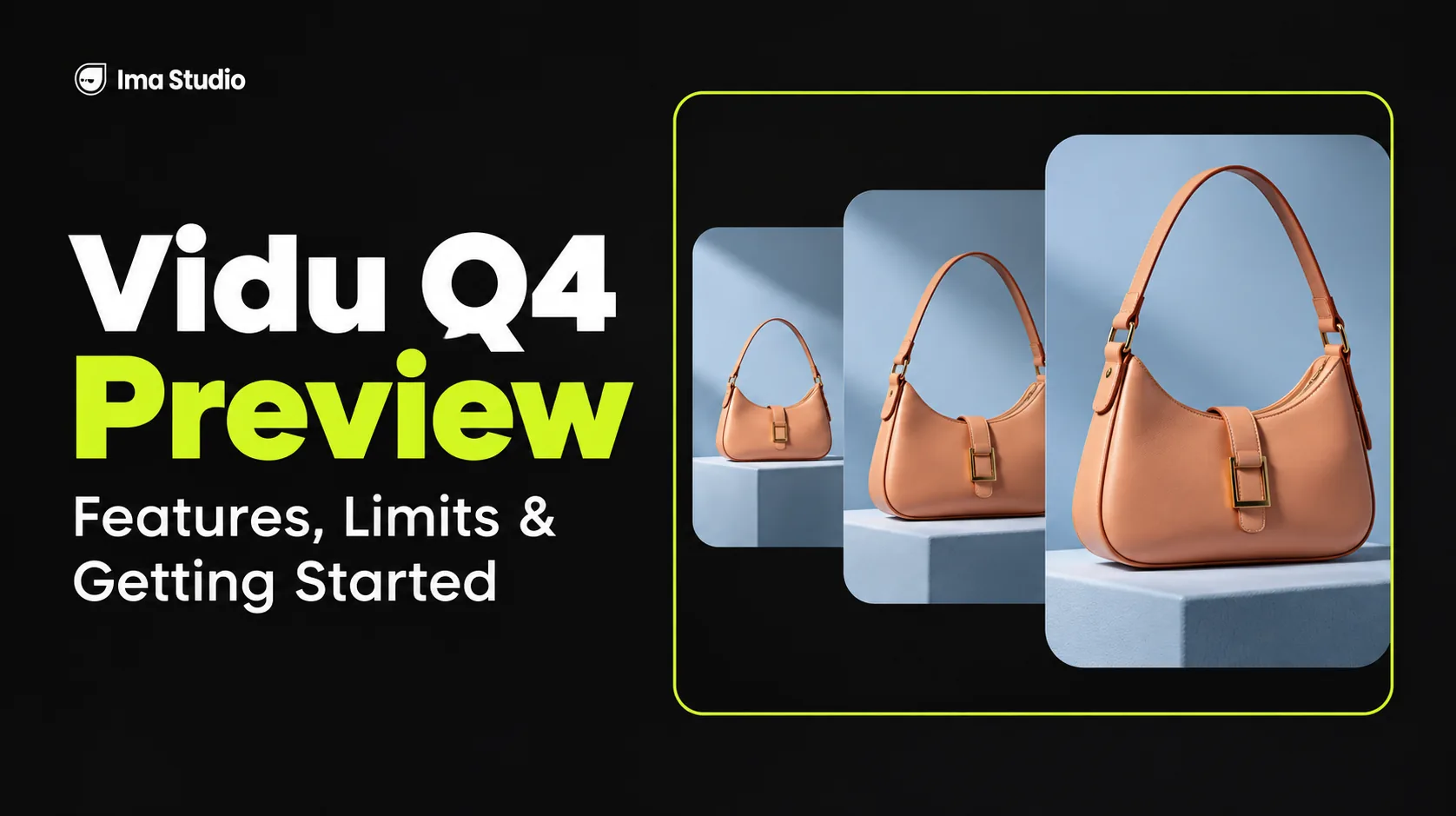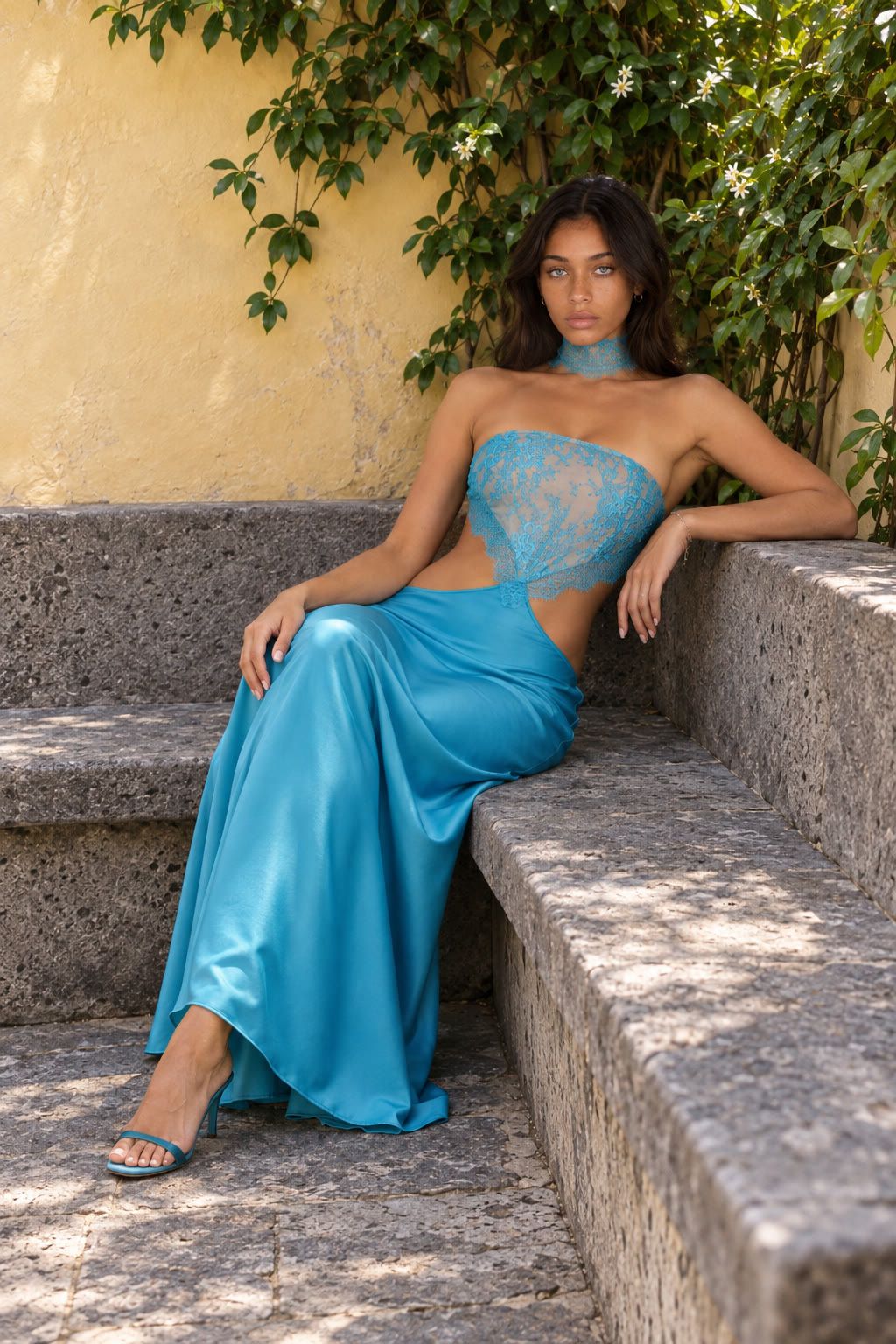








Vidu Q4 Preview is Vidu’s preview video model for image-led video creation, including reference-guided video and audio. It’s now available on Ima Studio. For your first clip, bring a clear reference and one simple action so you can judge the subject, motion, and sound without a complicated sequence hiding the problems.
What can Vidu Q4 Preview do?
The official reference-to-video documentation lists reference sound, camera switching, and combined audio-video output. Vidu also documents a separate image-to-video route.
For a creator, the useful distinction is the role of the input. A starting image gives you a visible composition to animate. A reference-led task supplies the subjects that should appear in the generated scene. Write the prompt around the job you want those references to do.
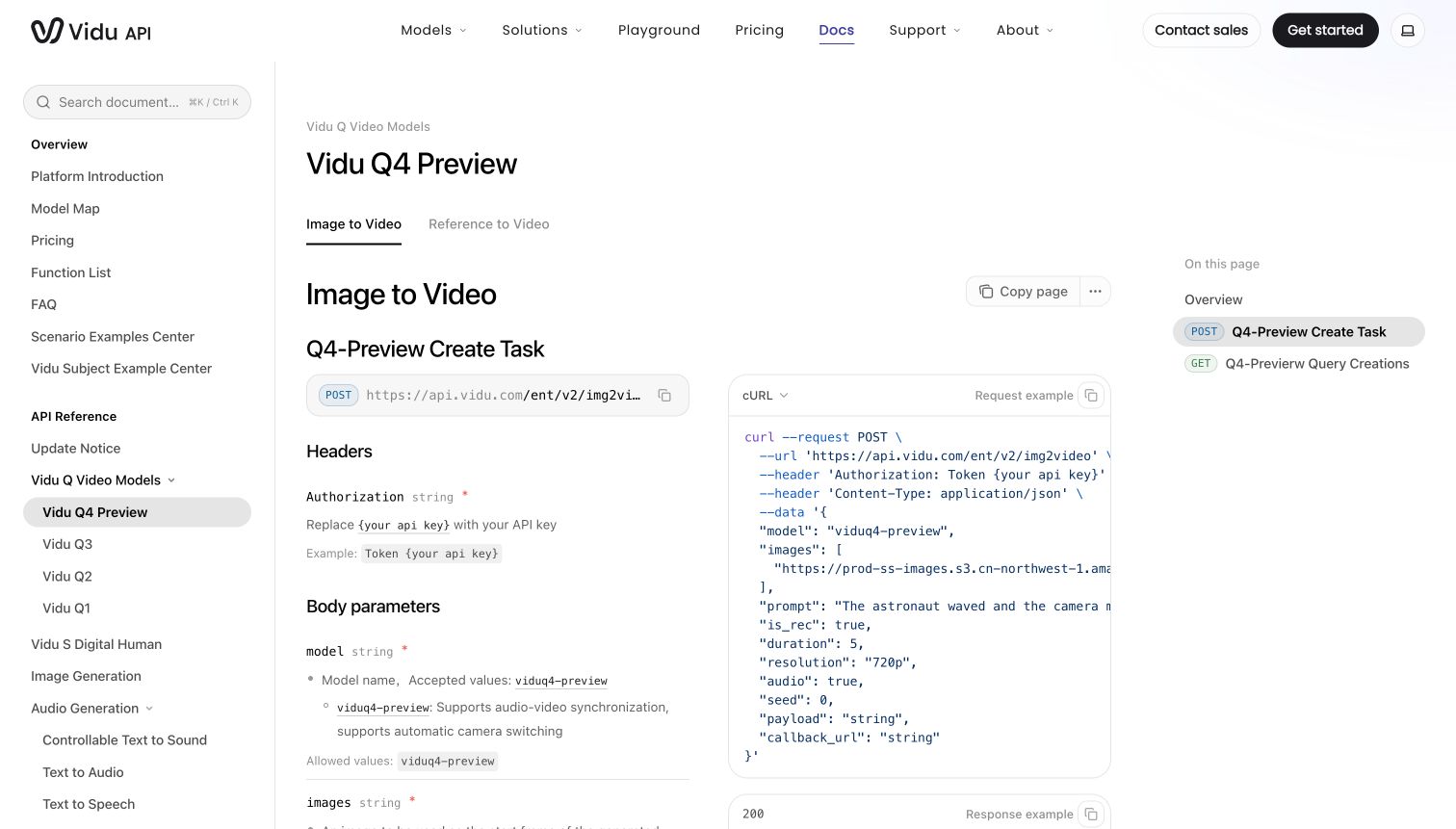
| Official reference-to-video parameter | Documented support |
|---|---|
| Model identifier | viduq4-preview |
| संदर्भ चित्र | 1 to 15 |
| Reference audio | Up to 3 files; documented duration of 3 to 12 seconds per file |
| Output duration | 3 to 16 seconds |
| Output ratios | 1:1, 9:16, 16:9, 3:4, and 4:3 |
| Resolution options | 540p, 720p, 1080p, 2K, and 4K |
These are the documented reference-to-video API options. They aren’t a claim that every workflow or combination has the same behavior. Choose the settings needed for the intended placement, then review the actual output.
What should you try first?
Use a product or character with distinctive details you can check. A bag with a visible strap and closure is easier to evaluate than an abstract object. Keep the starting task small: one subject, one main action, and a restrained camera move.
For a product shot, check the outline, label, handles, and material throughout the clip. For a person, watch the face and hands while the action happens. A correct first frame doesn’t prove that the last frame is correct.
If you already work with an older version, our Vidu Q2 reference guide provides background on reference-led prompting. Its clips belong to Q2, so they shouldn’t be used as Q4 Preview performance examples.
How to start a Vidu Q4 Preview clip on Ima Studio
Open the reference video workspace and select Vidu Q4 Preview. Upload the reference, describe the intended motion, and choose the output settings. Begin with a short clip that you can inspect closely.
Here’s an untested starting prompt for a simple product shot:
Use the uploaded bag as the product reference.
The bag stands upright on a plain studio table.
Make a slow camera push-in while keeping the full bag visible.
Keep the strap, buckle, stitching, color, and overall shape consistent.
Use soft side lighting and a quiet studio background.
Audio direction: subtle room tone, no dialogue, no music.
Do not add text, new logos, extra straps, or other products.
The prompt keeps the product still while the camera moves. That makes it easier to identify shape changes before adding a hand interaction or a second shot. For a broader way to plan the hook and product demonstration, see our sports product video ad guide.
What does Preview mean for a real project?
Keep the full model name in your project notes. Advice or outputs from Vidu Q2, Q3, or a future Q4 release may not describe the same model.
Review generated sound as its own part of the result. Listen for unwanted speech, misplaced effects, or audio that doesn’t match the action. If the brief needs silence, check the exported file rather than assuming the prompt was followed.
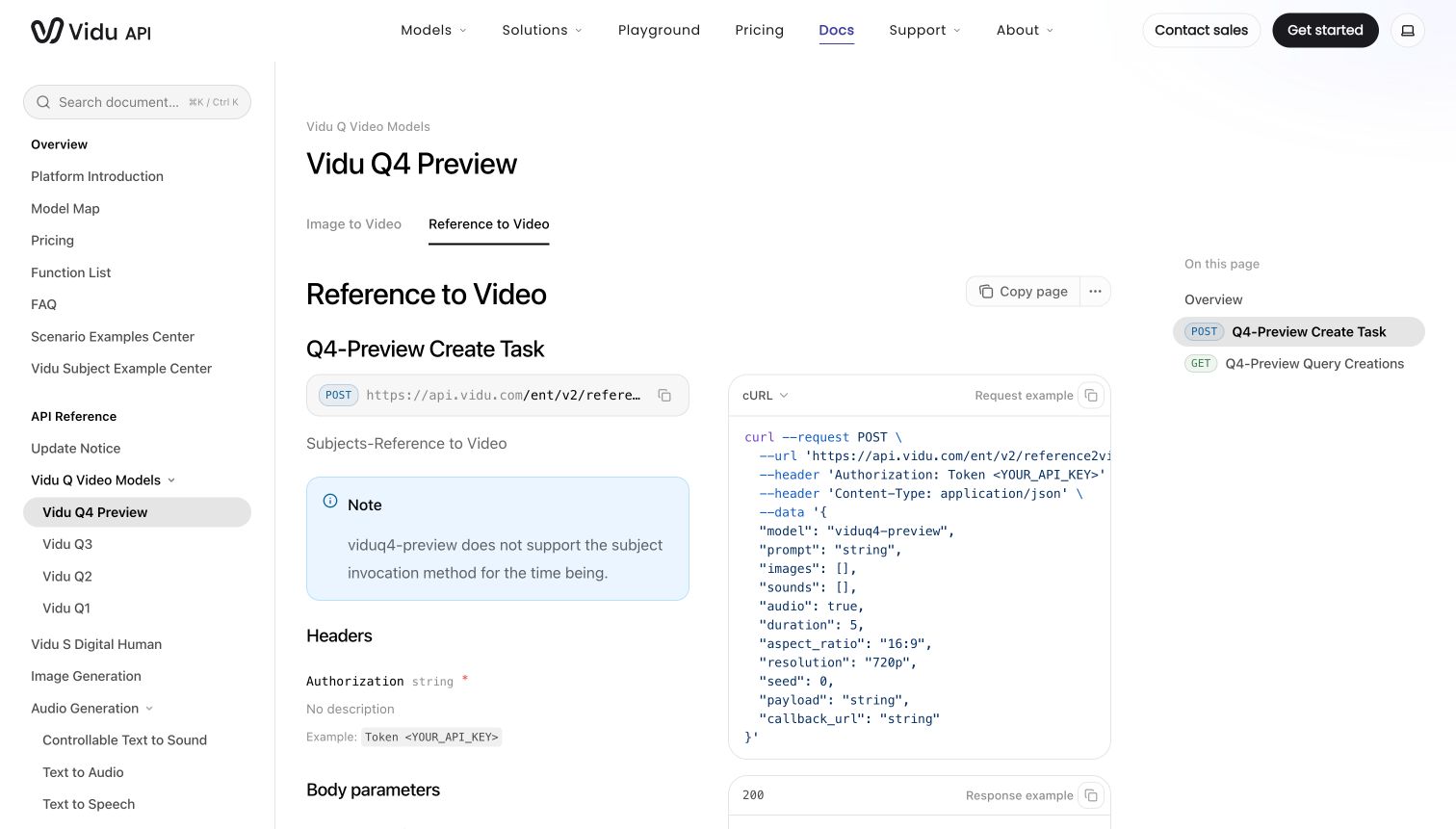
Vidu’s current reference-to-video documentation also says that Q4 Preview doesn’t support its subject-invocation method. Don’t assume that an older saved-subject workflow transfers unchanged. Begin with image references for the task described here.
Is Vidu Q4 Preview worth trying?
Try it when you have a clear reference and need to explore how that subject behaves in a short video. Start with a shot you can assess, then add complexity only after the basic result is acceptable.
This is an introduction to the model’s documented capabilities, not a ranking against other video models. A useful evaluation needs the same input, a comparable task, and inspection of the full clips, including audio and failed attempts.
Vidu Q4 Preview is available on Ima Studio. Bring a reference, select the model, and make the first clip simple enough to learn from.
Generate Your First Reference Clip
लेखक के बारे में