







IMA STUDIO · PET TRY-ON GUIDE
One pup.
Five outfit ideas.
Explore five pet outfit concepts. Start with a clear dog photo and a separate garment photo, then create and check one look at a time in Ima Studio.
Try Pet Clothing on Your Dog in Ima Studio ↗
One pup · many style ideas ♡
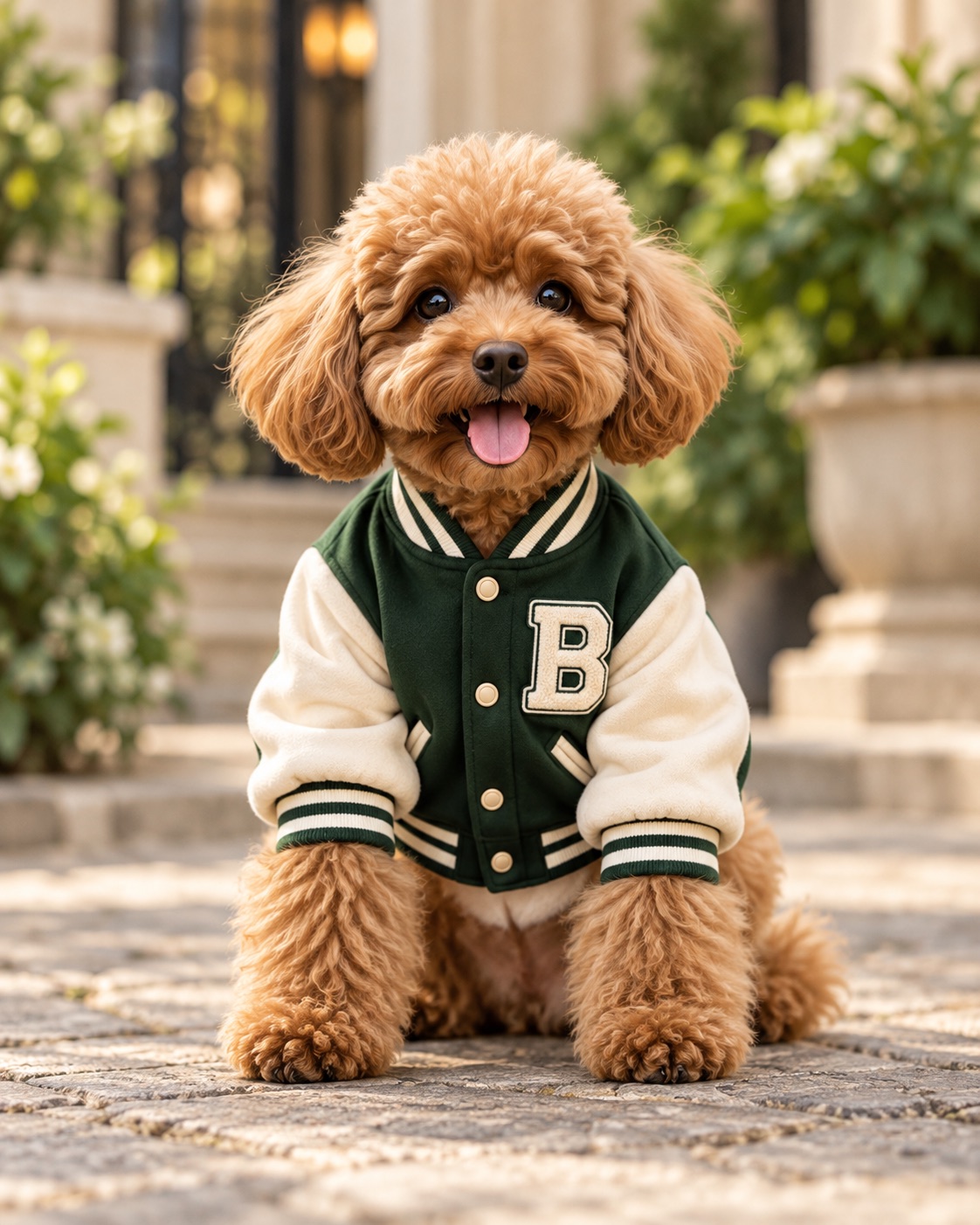
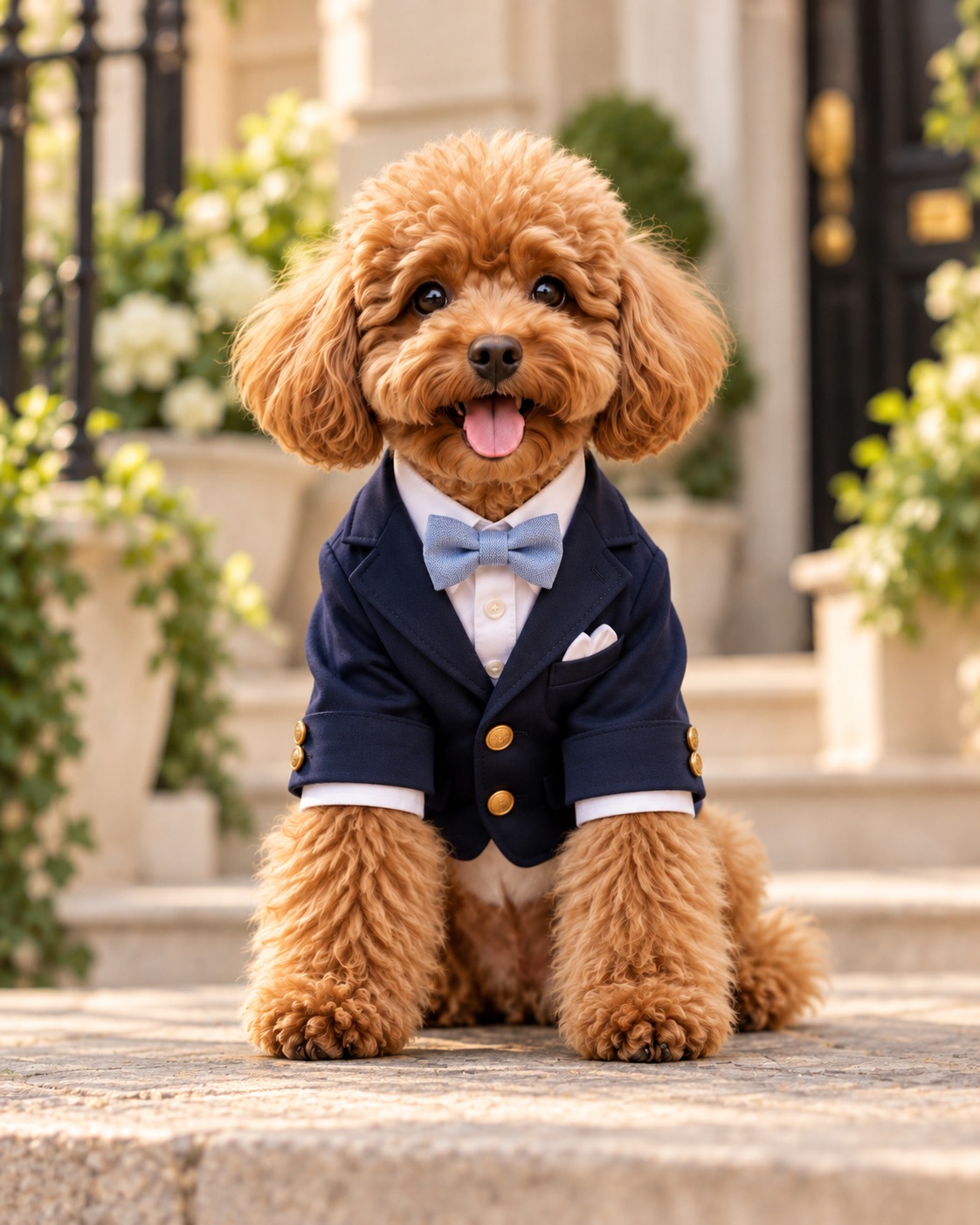
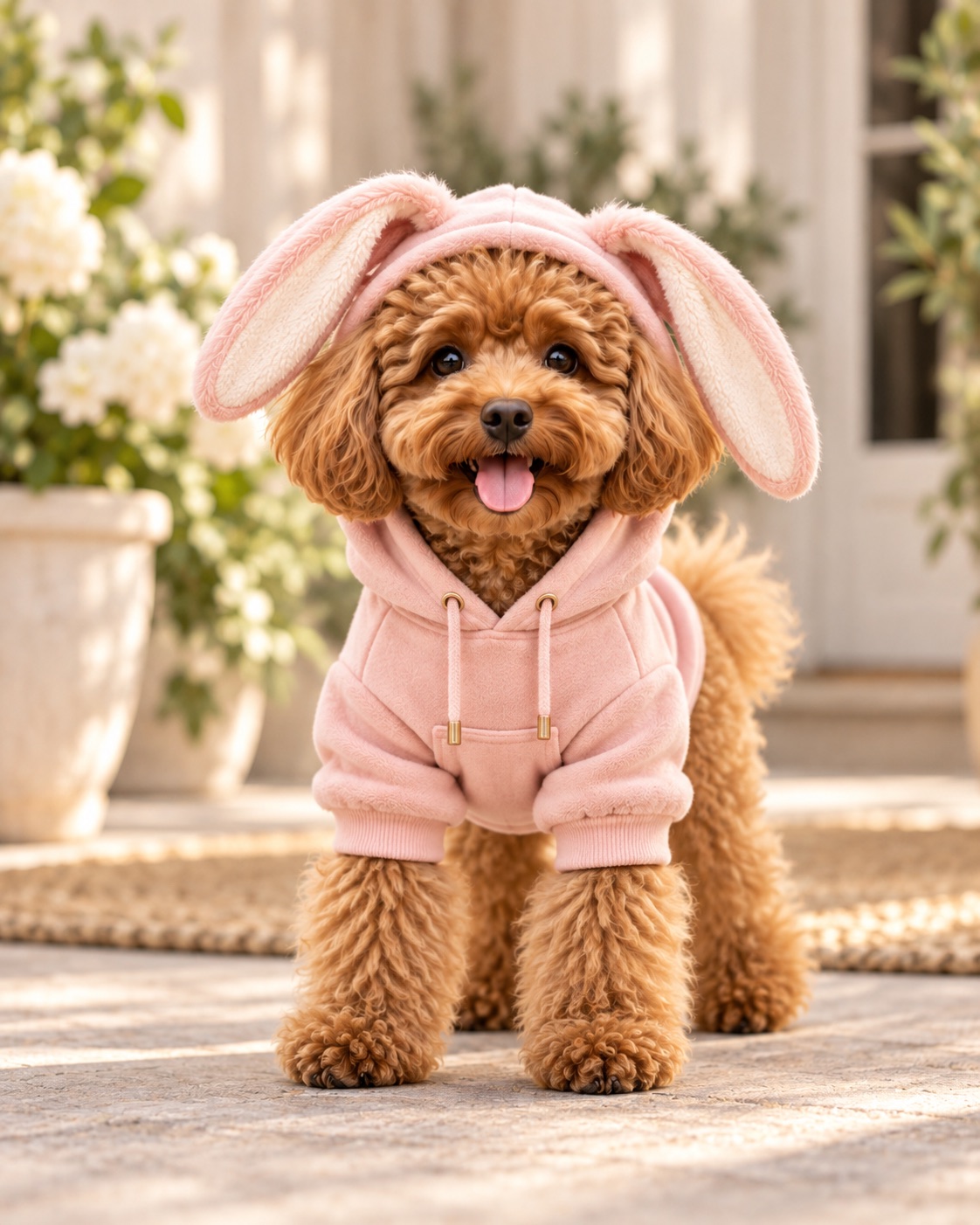
These are AI-generated editorial concepts supplied for this design. They are not verified same-photo Ima Studio results or a physical fit preview.
EXPLORE THE LOOKS
Five outfit directions to try
Choose one look, use a real pet garment photo, and compare the generated image with your original photos.
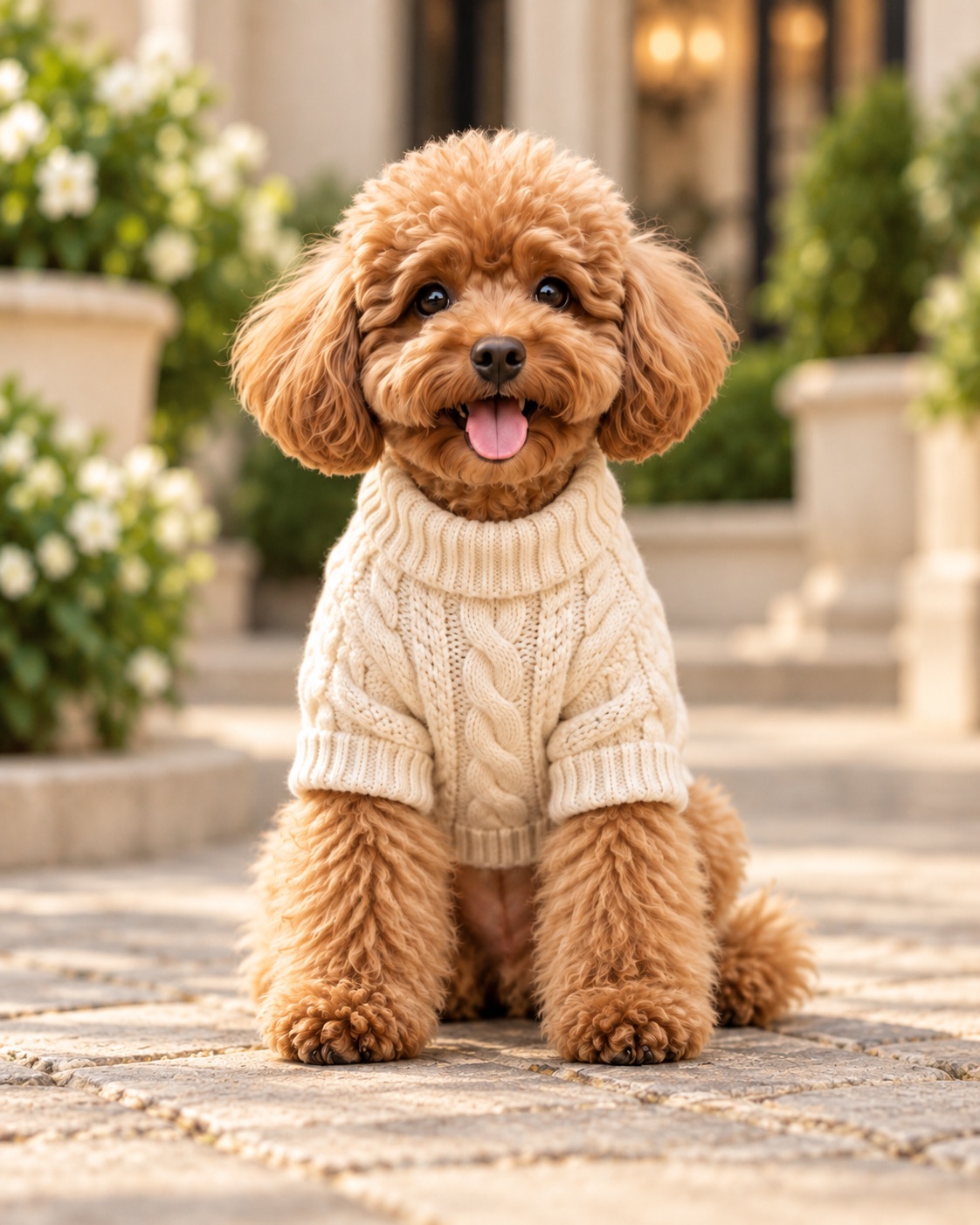
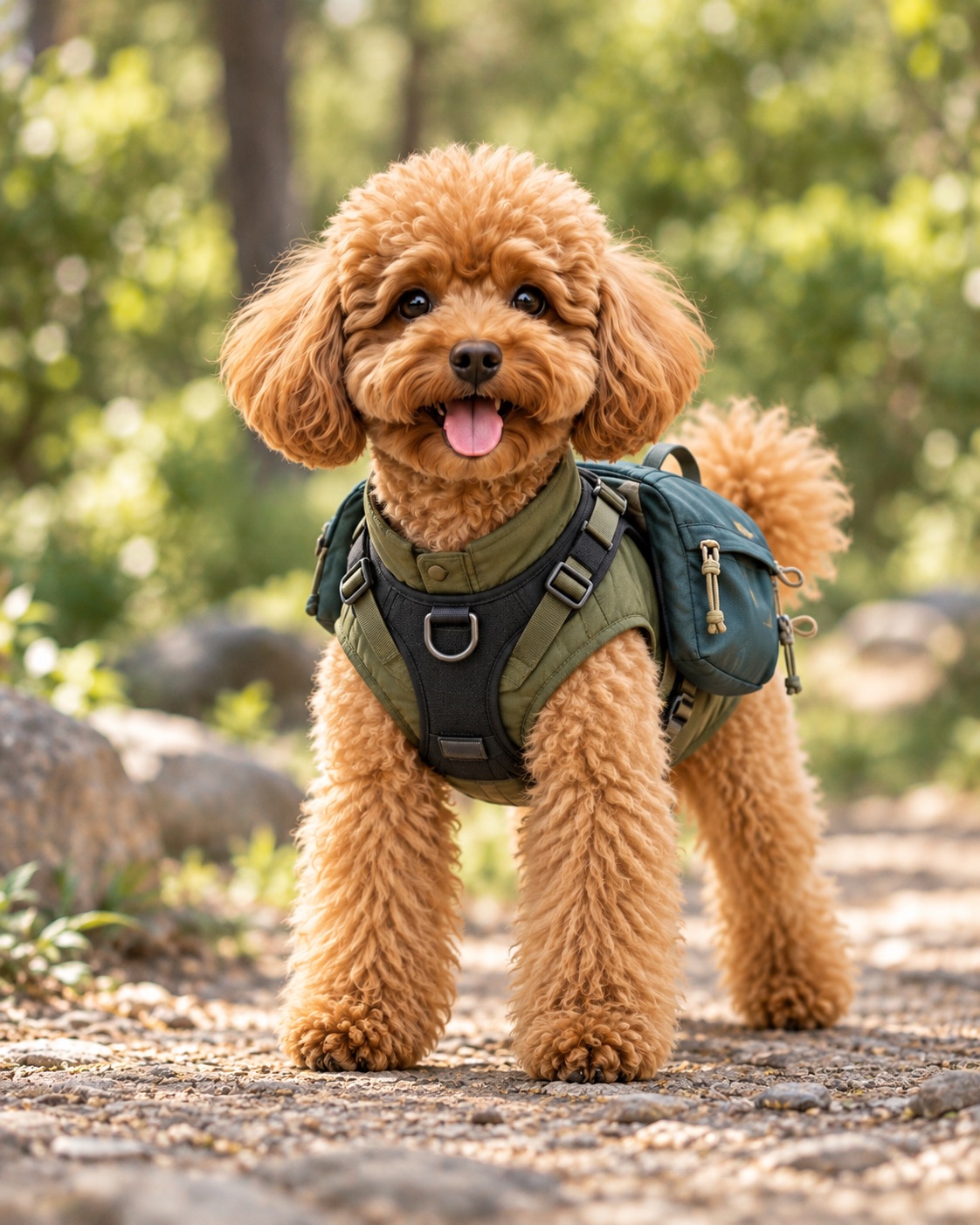
FROM INSPIRATION TO YOUR OWN PET PHOTO
Take one outfit idea into Ima Studio
The five looks above are inspiration. Ima Studio’s Model Fitting gives you a place to bring a real pet garment photo, describe the dog or add a visual reference, choose a setting, and create an image to inspect. Start with one outfit instead of asking for five changes in a single request.
The current tool gallery shows human fashion examples. The pet clothing workflow is supported by our earlier real dog and cat examples, but every new image still needs a check against the source pet and garment photos.
How to make a pet try-on image in Ima Studio
Choose a clear pet photo.
Use an undressed photo with the face and body easy to recognize.
Upload the garment separately.
Show its shape, collar, print, and closures. A flat or hanger photo works as a starting point.
Write one specific request.
For example: “Put this dog in the green varsity jacket outdoors in natural light.”
Compare and refine.
Check the pet’s face, coat, shape, and garment details against the originals. Repeat with another real garment for the next look.
Photo checklist
✓ Bright, even light
✓ Face unobstructed
✓ Body clearly visible
✓ Garment photographed separately
✓ One garment per request
✓ Label shared results as AI-generated
Need to see real results first? Our pet clothing photo guide shows six actual input-and-output examples, including dogs and a cat.
REAL IMA STUDIO INTERFACE · CAPTURED OCTOBER 13, 2026
Step by step: from the blog to Model Fitting
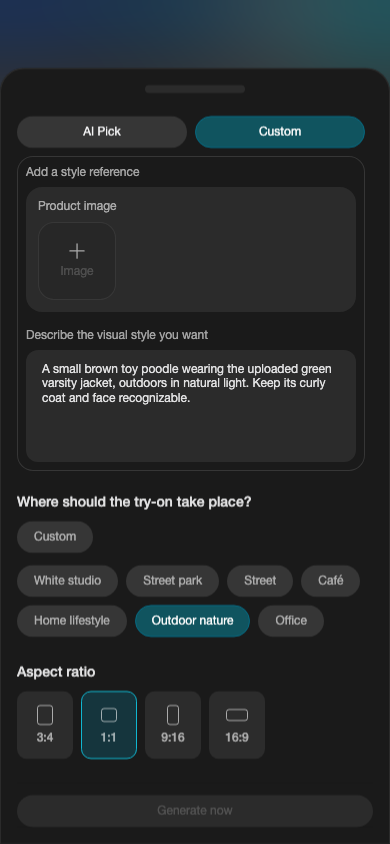
These are screenshots of the live entry form. The example carousel in the form shows people, not a pet result. The sample text below was entered for illustration only; no image was generated for these screenshots.
1. Open Ima Studio and find Model Fitting
Use the button in this article. It opens the Model Fitting form directly. The clothing image field is required; the model choice, scene, and aspect ratio are underneath.
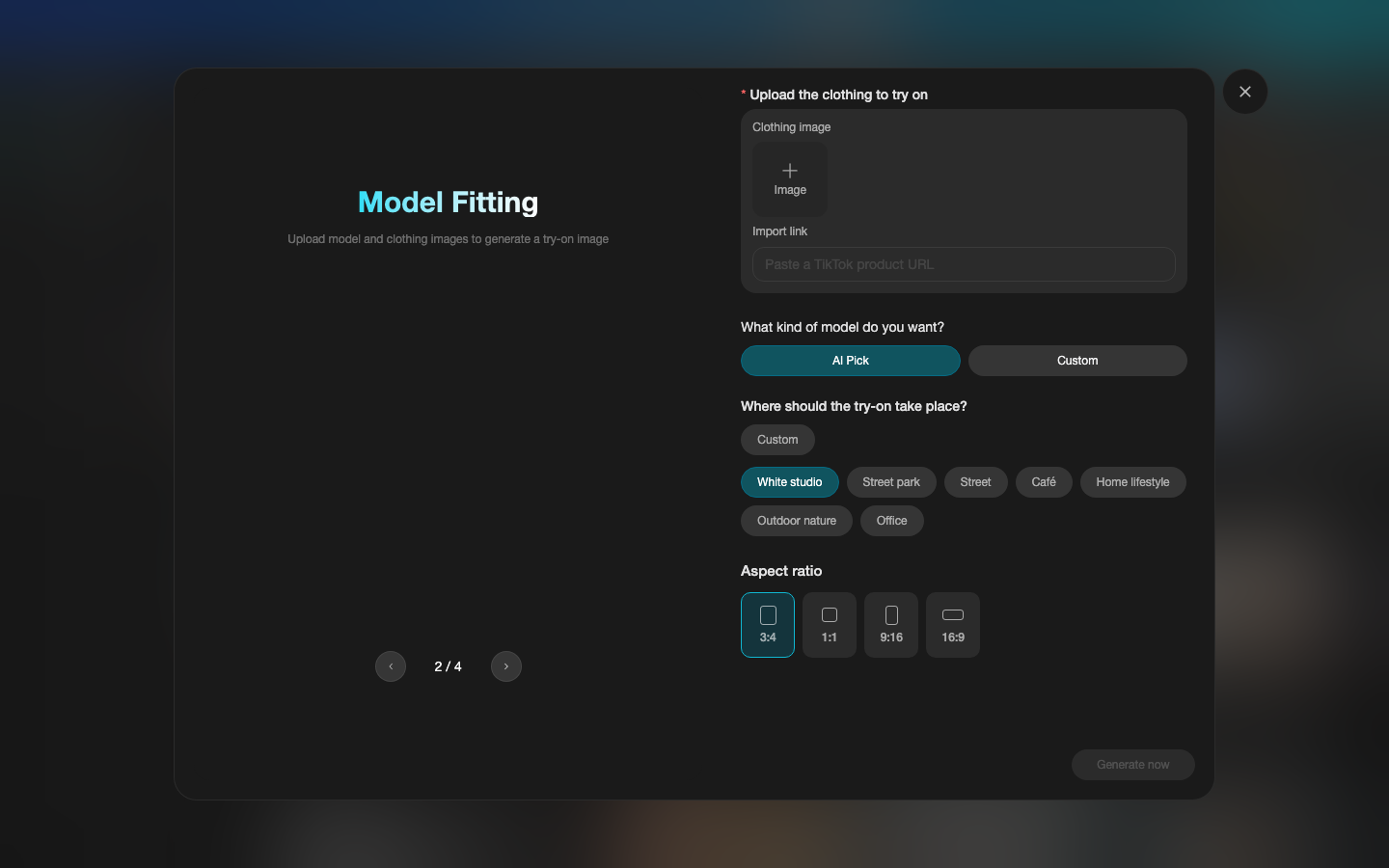
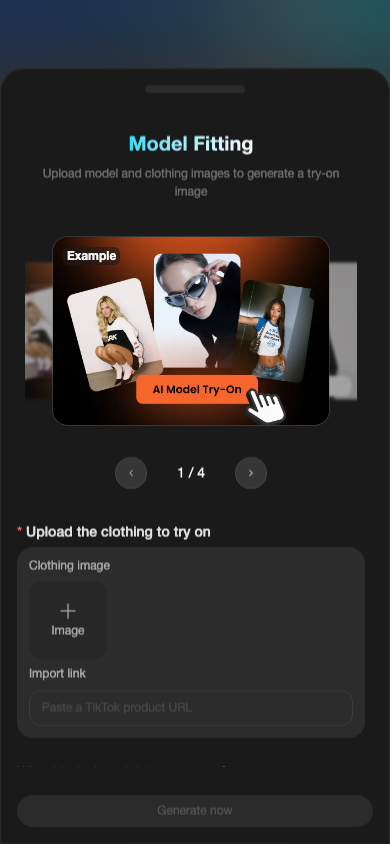
2. Add one clear clothing photo
Under “Upload the clothing to try on,” press “Add Image” for a photo of the actual pet garment. Show the full collar, closures, armholes, print, and hem. A hanger or flat-lay photo is fine if those details are visible.
The “Generate now” button stays gray in these screenshots because no garment photo was uploaded during capture.
3. Describe your pet and choose the scene
Choose “Custom” to reveal a reference-image slot and a visual-style description box. The slot is currently labelled “Product image”; if you add your pet photo there as a visual reference, check the generated result against the original rather than assuming exact identity preservation. In the text box, name the pet, the garment, and the look you want.
Then choose a scene such as “Outdoor nature” and an aspect ratio such as 1:1. The screenshot shows an example description; it was not submitted.
4. Generate, inspect, and refine
When the required inputs are ready, follow the form to generate one image. Compare your pet’s face and coat with the pet photo and the garment’s color, print, and cut with the clothing photo. If either changes, revise the request before sharing the result.
Want to see verified pet outputs before you start? Read our dog and cat clothing photo examples, then return to Model Fitting with your own photos.
Before you share or shop
AI can help you visualize a look, but it cannot confirm whether a real garment fits, feels comfortable, or is safe for your pet. Check the maker’s size chart and your pet’s measurements before buying clothing.
Tentang Penulis