
Explore Top Seedance 2.0 Creations From Ima Studio Community
Browse standout community generations made with Seedance 2.0. Click any card to view the prompt and reuse it instantly in Ima Studio.


How to Use Ima Studio's Seedance 2.0 AI Video Generator
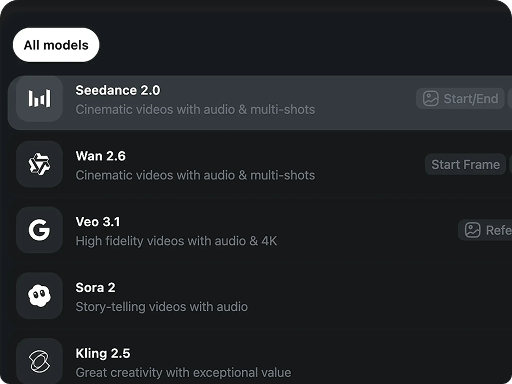 Step 1Choose the Seedance 2.0 model
Open Ima Studio's AI Video Generator and choose Seedance 2.0, Seedance 2.0 Mini for faster drafts, or Seedance 2.0 4K for sharper final output.
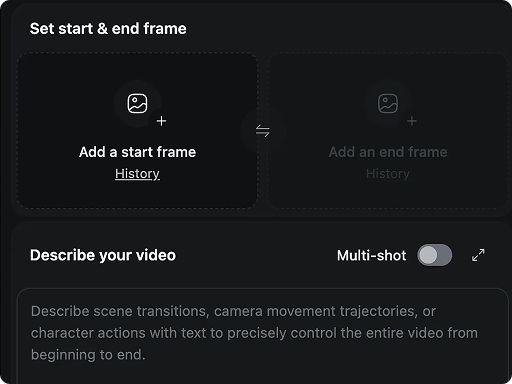 Step 2Upload your inputs
Add text, images, video clips, and/or audio. For more control, you can mix up to 12 reference files (up to 9 images, 3 videos, and 3 audio).
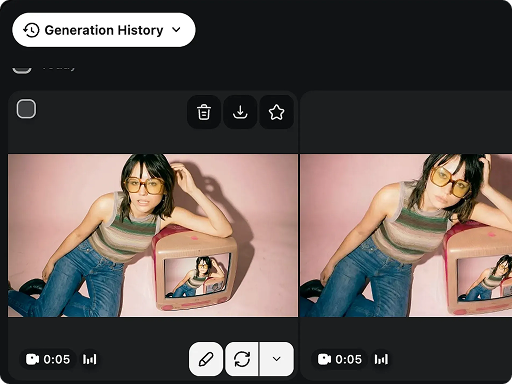 Step 3Generate and refine
Click Generate, review the result, then adjust the prompt or swap references to lock in the exact motion, camera style, and overall look.
An End-to-End AI Video Generator: Create Videos Without Patchwork Editing
Multimodal AI Video Generator: Text + Image + Video + Audio in One Prompt
Bring everything into one prompt: text, images, video clips, and audio. Seedance 2.0 can treat any asset as the hero or as a reference for camera moves, motion, VFX style, character look, scene layout, and sound. For tighter control, you can mix up to 12 reference files in a single prompt.
Physics-Aware AI Video Generator: More Realistic Motion and Lighting
Big camera moves used to be a hardware privilege. With Seedance 2.0, physical limits become controllable motion powered by a physics-aware understanding of 3D space. As the camera moves, the scene holds together: background parallax stays true, and lighting changes feel natural.
Lip Sync AI for Talking Videos: Dialogue That Matches the Moment
Seedance 2.0 is built for lip sync AI and audio-visual sync in talking videos, so dialogue timing and mouth movement stay aligned to the moment. Speech, actions, and sound cues feel like they belong in the same shot, not layered on afterward.
AI Storytelling Video Generator: One Prompt, Multiple Coherent Shots
This AI storytelling video generator does not just generate clips - it directs scenes. With one prompt, Seedance 2.0 creates connected shots that know when to push in for emotion and when to pull back for clarity. Cuts feel motivated, not accidental.
Consistent Characters in AI Video: Stable Identity Across Scenes
Seedance 2.0 is built for character consistency and style consistency, keeping faces, outfits, product details, and scene look stable across multiple shots. That means fewer sudden changes in lighting, framing, or visual design.
Reference-to-Video: Recreate Pacing, Camera Moves & Transitions
Want the cut of a trailer, the polish of an ad, or a clever transition without rebuilding it shot by shot? Seedance 2.0 lets you create via video-to-video references, mirroring the timing, camera language, and edit structure from your assets.
Everyone's a Director Now: Seedance 2.0 for Creators, Brands, and Storytellers
From character replacement and manga-style motion to video extension, selective edits, product demos, and synced voice lip sync, Seedance 2.0 helps turn references and prompts into directed video workflows.
01
Multi-Character AI Video: Make Two Characters Fight or Interact in One Scene
Want the same shot, same motion, same vibe - just a different character? Seedance 2.0 makes video-to-video character replacement simple: keep the original camera and pacing, swap in your new subject. Point to your assets in plain English and generate a new version that still feels like the original edit.
02
Manga to Anime Video: Turn Comic Panels into Animated Clips
Turn a static manga panel into an anime-style clip in seconds. Upload comic panels and Seedance 2.0 can add camera push-ins, pans, scene transitions, hair sway, speed lines, dust, and impact beats while keeping the original line art feel.
03
AI Video Extension: Continue a Video from the Last Frame
Extend a clip without starting over. Upload your video and Seedance 2.0 can continue from the last frame, keeping the same character, scene, and camera feel.
04
Local AI Video Edit: Change One Element Without Re-Generating the Whole Clip
Stop restarting from frame one just to fix one thing. Seedance 2.0 enables selective AI video editing, so you can replace a person, clean up a distracting object, or update a product detail without rebuilding the whole scene.
05
Product Photo to Video: Create a Product Demo Video Without Filming
Upload product photos and let Seedance 2.0 create a short showcase with clean pacing and close-ups. It can start with a hero reveal, cut to detail shots, then finish with a confident closing frame.
06
AI Lip Sync Video: Make a Character Talk with Synced Voice
Seedance 2.0 makes synced voice lip sync feel natural, so your character speaks with believable timing and expression. Drop in audio, pick a character, and steer the performance with notes like calm, excited, or deadpan.
Why Choose Seedance 2.0 AI Video Generator on Ima Studio?
Keep exploring ideas with Unlimited Seedance 2.0, then choose the right mode for the job: Mini for fast variants, Seedance 2.0 for balanced quality and control, and 4K when final clarity matters.
Seedance 2.0 Mini for Faster Drafts
Use Seedance 2.0 Mini when you need quick creative tests, prompt drafts, or fast previews. It helps you move from idea to first result faster before refining the final video with the full Seedance 2.0 workflow.
Fine-Grained Creative Direction
You can direct the output with more precise language: pacing, emotion, performance intensity, and cinematic atmosphere. The result feels like you are in control of the piece, instead of the model pulling you off track.
Seedance 2.0 4K for Sharper Output
For product showcases, cinematic scenes, ads, and social clips that need more detail, Seedance 2.0 4K gives you sharper, higher-resolution video output with stronger visual readability.
Better Style Discipline
When you want a specific aesthetic, Seedance 2.0 is better at holding the style boundary. It is less likely to drift into a different visual language, which makes it a strong fit for series content and brand visuals.
3Seedance modes
12Reference files
4KSharper output
FAQs About Ima Studio's Seedance 2.0 AI Video Generator
Explore more AI tools and creative examples
Explore Top Seedance 2.0 Creations
Browse standout community generations made with Seedance 2.0, then create your own version in Ima Studio.