



Nano Banana 2.1 is Google’s updated image generation and editing model, and it’s now available on Ima Studio. If you already use Nano Banana 2, the useful question is whether to retry a task that previously failed: a label with broken lettering, a background edit that changed the product, or a sequence of revisions that gradually changed the person.
Google reports improvements in text rendering, instruction following, visual quality, and character consistency across edits. Those are good reasons to revisit a difficult image. They don’t mean every existing image needs to be regenerated.
Try Image Editing on Ima Studio
What is Nano Banana 2.1?
Nano Banana 2.1 updates Nano Banana 2, the model also known as Gemini 3.1 Flash Image. Its Google model identifier is gemini-nano-banana-2.1. Nano Banana Pro is a separate model, so a result or tutorial labeled Pro shouldn’t be treated as evidence of how 2.1 performs.
For creators, that distinction matters when following an older tutorial. The reference image, prompt, and selected model all affect what you get. Start with our Nano Banana workflow guide if you need the general workflow, then select Nano Banana 2.1 for this version.
What changed in Nano Banana 2.1?
Googleの official model documentation identifies the following update areas. The practical checks in the right column are a way to evaluate your own result, rather than a claim that a particular output has passed.
| Update area | What Google reports | What to inspect in your own image |
|---|---|---|
| Text and layouts | Better text rendering and infographic layout accuracy | Read every word; inspect spacing, hierarchy, and small labels |
| Image editing | Better adherence to instructions | Check that the requested edit happened and protected details stayed intact |
| Repeated edits | Better character consistency across multiple turns | Compare the face, hair, clothing, and proportions with the original |
| Output quality | Improvements across 1K, 2K, and 4K; fixes for tiling artifacts in specified wide formats | Inspect at final delivery size, especially repeating textures and wide backgrounds |
The biggest reason to try the update is a specific failure you can recognize. An attractive new image isn’t automatically a better replacement if it changes the product you sell.
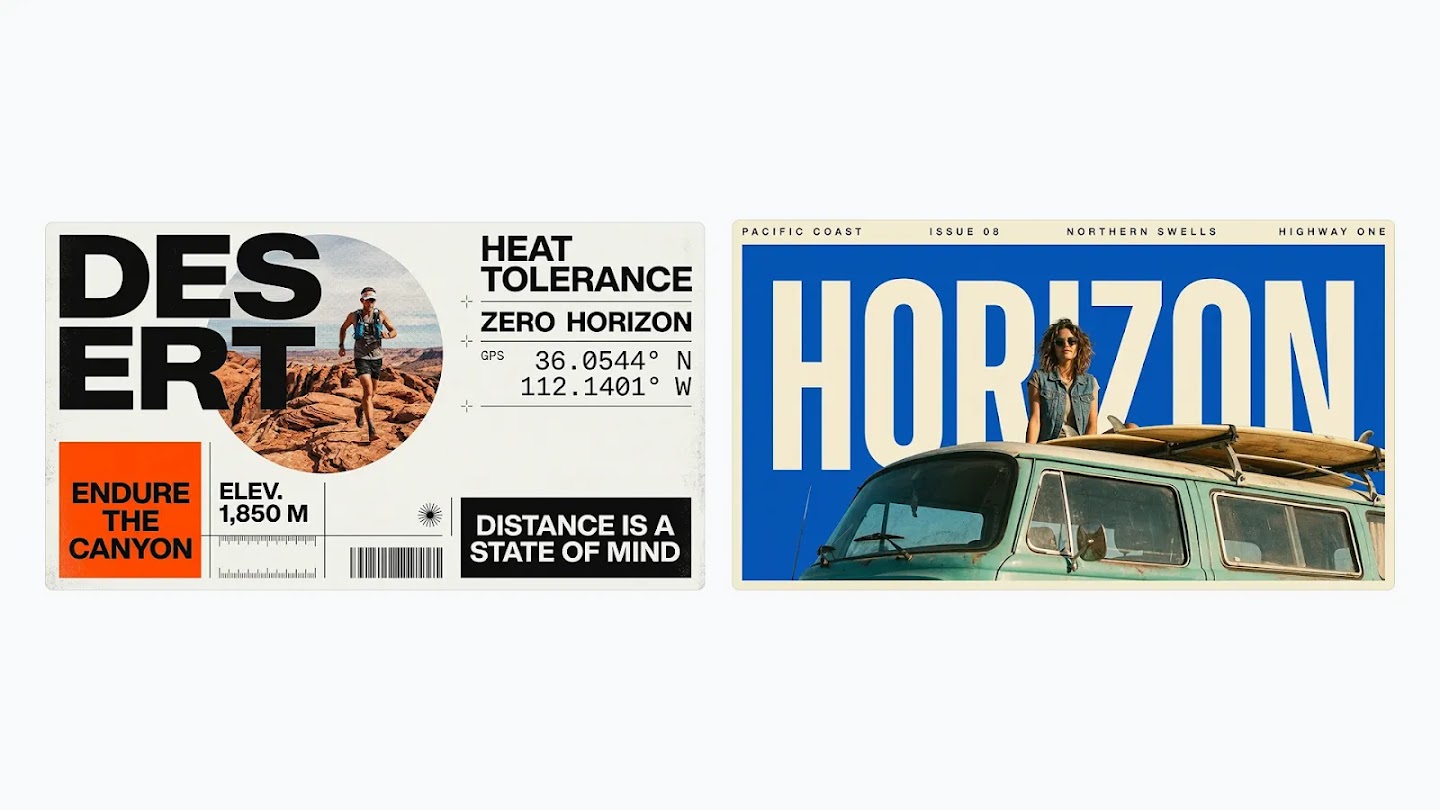
Text that needs to be read
Consider a product visual with a short headline and a price. A result can look finished at thumbnail size while still containing a wrong digit or a malformed letter. Check the actual text before evaluating color and style.
Keep the wording short and quote it exactly in the prompt. Separate the headline from any supporting line, and describe where each belongs. If the image is headed for a live campaign, review the final exported file, including any localized text. Contracts, regulated claims, and long product specifications still need careful human review and accurate typesetting.
Edits that need to preserve the product
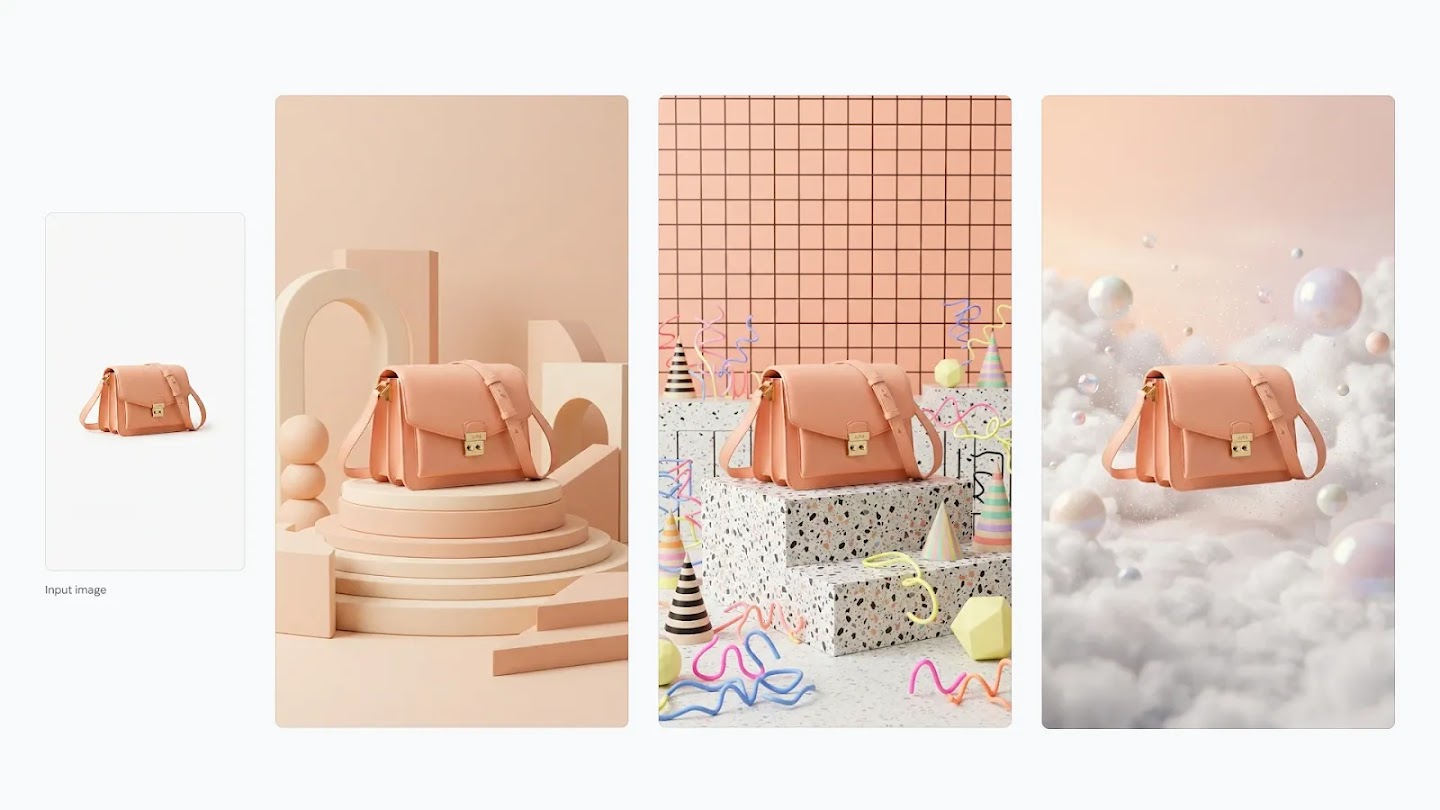
A white-background product photo is useful because it records the item clearly. When you ask for a new setting, protect the parts that define that item: the silhouette, closure, label, handle, material, and color.
Ask for one change first. For example, replace the setting while keeping the camera angle. If you also change lighting, viewpoint, packaging, and styling in the same request, a failure becomes harder to diagnose.
For a closer look at that problem, our guide to controlling what transfers in image edits explains how to separate the source of identity from the source of style. Its examples use a different workflow; the useful principle here is deciding what must remain unchanged before generating.
Which task should you retry first?
Choose an unfinished task where the old result has a visible defect. Keep both the original input and that result. You’ll have a more useful comparison than two unrelated images made from different prompts.
| Your previous problem | First retry | 合格条件 |
|---|---|---|
| A headline contained errors | Generate the same short wording in the same layout | Every character is correct and readable at the intended size |
| An edit changed the product | Change only the background using the original product photo | Shape, label, material, and color still match the source |
| A person drifted across revisions | Make one edit, then compare with the original before continuing | Identity and protected clothing details remain recognizable |
| A wide image showed repeating patches | Retry the required wide format and inspect the full export | No obvious repeating seams or unwanted tile patterns |
These are suggested checks, not measured success rates. Save unsuccessful attempts too. Otherwise, you can’t tell whether a good result was repeatable or simply the best of several tries.
A controlled Nano Banana 2 vs 2.1 check
To make the update concrete, I ran three small image-to-image checks in IMA Test. Both models received the same unbranded amber dropper bottle, the same prompt for each group, and the same 16:9 / 1K output setting. The images below are the actual outputs from those six runs.
This is a small editorial sample, not a benchmark. It shows what changed in these prompts, not what every task will do.
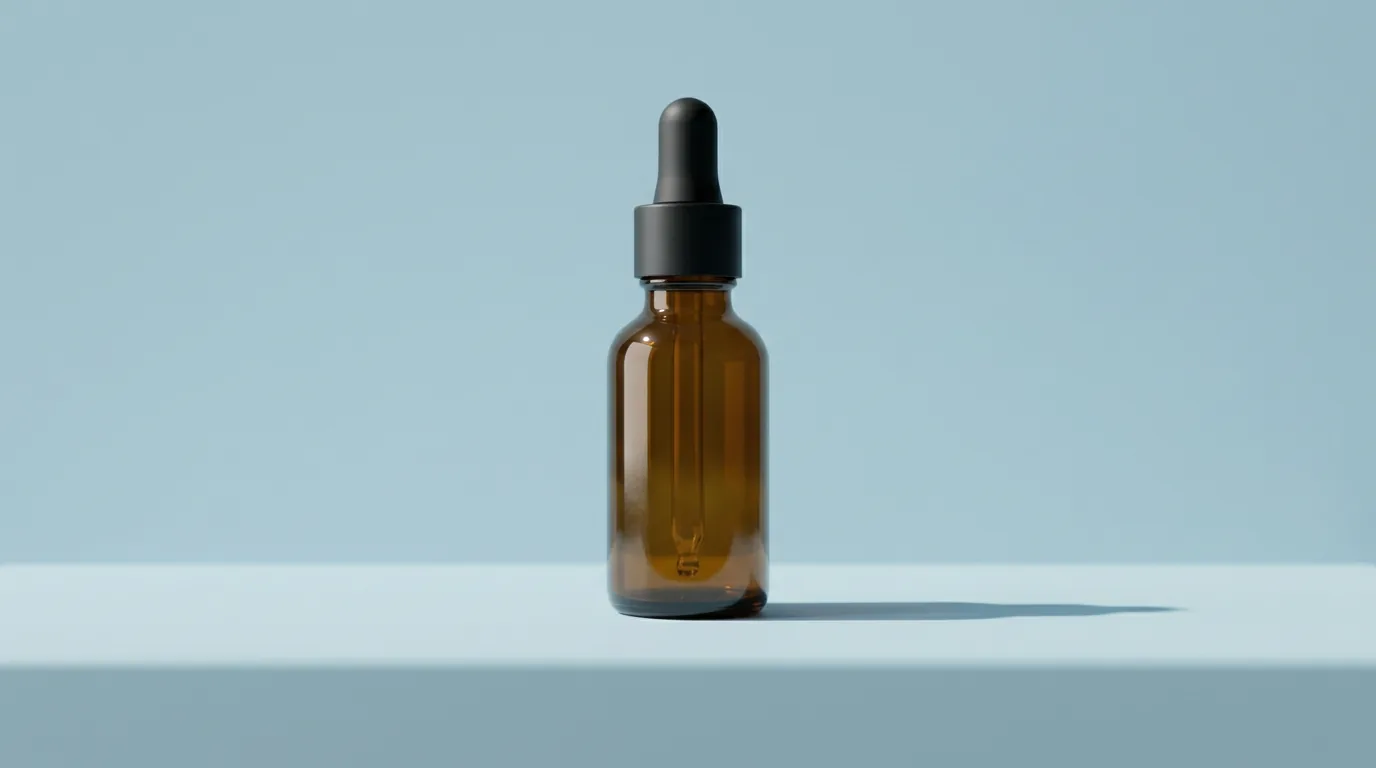
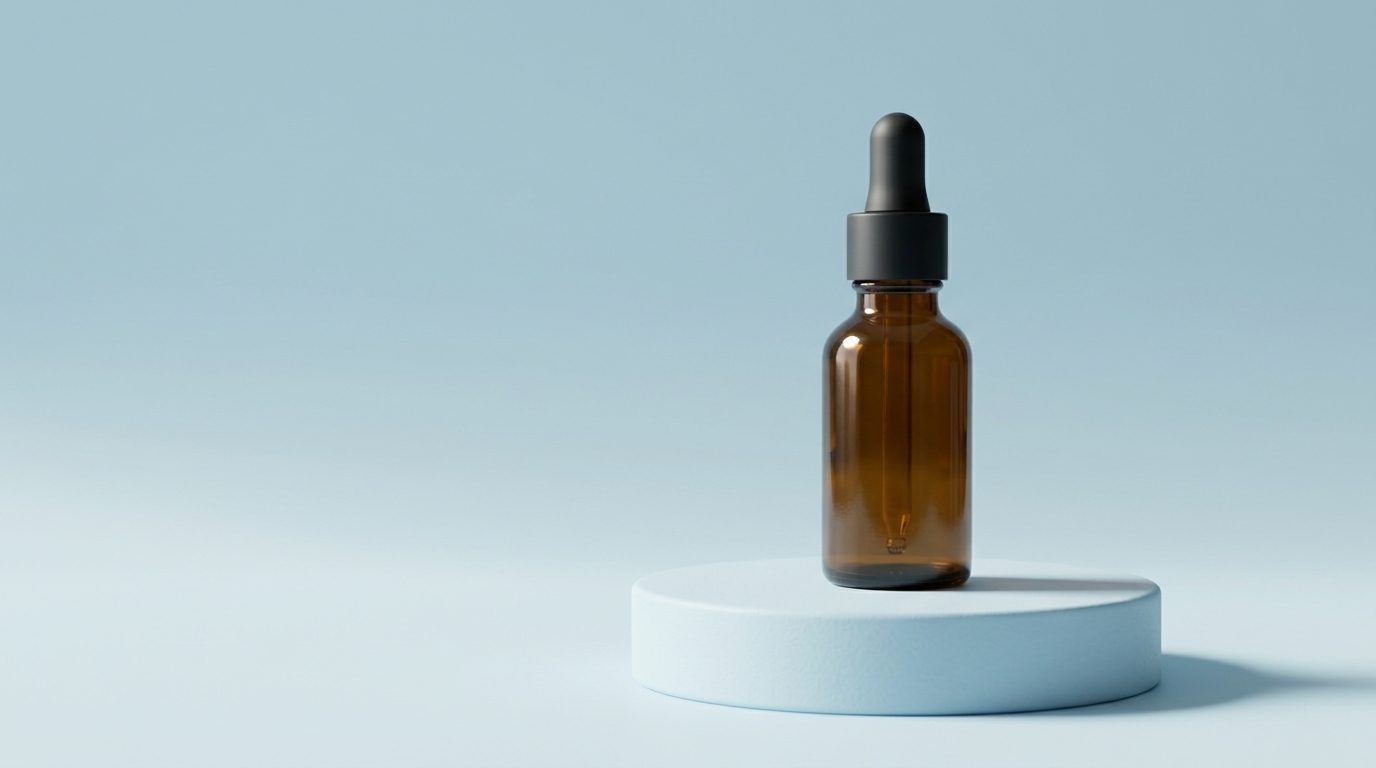
The scene pair is useful for composition review. Both outputs keep the bottle recognizable. The 2.1 result puts the bottle on a clean round pedestal, while the 2.0 result uses a flatter tabletop scene. That is an observation from this run, not a rule that 2.1 always chooses a pedestal.
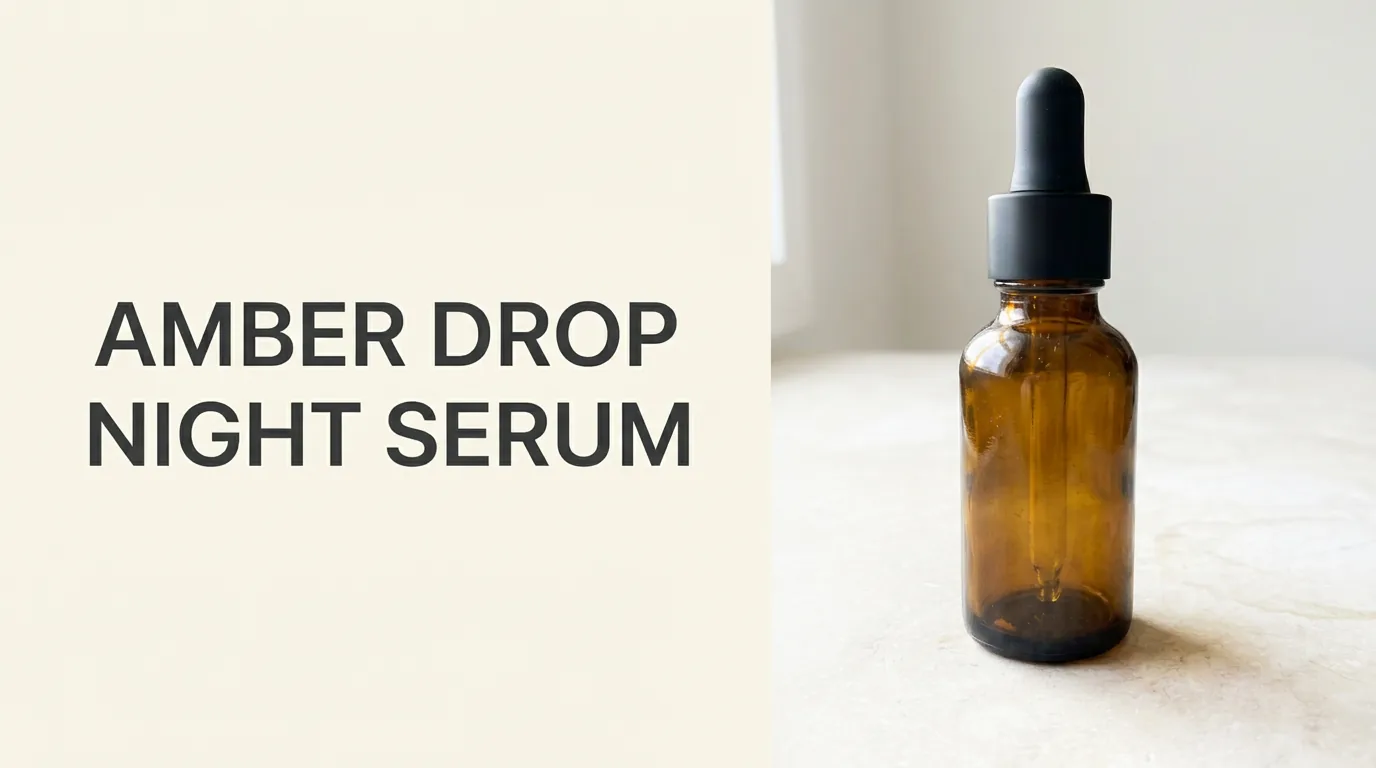
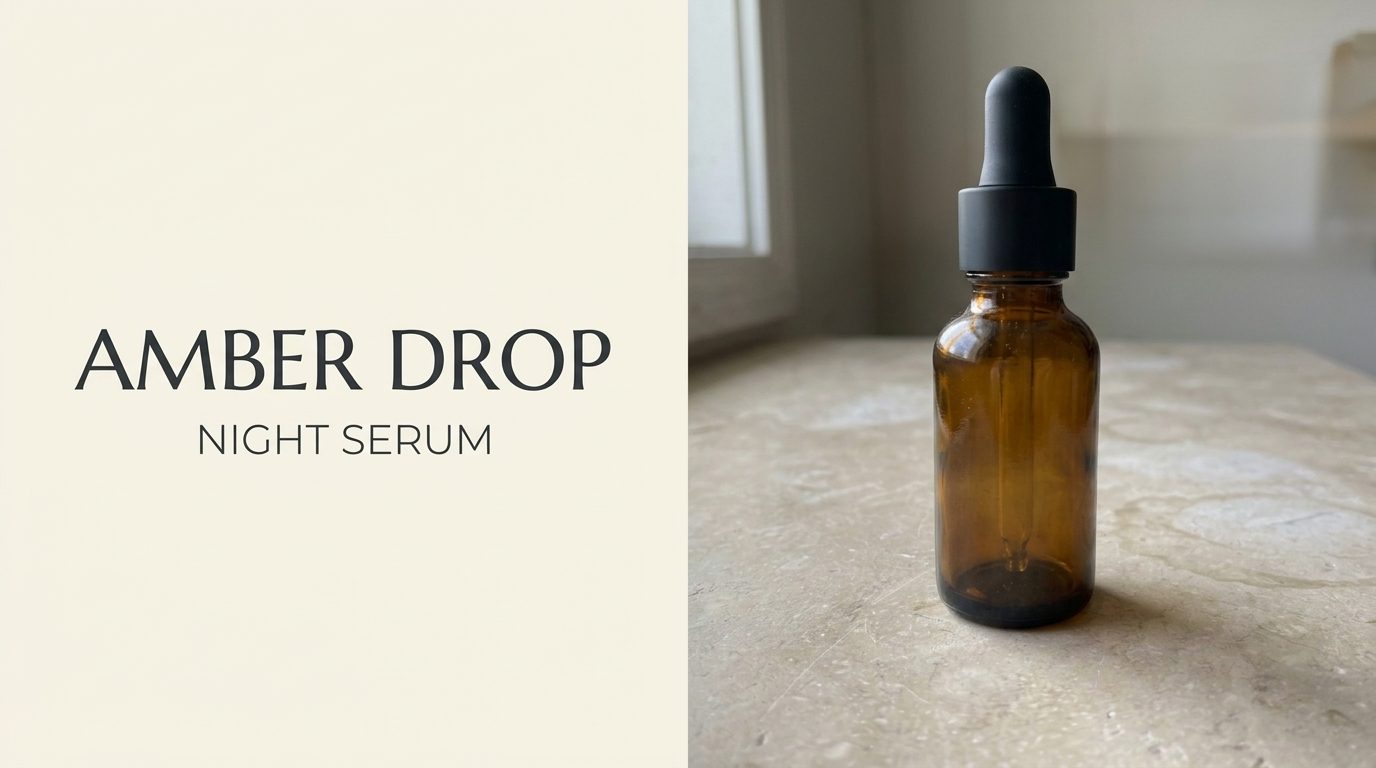
The text pair passed the simple visual check: AMBER DROP and NIGHT SERUM are readable in both images. The typeface and line hierarchy differ, so a production team should still choose the version that fits the brand rather than assuming the newer model is automatically the right art director.
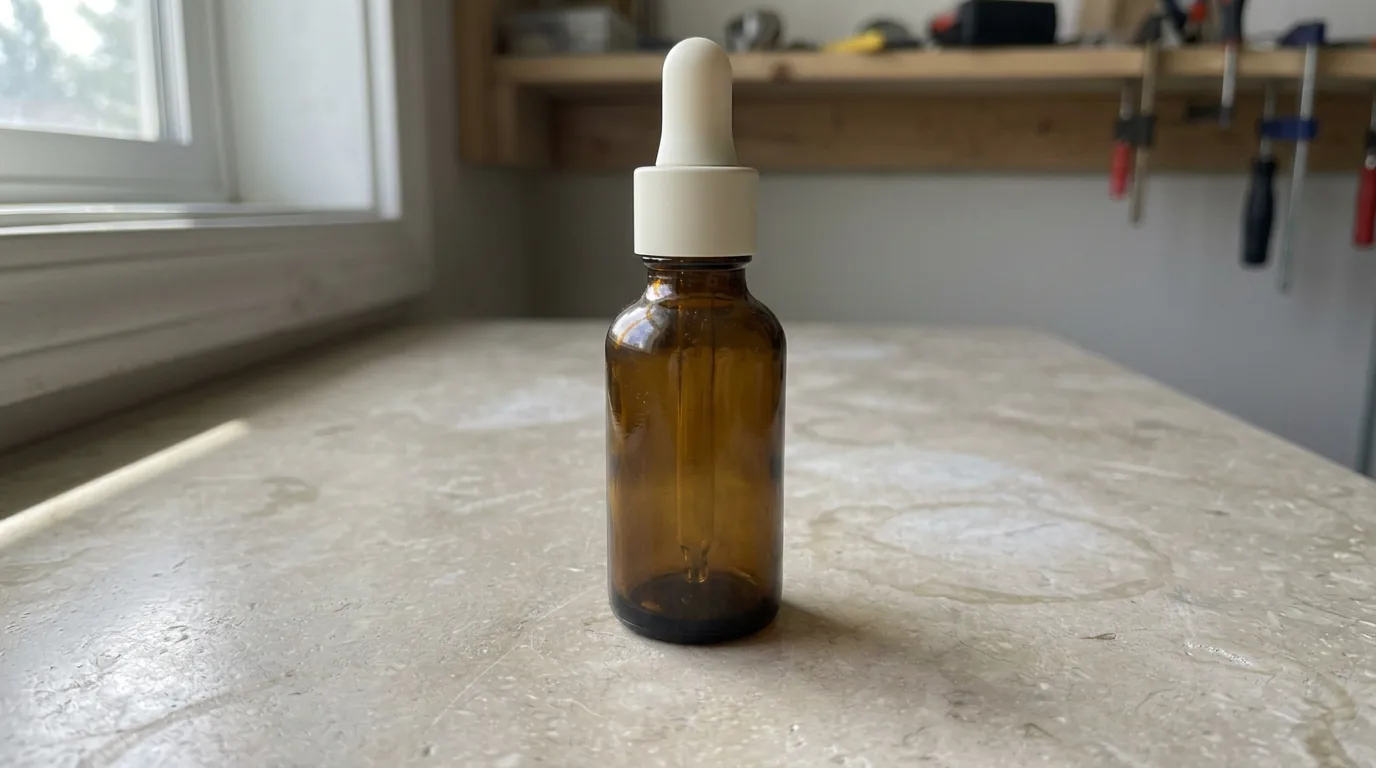
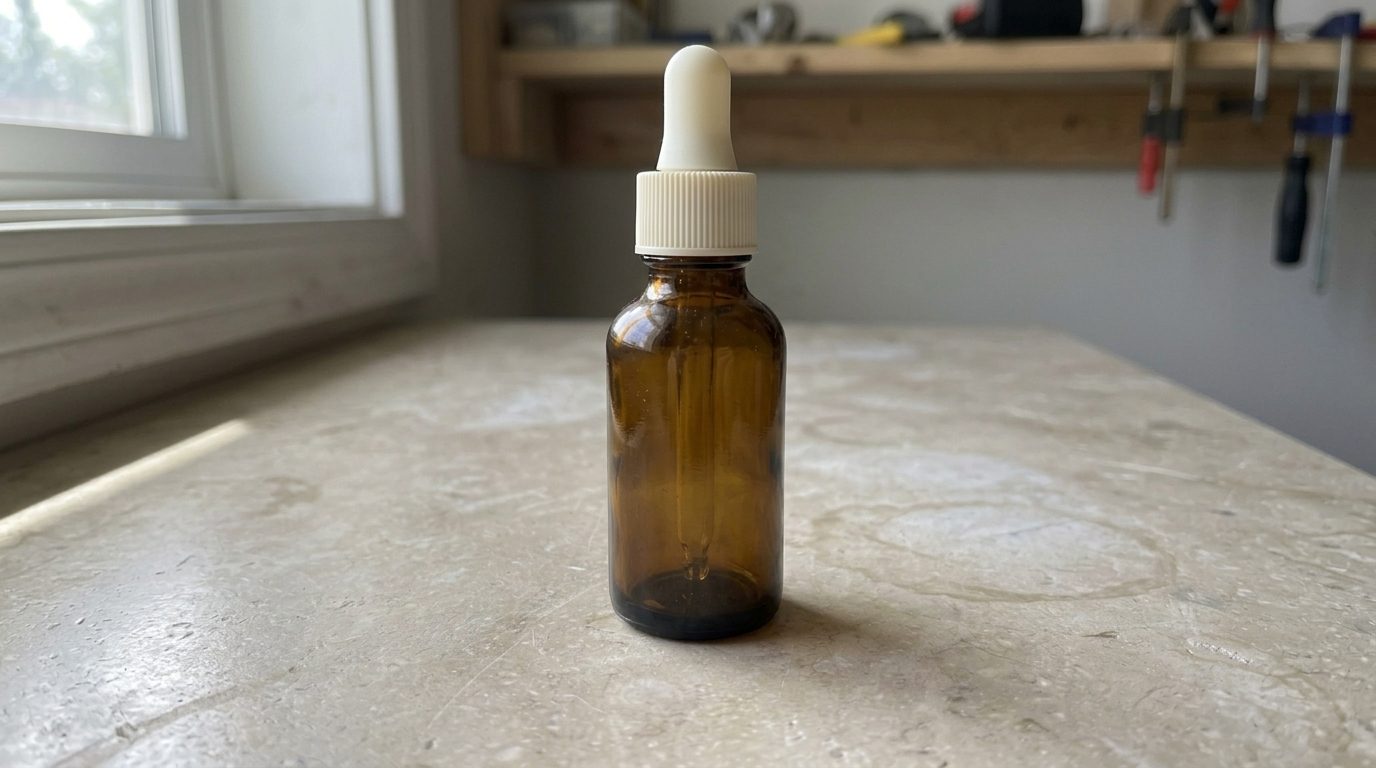
Both models completed the requested cap-color edit in this sample. The 2.1 cap has more visible ribbing, while the 2.0 cap is smoother. That difference matters if the changed part is a sellable detail, so inspect the edited component at full size before approving it.
A practical first edit on Ima Studio
Open the image workspace, choose Nano Banana 2.1, and upload the original reference. Use a prompt that names the change and the details to preserve. This example is a starting prompt, not a tested result:
Use the uploaded product photo as the reference.
Place the product on a matte light-grey tabletop against a plain pale-blue background.
Keep the product shape, proportions, material, color, and label text unchanged.
Preserve the original camera angle and keep the full product visible.
Change only the setting. Do not add props, extra logos, or new lettering.
Inspect the product before requesting another revision. If the identity has changed, return to the original reference and correct that problem first. Building on a wrong intermediate result carries the error into the next image.
For text-heavy work, review the exported image at the size where someone will read it. For product work, compare it beside the original photograph. Higher resolution gives you more pixels to inspect; it doesn’t guarantee the content is correct.
Should you switch every workflow to Nano Banana 2.1?
Start with the task that currently needs the most repair. If your existing Nano Banana 2 workflow already produces an approved image, keep that result and use 2.1 for the next job that benefits from a retry.
The comparison should include every attempt needed to reach an acceptable image and any cleanup afterward. We aren’t reporting a measured speed, cost, or quality advantage here. The point is to check whether the update fixes your particular bottleneck.
Nano Banana 2.1 is available on Ima Studio. Select it in the image workspace, bring one reference you know well, and judge one controlled edit before expanding the job. For the wider model lineup, see our AIモデルガイド.
Create Your Next Product Image
著者について