





If you have tested GPT Image 2 already, you have probably noticed something right away: it can do a lot more than older image models, but it still performs best when the prompt is clear. That is why a solid GPT Image 2 prompt guide matters. Better prompts do not just give you prettier images. They give you outputs that are more usable, more on-brand, and much closer to what you actually wanted in the first place.
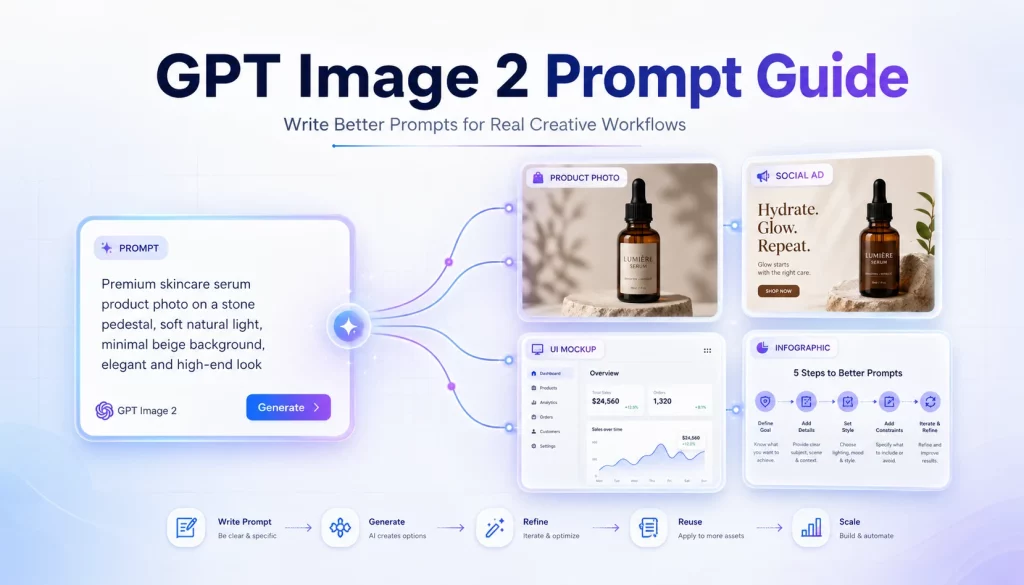
The good news is that GPT Image 2 is much easier to work with than many earlier image generators. It is stronger at text rendering, better at following detailed instructions, more reliable for edits, and more capable across structured visuals like infographics, UI mockups, and ad creatives. But that does not mean you can type one vague sentence and expect perfect results every time.
This guide breaks down how to write stronger prompts for GPT Image 2, what prompt structure works best, how to handle text and edits, and which patterns are most useful for business and creative workflows. I also included 35 ready-to-use prompts you can adapt for product shots, ads, social graphics, infographics, UI screens, and more.
If you are building AI-powered creative workflows with OpenClaw or content pipelines inside IMA Studio, this is the kind of prompting framework that turns random image generation into something repeatable and useful.
Why prompting matters more with GPT Image 2
A lot of people think better models mean prompting matters less. In practice, the opposite is often true. A more capable model can follow more instructions, preserve more constraints, and respond to more nuance. That means the quality of your prompt has a bigger effect on the final result.
With GPT Image 2, the gap between a weak prompt and a strong prompt is huge. A vague prompt like “make a skincare ad” may produce something attractive but generic. A more structured prompt can tell the model exactly what kind of ad you want, where the product should sit, what the label says, what the lighting should feel like, what text must appear, and what should not change.
So if you want the short version, here it is: GPT Image 2 works best when you prompt it like a creative brief, not a casual idea dump.
The basic GPT Image 2 prompt formula
The easiest way to write a good prompt is to use a repeatable structure. You do not need to make it overly complicated. In most cases, this six-part framework is enough:
- Scene or background — where the image takes place
- Subject — who or what the main focus is
- Key details — materials, colors, textures, styling, brand cues
- Composition — framing, angle, crop, placement
- Lighting and mood — soft, cinematic, editorial, bright, moody, etc.
- Constraints — what to preserve, what to avoid, what text must appear
Here is a simple example:
A ceramic espresso cup on a worn wooden café table. Close-up composition. Warm morning light coming from the left. Soft shallow depth of field. Photorealistic. No text, no hands, no extra objects in frame.
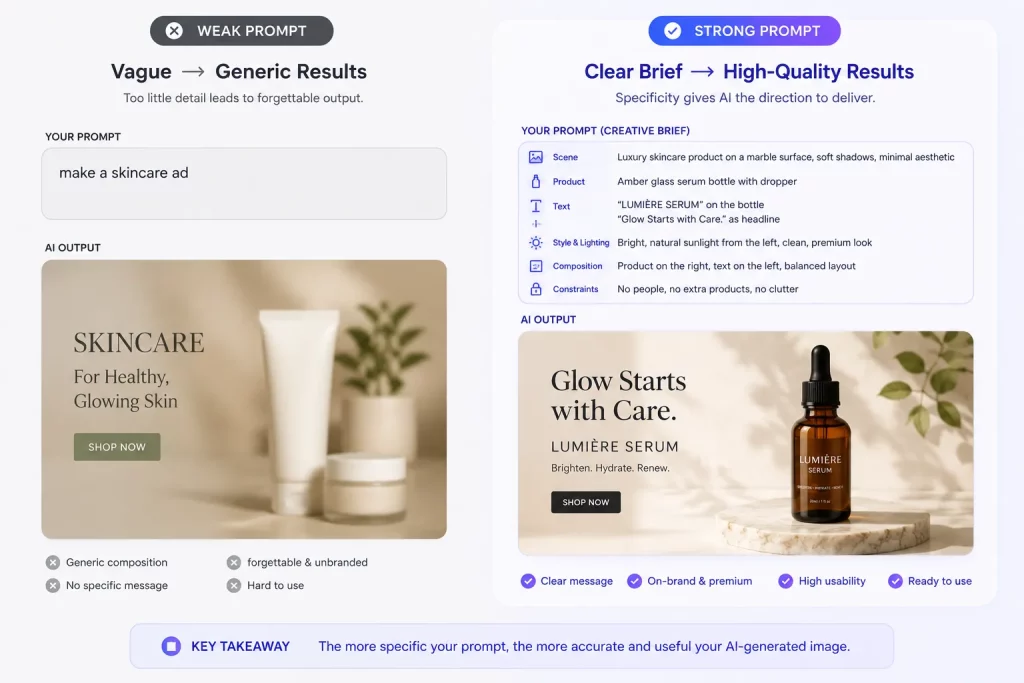
That prompt works because it gives the model enough to anchor the output. It says where the scene is, what the main subject is, how it should be framed, what the light should feel like, and what to avoid.
How to make prompts more precise
Once you understand the basic structure, the next step is precision. GPT Image 2 is strong enough that specific details actually pay off.
1. Be specific about the subject
Do not say “a woman holding a product” if what you really mean is “a woman in her early 30s with curly dark hair, wearing a cream knit sweater, holding an amber skincare dropper bottle at chest height.” The more defined the subject is, the less guessing the model has to do.
2. Use real visual language
If you want a photo-like image, write like a photographer. Mention the shot type, the point of view, the lens feel, and the lighting style. If you want a clean ad, write like a designer. Mention spacing, alignment, headline placement, typography style, and negative space.
3. Put exact text in quotes
This is one of the most important GPT Image 2 tips. If text accuracy matters, put the literal wording in quotation marks. If the text is unusual, spell it carefully. If placement matters, say exactly where it should go.
For example:
The label reads “LUMIÈRE SERUM” in thin white serif text, centered on the bottle, fully legible, no extra words, no substitutions.
4. Treat edits differently from generation
If you are editing an existing image, the most important part of the prompt is often the preservation rule. You need to say what should stay exactly the same.
A strong edit prompt usually sounds like this:
Change only the background to a soft beige studio backdrop. Keep the bottle shape, label text, lighting direction, camera angle, and product size exactly the same.
5. Do not overload the first prompt
This is a common mistake. People try to solve everything in one giant prompt. GPT Image 2 can handle a lot, but workflows are still easier when you iterate. Start with composition and subject. Then refine the mood. Then refine text. Then refine specific details.
Best prompt patterns for common GPT Image 2 tasks
Different tasks need different prompt styles. A product shot prompt should not sound like a UI prompt. A logo prompt should not sound like an infographic prompt. Here is how to think about the main categories.
Photorealistic prompts
For photorealism, use camera language, texture cues, and real-world imperfections. Mention skin texture, fabric wear, subtle shadows, shallow depth of field, and natural lighting if you want the output to feel believable rather than overly polished.
Product prompts
For product images, be explicit about the product position, the surface, the lighting setup, label readability, and whether the image should feel ecommerce-clean or editorial-premium.
Text-heavy prompts
For posters, ads, social graphics, and package labels, use exact wording, specify font type or tone, and mention hierarchy. If the headline should be large and centered, say so. If the CTA belongs in the lower third, say that too.
Infographic prompts
For diagrams and explainers, clarity matters more than style. Mention the title, the number of steps, the layout direction, the icon style, and the audience. If it is for customers, executives, or school students, include that context.
UI prompts
For interface screens, describe the layout, the sections, the overall product type, and whether the result should feel like a finished app or a rough concept. Words like “looks like a shipped product, not a wireframe” can help.
35 ready-to-use GPT Image 2 prompts
Below are sample prompts you can adapt directly. Replace bracketed elements with your own product, brand, or campaign details.
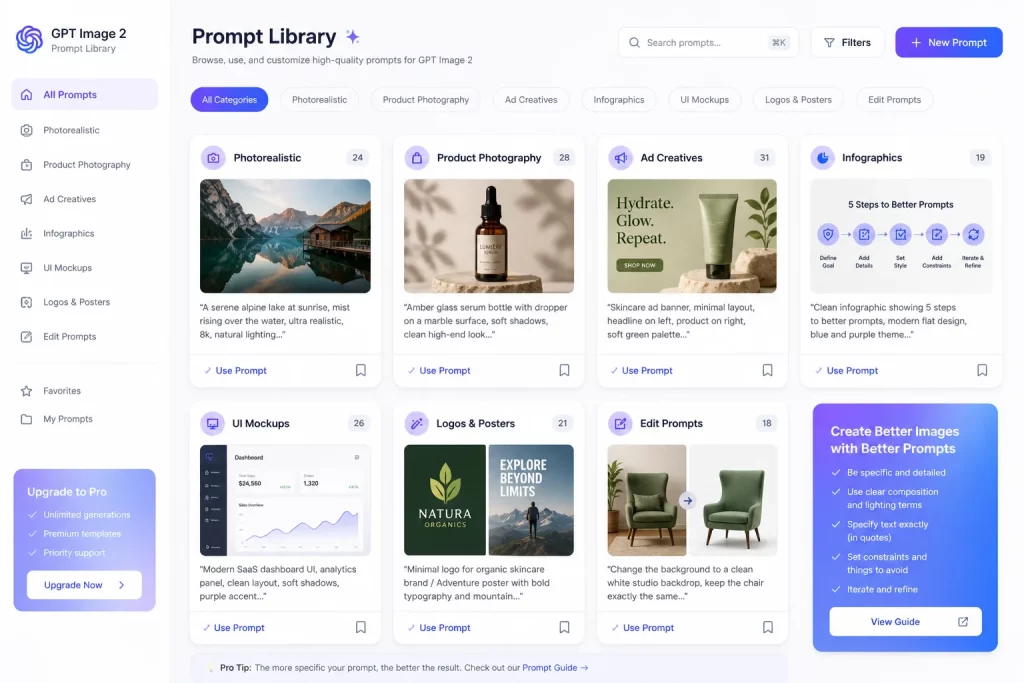
1) Photorealistic images
- A woman in her late 20s sitting by a rain-streaked café window, reading a paperback book. Soft ambient light, shallow depth of field, candid and unposed, photorealistic, 35mm film feel.
- A street food vendor at dusk in a busy Bangkok market. Warm lantern light, steam rising from a wok, surrounding crowd slightly blurred, photorealistic, documentary style.
- Close-up of weathered hands kneading bread dough on a floured wooden surface. Warm kitchen light, visible flour texture, realistic skin detail, photorealistic.
- An elderly sailor standing on a small fishing boat, adjusting a net while a dog sits nearby. Soft coastal daylight, medium close-up, subtle film grain, honest and unposed, photorealistic.
- A realistic outdoor crowd scene in Bethel, New York on August 16, 1969. Period-accurate clothing and staging, natural summer light, photorealistic.
2) Product photography and mockups
- [Perfume bottle] on a white marble surface with dried rose petals, soft overhead diffused light, luxury cosmetics editorial style, subtle contact shadow, photorealistic.
- [Supplement bottle] centered on a clean white background, sharp label text, light shadow at the base, no fringing, ecommerce product photography.
- [Coffee bag] standing upright on raw linen cloth with scattered coffee beans, warm natural side lighting, premium artisan feel, photorealistic.
- [Wireless headphones] resting on a concrete surface, low-angle shot, moody blue studio lighting, premium tech product aesthetic, photorealistic.
- Editorial product shot of [skincare serum bottle] on polished black marble. Wide centered composition. Hard directional light from upper-right. The label reads “LUMIÈRE SERUM” in thin white serif text, fully legible. Background deep charcoal. No props.
3) Ad creatives and social campaigns
- A lifestyle ad for a premium water bottle brand. A woman hiking on a scenic mountain trail, holding the [water bottle] naturally. Golden hour light. Tagline “BUILT FOR THE LONG WAY.” in bold white sans-serif at the lower third. Photorealistic.
- A square social media ad for a skincare brand. Single [product] centered on a pale blush background. Minimalist editorial style. Text reads “YOUR SKIN. SIMPLIFIED.” centered below in black thin sans-serif.
- A bold ad creative for a fitness app. Dark background, silhouette of a runner mid-stride backlit in orange. Headline “START TODAY.” large high-contrast white text at the top center.
- A summer sale poster with a bright coral background. Large centered headline “SUMMER SALE” in bold white sans-serif. Below: “UP TO 50% OFF — ENDS JULY 31.” Minimal, clean, high contrast.
- A Facebook ad creative for a meal delivery service. Overhead flat-lay of a [meal] in a branded box on a marble countertop. Natural light. Text “DINNER. DONE.” in bold white at bottom-left. Photorealistic.
4) Infographics and explainers
- A clean flat infographic titled “How Solar Panels Work” with five labeled steps in a horizontal flow. White background, consistent icon style, readable sans-serif labels, ample whitespace.
- A circular timeline infographic titled “The History of the Internet” from 1969 to 2024, six milestones, blue and white color scheme, clean layout, clear labels.
- An educational diagram showing the layers of the Earth — crust, mantle, outer core, inner core — with arrows, labels, and color coding. Designed for middle school students.
- A step-by-step instructional visual titled “How to Make Cold Brew Coffee” with five illustrated steps, short captions, warm earth tones, white background, clear sans-serif typography.
- A detailed infographic showing how an automatic coffee machine works, including bean hopper, grinder, water tank, boiler, brew unit, and cup output. Technical but easy to understand, clean structured layout.
5) UI mockups and product screens
- A mobile app homescreen for a personal finance app called “Luma.” Balance card at top, spending categories grid, recent transactions list. Clean white background, blue and purple accents, shown inside an iPhone frame.
- A SaaS dashboard for a project management tool. Left sidebar navigation, three kanban columns in the main area, light mode, clean spacing, looks like a shipped product, not a wireframe.
- A desktop ecommerce analytics dashboard. KPI cards for revenue, orders, and conversion rate, a line chart below, top-products table on the right, modern SaaS aesthetic.
- A meditation app onboarding screen. Dark navy full-bleed background with a soft aurora gradient. Large centered text: “How are you feeling today?” with five mood selector buttons below.
- A recipe app screen showing a hero food image, ingredients list, star rating, prep time badge, and a prominent “Start Cooking” CTA button. Warm tones, premium mobile UI.
6) Logos, posters, and branded visuals
- A minimal logo for a coffee brand called “ORIN.” Abstract flame or leaf shape forming the letter O. Deep espresso brown. Flat design. Strong negative space. No gradients.
- A geometric fintech logo for “KOVE.” Bold angular letterform. Navy and white only. Clean, scalable, modern, no shadows.
- A dark event poster for a jazz night called “MIDNIGHT SESSION.” Black background with a soft amber spotlight. Large serif headline. Subtext: “EVERY FRIDAY. 9PM. THE GRAND HALL.” Elegant, moody, no extra text.
- A book cover for a novel called “THE QUIET DARK.” Deep navy background with a single candle flame illustration. Title in large white serif type. Author name “E. VALE” below. Literary and minimal.
- A product launch announcement card for a coffee brand. Kraft paper texture background. Centered illustration of a coffee cup. Text reads “INTRODUCING ORIN BLEND NO.7” with the tagline “Roasted for the curious.” Premium artisan aesthetic.
7) Edit prompts and controlled changes
- Change only the background to a warm beige studio backdrop. Keep the bottle shape, label text, camera angle, product size, and lighting direction exactly the same.
- Translate all text in this infographic to Spanish. Do not change the layout, icon positions, colors, hierarchy, or illustration style.
- Replace the flowers shown in the advertisement with red and pink roses. Keep the same ad frames, perspective, typography, and overall composition.
- Change only the jacket color from black to deep green. Keep the same subject, pose, facial expression, background, lighting, and crop.
- Remove the extra object on the table. Preserve the table texture, shadows, product placement, and depth of field exactly as they are.
How to adapt these prompts for real work
The easiest mistake is copying prompts word for word and expecting them to fit every situation. A better way is to treat them as templates.
For a worked example of turning one brief into distinct results, see how Logo Design produces three different logo directions from a single set of inputs.
For example, a product shot template could look like this:
[Product] on [surface or environment]. [Shot type or angle]. [Lighting style]. [Brand or mood cues]. [Text requirements if any]. Photorealistic. [Constraints].
And a social ad template could look like this:
A [format] ad creative for [brand or category]. [Main visual]. [Background]. Headline “[headline text]” in [font style] placed [location]. [Mood or lighting]. No watermarks, no extra text.
When you think in templates, you can scale prompting across a team more easily. That is especially useful if you are routing requests through OpenClaw, creative automations, or repeatable internal workflows.
Common GPT Image 2 prompting mistakes
- Being too vague: prompts like “make this better” or “make a cool ad” leave too much to interpretation.
- Forgetting constraints: if you do not state what must stay the same, the model may change more than you wanted.
- Not specifying text placement: exact wording alone is not enough when hierarchy or alignment matters.
- Overloading one prompt: too many requirements at once can make debugging harder. Iterate instead.
- Ignoring the intended use: say whether the asset is for an ad, infographic, UI screen, or ecommerce listing. That helps set the right mode.
Final thoughts
A strong GPT Image 2 prompt guide is really about one thing: clarity. The clearer your prompt is, the more useful the result becomes. And because GPT Image 2 is stronger than earlier models at text, structure, realism, and edits, that clarity pays off more than ever.
If you only remember one takeaway, make it this: describe the scene, the subject, the details, the composition, the mood, and the constraints. Then iterate in small steps. That simple discipline will get you much better results than chasing one magic prompt.
For teams using OpenClaw and IMA Studio, this matters even more. Good prompting is what turns image generation from a one-off experiment into a repeatable creative system.
References
- ImagineArt: GPT Image 2 Prompting Guide + 70 Prompts
- OpenAI Cookbook: GPT Image Generation Models Prompting Guide
Want to put these prompts to work without watching your credit balance? For a limited time, IMA Studio offers unlimited GPT Image 2 access on Pro and Ultra — no credits deducted during your window.
About The Author