





What You’ll Need Before Starting
This openclaw ollama tutorial is designed to be beginner-friendly, but here’s what you’ll need to have ready:
- Ollama 0.17 or later — the local model runner that powers everything (ollama.com)
- Node.js 18+ — required for OpenClaw’s runtime
- macOS, Linux, or Windows (WSL2) — all three are supported
- A Telegram, Discord, or WhatsApp account — to connect your assistant to a messaging interface
- About 8–16 GB of RAM recommended for smooth local model inference
That’s it. No GPU required for basic usage, though a GPU will significantly speed up model responses.
Step 1: Install Ollama and Launch OpenClaw
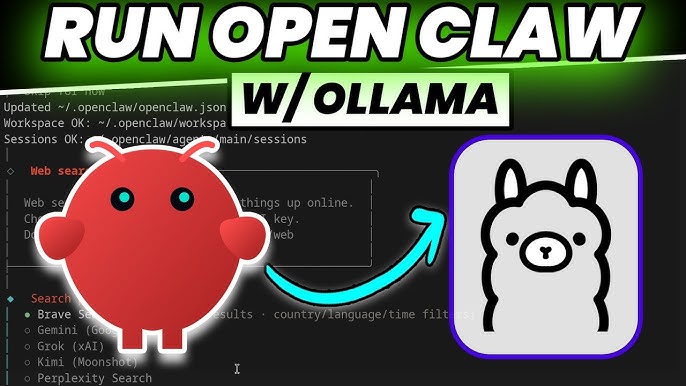
The beauty of this openclaw ollama local AI creative assistant setup is how fast it comes together. Starting from Ollama 0.17, OpenClaw can be launched directly from the Ollama CLI — no separate install scripts needed.
Install Ollama
Head to ollama.com and download the installer for your platform, or use the one-liner for macOS/Linux:
curl -fsSL https://ollama.com/install.sh | shVerify the installation:
ollama --version
# Should output: ollama version 0.17.x or later
Launch OpenClaw with a Single Command
Once Ollama is running, launching your OpenClaw AI assistant is a single command. Here we’re using kimi-k2.5:cloud as the model — a powerful reasoning model well-suited for creative and technical tasks:
ollama launch openclaw --model kimi-k2.5:cloudOpenClaw will start up, pull the necessary components, and present you with a setup wizard in your terminal. You’ll see output like:
🦞 OpenClaw v1.x starting...
✅ Model: kimi-k2.5:cloud
✅ Gateway running at http://localhost:3000
👉 Next: connect a messaging channel
Your local AI assistant gateway is now live. You can also explore the full documentation at docs.openclaw.ai for advanced configuration options.
Step 2: Connect Your Messaging App (Telegram, Discord, or WhatsApp)
OpenClaw acts as a bridge between your local AI model and the messaging apps you already use every day. This is one of the things that makes the ollama openclaw content creator workflow so practical — you don’t need to open a new app or remember a new interface.
Connect Telegram (Recommended for Beginners)
- Open Telegram and search for @BotFather
- Create a new bot: send
/newbotand follow the prompts - Copy your bot token (looks like
123456:ABC-DEF1234...) - In the OpenClaw setup wizard, select Telegram and paste your token
# Or configure manually via the OpenClaw config file:
# ~/.openclaw/config.yaml

channels:
  telegram:
    token: "YOUR_BOT_TOKEN_HERE"
    enabled: true
Connect Discord
- Go to the Discord Developer Portal
- Create a new application and add a Bot
- Copy the bot token and invite the bot to your server
- Add the token to OpenClaw’s Discord channel config
Connect WhatsApp
WhatsApp integration uses the WhatsApp Business API or a QR-code bridge. Follow the step-by-step guide in the OpenClaw documentation for the most current setup instructions.
Once connected, send a message to your bot — you should get an intelligent response powered by your local model. Your openclaw ollama local AI creative assistant is now fully operational.
Step 3: Extend with Skills — Add AI Creative Powers with IMA Studio
A conversational AI assistant is powerful on its own. But what if your assistant could also generate images, produce videos, and compose music — all from a single natural language prompt in your chat window?
That’s where OpenClaw Skills come in. Skills are installable capability packs that extend what your assistant can do. And for content creators, the most powerful skill available right now is the IMA Studio Skill (ima-all-ai).
What Is the IMA Studio Skill?
IMA Studio is a multimodal creative engine — POWERED BY OPENCLAW — that gives your local AI assistant the ability to generate:
- 🖼️ Images — via Midjourney, SeeDream 4.5, and other top-tier models
- 🎬 Videos — via Kling, Wan 2.6, Hailuo, and more
- 🎵 Music — via Suno sonic, with custom lyrics and style control
The positioning says it all: “One sentence to images, videos & music.” You describe what you want in plain language, and IMA Studio handles the rest — routing your request to the best available model and returning the output directly in your chat.
Install the IMA Studio Skill
Installing the skill takes one command via ClawhHub, OpenClaw’s skill marketplace:
clawhub install ima-all-aiAfter installation, restart OpenClaw and the skill will be active:
ollama launch openclaw --model kimi-k2.5:cloudReal Usage Examples
Here’s what your workflow looks like after installing the IMA Studio Skill. Just type naturally in your Telegram or Discord chat:
# Generate an image
"Create a cinematic photo of a futuristic city at sunset, neon lights reflecting on wet streets"

# Generate a video
"Make a 5-second video of ocean waves crashing on a rocky shore, slow motion, golden hour"

# Generate music
"Compose an upbeat lo-fi hip hop track, 90 BPM, for a study session playlist"
Your assistant interprets the request, calls the appropriate IMA Studio model, and delivers the result — image, video clip, or audio file — right back into your chat window. No browser tabs. No copy-pasting prompts between tools. Just one interface for your entire openclaw ollama image video generation workflow.
Real-World Use Cases for Content Creators
Still wondering how this fits into your actual workflow? Here are four scenarios where the ollama openclaw content creator setup delivers immediate value:
1. Social Media Content Batching
A solo creator managing multiple Instagram and YouTube channels can use their OpenClaw assistant to generate a week’s worth of visual content in a single session. Describe the theme, get images and short video clips back, then schedule them — all without touching a browser-based tool.
2. Indie Game Developer Asset Creation
Game developers can use the image and video generation capabilities to rapidly prototype concept art, environment sketches, and cinematic cutscene mockups. The local-first setup means sensitive IP never leaves the developer’s machine.
3. Podcast and Music Producer Workflow
Podcasters can generate custom intro/outro music with a single prompt via the Suno integration. Music producers can rapidly prototype background tracks for client projects, then refine them with professional tools.
4. Marketing Agency Rapid Prototyping
Small agencies can spin up an OpenClaw instance for each client project, install the IMA Studio Skill, and use it as a rapid creative prototyping tool — generating mood boards, video concepts, and audio branding samples before committing to full production.
Why a Local AI Creative Assistant Actually Matters
Cloud-based AI tools are convenient, but they come with real trade-offs that matter more as your creative work scales. Here’s why the openclaw ollama tutorial approach is worth the 15-minute setup investment:
🔒 Privacy by Default
When you run OpenClaw locally with Ollama, your prompts, your creative briefs, and your generated assets stay on your machine. There’s no third-party server logging your ideas or training on your content. For professionals working with client IP or sensitive brand materials, this isn’t optional — it’s essential.
💰 Cost Control
Most cloud AI tools charge per generation, per seat, or per API call. With a local setup, your base inference cost is zero (just electricity). The IMA Studio Skill uses a credit-based system for premium model access, but you control exactly how much you spend — no surprise bills, no seat licenses.
⚡ Speed and Reliability
Local inference eliminates round-trip latency to remote servers. For text-based tasks, responses are near-instant. And because your assistant runs on your own hardware, there are no outages, no rate limits during peak hours, and no dependency on a third party’s uptime.
🔧 Full Customization
OpenClaw’s Skills architecture means you can extend your assistant with exactly the capabilities you need — and nothing you don’t. The openclaw ollama local AI creative assistant you build is yours to configure, extend, and automate.
Frequently Asked Questions
Q: Do I need a GPU to run the OpenClaw + Ollama setup?
No. Ollama runs on CPU-only machines, though a GPU (NVIDIA or Apple Silicon) will significantly improve response speed. For basic conversational use, a modern laptop with 16 GB RAM works fine. The IMA Studio Skill for image/video generation calls external model APIs, so those don’t depend on your local hardware at all.
Q: Is the openclaw ollama tutorial suitable for non-developers?
Yes, with some caveats. If you’re comfortable running terminal commands and following step-by-step instructions, you’ll be fine. The Ollama one-liner and OpenClaw’s setup wizard handle most of the complexity. The IMA Studio Skill installation is a single command.
Q: What’s the difference between OpenClaw and a regular ChatGPT interface?
The key differences are: (1) OpenClaw runs on your own machine — your data stays local. (2) It connects to messaging apps you already use (Telegram, Discord, WhatsApp) instead of requiring a browser tab. (3) It’s extensible via Skills, so you can add capabilities like image/video generation, web search, code execution, and more. (4) You choose and swap the underlying model freely.
Q: How does the IMA Studio Skill handle image and video generation?
The IMA Studio Skill (ima-all-ai) connects your OpenClaw assistant to IMA Studio’s model routing layer. When you send a creative prompt, the skill interprets your intent, selects the most appropriate model (e.g., SeeDream 4.5 for images, Wan 2.6 for video, Suno for music), submits the generation job, and returns the result to your chat. You can also specify models explicitly if you have a preference.
Start Building Your Local AI Creative Assistant Today
The combination of OpenClaw + Ollama gives you a self-hosted AI assistant that’s private, fast, and endlessly extensible. And with the IMA Studio Skill, that assistant becomes a full creative studio — capable of generating images, videos, and music from a single chat message.
Here’s your quick-start checklist:
- ✅ Install Ollama 0.17+
- ✅ Run
ollama launch openclaw --model kimi-k2.5:cloud - ✅ Connect your Telegram or Discord bot
- ✅ Run
clawhub install ima-all-ai - ✅ Send your first creative prompt
Ready to get started? Visit imaclaw.ai to learn more about the IMA Studio Skill and explore the full range of creative models available — or head to docs.openclaw.ai to dive deeper into OpenClaw’s capabilities.
Your local AI creative studio is one command away. 🦞
About The Author