









For client and app development work, I often need to visualize video content quickly:
- preview animations for product managers
- demo clips for docs or PRDs
- lightweight motion for social posts or landing pages
In these cases, extracting a few key frames from an MP4 and turning them into a looping WebP animation is usually enough—and much lighter than uploading a full video.
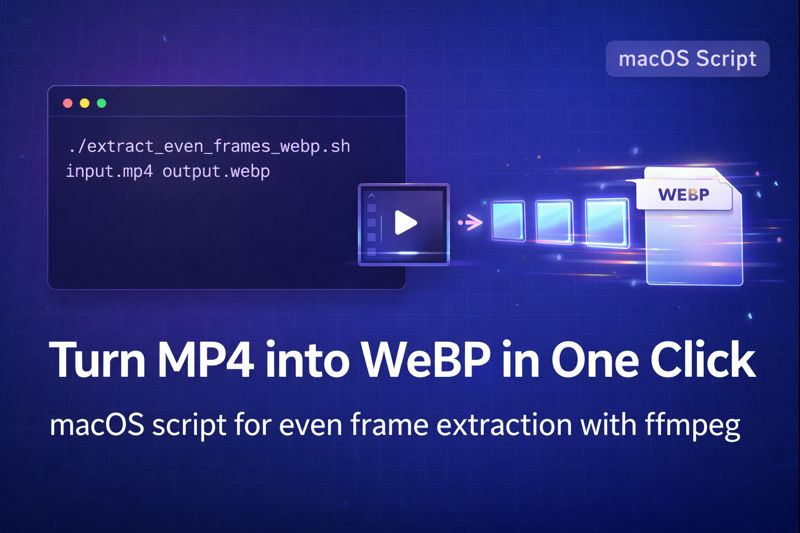
This article shares a one-click shell script for macOS that:
- extracts 6–12 evenly spaced frames from an MP4
- resizes them to 720px width
- builds a looping WebP animation
- and automatically installs
ffmpegif it’s missing
All of this runs from a single command in Terminal.
1. What the script does
On macOS, the script extract_even_frames_webp.sh provides:
- Automatic
ffmpegdetection and installation- Checks whether
ffmpegis available - If not, installs Homebrew (if needed) and then installs
ffmpeg
- Checks whether
- Even frame extraction
- Calculates the video duration
- Evenly samples 6–12 frames across the whole clip
- Default is 6 frames, but you can customize the number
- WebP animation generation
- Combines the extracted PNG frames into a looping WebP
- Output width is 720px by default (height is scaled proportionally)
- Quality is adjustable via
-q:v
- Automatic cleanup
- Stores intermediate frames in a temporary directory
- Deletes the temp directory after the WebP is generated
- Works with both short and long videos
- If the video is very short, frame count is automatically reduced
- For longer videos, frames are always evenly spaced over the full duration
2. How it works under the hood
Here’s the basic logic behind the script.
2.1 Check dependencies
The script first checks whether ffmpeg is installed:
- Uses
command -v ffmpeg - If not found, it checks for
brew- If Homebrew is missing, it installs Homebrew
- Then uses
brew install ffmpegto installffmpeg
2.2 Retrieve video duration
Using ffprobe, the script reads the total length of the video in seconds.
Based on this and the desired frame count, it calculates the time interval between frames.
2.3 Evenly sample frames
For each frame index, it:
- Computes the timestamp =
index × interval - Uses
ffmpeg -ssto jump to that time position - Extracts exactly one frame
- Scales it with
scale=720:-1so width is 720px and height is proportional
2.4 Build the WebP animation
Once all frames are saved as PNGs, the script calls ffmpeg again to:
- Read them in order (
%03d.png) - Encode them as an animated WebP
- Set
-loop 0so the animation loops indefinitely - Control quality with
-q:v 70(lower = higher quality, bigger file)
2.5 Clean up
All intermediate PNG files are stored in a temporary directory created by mktemp -d.
After the WebP is generated, that directory is removed with rm -rf.
3. Full shell script: extract_even_frames_webp.sh
You can save the following script as extract_even_frames_webp.sh on your Mac:
#!/bin/bash

# Usage: ./extract_even_frames_webp.sh input.mp4 output.webp [frames]
# frames is optional, default 6, maximum 12

INPUT="$1"
OUTPUT="$2"
FRAMES="${3:-6}"

# Cap maximum frames at 12
if [ "$FRAMES" -gt 12 ]; then
    FRAMES=12
fi

if [ -z "$INPUT" ] || [ -z "$OUTPUT" ]; then
    echo "Usage: $0 input.mp4 output.webp [frames]"
    exit 1
fi

# ---------------------------------
# 1️⃣ Check ffmpeg
# ---------------------------------
if ! command -v ffmpeg >/dev/null 2>&1; then
    echo "⚠️ ffmpeg not found, starting installation..."
    if ! command -v brew >/dev/null 2>&1; then
        echo "⚠️ Homebrew not found, installing Homebrew..."
        /bin/bash -c "$(curl -fsSL https://raw.githubusercontent.com/Homebrew/install/HEAD/install.sh)"
        echo "✅ Homebrew installed"
    else
        echo "✅ Homebrew already installed"
    fi
    brew update
    brew install ffmpeg
    if ! command -v ffmpeg >/dev/null 2>&1; then
        echo "❌ ffmpeg installation failed, please check manually"
        exit 1
    fi
    echo "🎉 ffmpeg installed successfully!"
else
    echo "✅ ffmpeg is already installed"
fi

# ---------------------------------
# 2️⃣ Get video duration
# ---------------------------------
DURATION=$(ffprobe -v error -show_entries format=duration -of csv=p=0 "$INPUT")
if [[ -z "$DURATION" ]]; then
    echo "❌ Failed to get video duration"
    exit 1
fi
DURATION=${DURATION%.*}  # integer seconds

# If video is shorter than requested frames, match frame count to duration
if [ "$DURATION" -lt "$FRAMES" ]; then
    FRAMES=$DURATION
fi

echo "📹 Video length: ${DURATION}s, extracting $FRAMES frames evenly"

# ---------------------------------
# 3️⃣ Create temporary directory
# ---------------------------------
TMPDIR=$(mktemp -d)

# ---------------------------------
# 4️⃣ Calculate interval
# ---------------------------------
INTERVAL=$(echo "scale=6; $DURATION/$FRAMES" | bc)
echo "⏱ Frame interval: $INTERVAL seconds"

# ---------------------------------
# 5️⃣ Extract frames
# ---------------------------------
for i in $(seq 0 $(($FRAMES-1))); do
    TIME=$(echo "$i * $INTERVAL" | bc)
    printf -v FILENAME "%03d.png" $((i+1))
    ffmpeg -ss "$TIME" -i "$INPUT" -frames:v 1 -vf "scale=720:-1" \
        "$TMPDIR/$FILENAME" -hide_banner -loglevel error
done

# ---------------------------------
# 6️⃣ Generate animated WebP
# ---------------------------------
ffmpeg -y -i "$TMPDIR/%03d.png" -vcodec libwebp -lossless 0 -q:v 70 \
    -loop 0 -preset picture "$OUTPUT" -hide_banner -loglevel error

# ---------------------------------
# 7️⃣ Clean up
# ---------------------------------
rm -rf "$TMPDIR"

echo "🎉 Done! Generated file: $OUTPUT"
4. How to use the script on macOS
- Save the script Save the content above as
extract_even_frames_webp.sh, for example in your home directory. - Give it execute permission
chmod +x extract_even_frames_webp.sh
- Basic usage
./extract_even_frames_webp.sh input.mp4 output.webp
This will:
- Check or install
ffmpeg - Extract 6 evenly spaced frames
- Generate
output.webpat 720px width
- Specify the number of frames (6–12)
./extract_even_frames_webp.sh input.mp4 output.webp 8
This will extract 8 frames instead of the default 6.
5. Why this workflow is useful
Compared with manually opening a video editor or clicking through a GUI converter, this script has a few advantages:
- Zero manual setup
- Automatically installs
ffmpeg(and Homebrew if needed) - No need to search for installers or remember commands
- Automatically installs
- Smart frame sampling
- For short clips, it reduces the frame count automatically
- For longer videos, frames are always spaced evenly across the duration
- Quality and size control
-q:vlets you tune WebP quality vs file sizescale=720:-1gives a web-friendly width and consistent aspect ratio
- Looping by default
-loop 0makes the WebP animation loop forever- Great for previews, demos, and subtle motion on docs or sites
- Clean disk usage
- Temporary PNG frames are stored in a temp folder and deleted afterwards
- No leftover files piling up over time
6. Example: turning a 20-second MP4 into a WebP preview
Imagine you have a 20-second feature demo video and run:
./extract_even_frames_webp.sh demo.mp4 demo-preview.webp 6
The script will:
- Calculate an interval of about 3.33 seconds
- Extract 6 frames at
0s, 3.33s, 6.66s, 10s, 13.33s, 16.66s - Resize them to 720px width
- Build a looping WebP animation
You can then drop this WebP into:
- Product docs or Feishu / Notion documents as a lightweight preview
- Social posts or landing pages as an auto-playing motion thumbnail
- PPT decks and internal demos where a full video would be overkill
7. Ideas for extension
This script is a starting point—you can easily tweak it for your own workflow:
- Dynamic frame count
- Automatically choose between 6–12 frames based on video length
- e.g. more frames for longer clips to show more states
- Custom sizes
- Change
scale=720:-1to any width your product team prefers - Or expose width as a parameter:
./script.sh in.mp4 out.webp 8 1080
- Change
- Batch processing
- Wrap this script in another loop to process all
.mp4files in a folder - Useful when you export a batch of feature demos at once
- Wrap this script in another loop to process all
Author’s note
This script comes from my real macOS development workflow for turning MP4 videos into lightweight WebP previews. I use it in daily client development to generate demo animations for docs and social posts. GPT was only used to help translate, structure, and polish the English version of this article—the script logic, implementation details, and usage patterns are all from my own project experience.
About The Author