






Nano Banana is the nickname for Google’s Gemini image model, and it has become one of the most searched image generators of the year. If you want to use it without juggling separate accounts and APIs, it is one of the 40+ models built into IMA Studio. This is a step-by-step walkthrough: what Nano Banana is good at, how to run it inside IMA Studio, and how much it costs.
What is Nano Banana?
Nano Banana is Google Gemini’s image generation and editing model. People reach for it because it holds detail and follows edit instructions well — changing one element of a photo while leaving the rest intact, for example. In IMA Studio the model list carries two variants: Nano Banana Pro and Nano Banana 2 Lite, so you can trade quality against speed and cost depending on the job. For a deeper look at what the model can do, see our Nano Banana Pro overview and guide.
How to use Nano Banana in IMA Studio
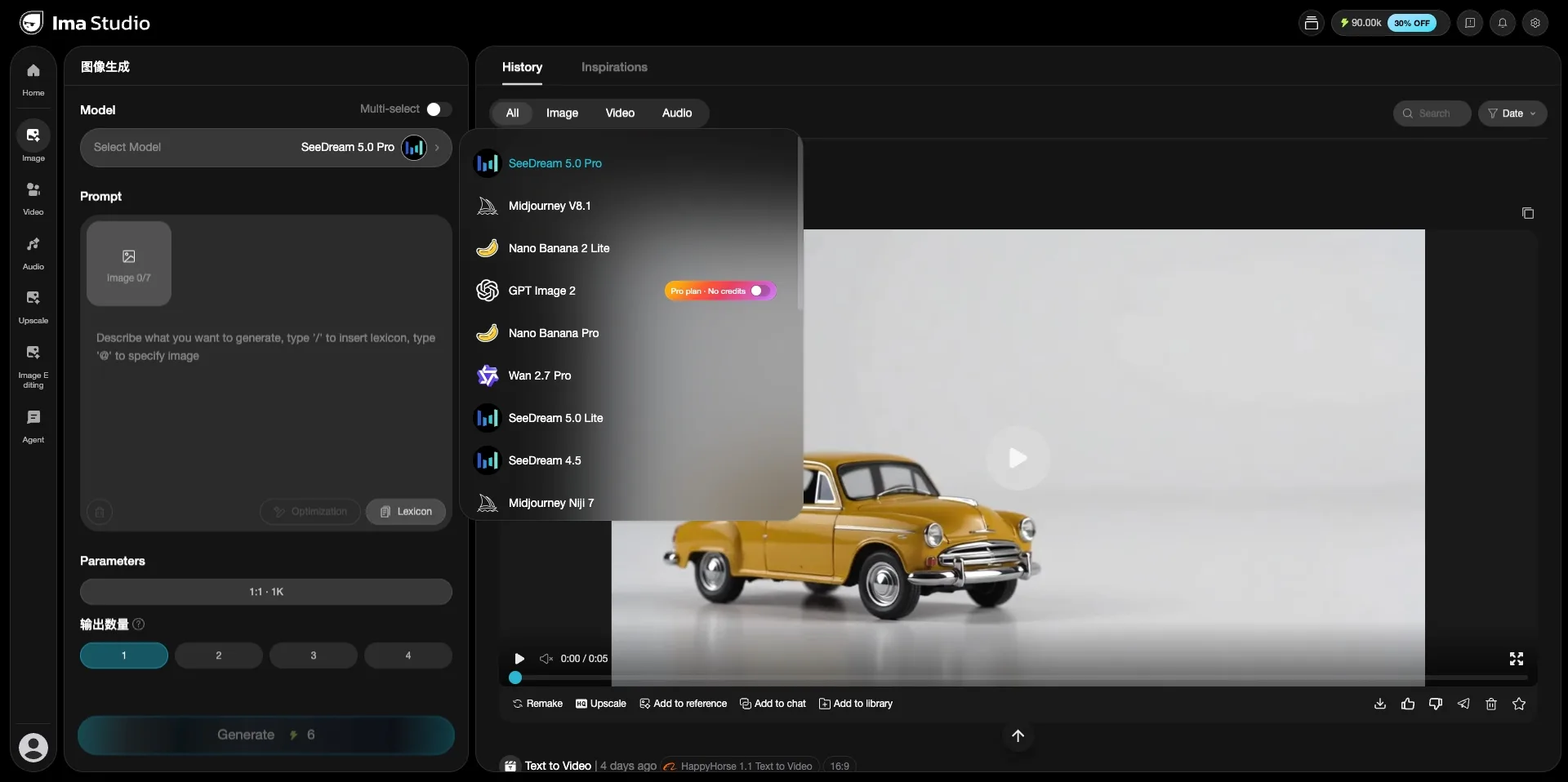
- Open the Image page. From the left sidebar in IMA Studio, select Image.
- Pick the model. Click the model selector at the top of the panel and choose Nano Banana Pro (best quality) or Nano Banana 2 Lite (faster, lighter).
- Write your prompt. Describe what you want. To edit an existing image, type
@to attach a reference image, or/to insert a saved lexicon term. - Set parameters. Choose your aspect ratio and resolution (for example 1:1 · 1K) and how many images to generate at once (1–4).
- Generate. Hit generate and your results appear in the History panel on the right, where you can download, upscale, or send them into further editing.
Prompt tips that work with Nano Banana
- Be specific about what stays. For edits, name what should not change (“keep the background and lighting, replace only the jacket”). Nano Banana respects constraints well.
- One idea per generation. If you want two different changes, run them as two passes rather than stacking them into one prompt.
- Use a reference image. Attaching an image with
@gives the model an anchor and produces far more consistent results than describing from scratch.
How much does Nano Banana cost on IMA Studio?
Nano Banana runs on IMA Studio credits, the same currency shared across every model. Your monthly credit allowance depends on your plan — from 900 credits on Basic up to 30,000 on Ultra — and each generation draws from that pool. There is no separate Nano Banana subscription to manage; it is included in the model library on every plan.
If you generate a lot, the higher plans stretch further: Ultra’s 30,000 monthly credits translate to roughly 15,000 images across models, with unlimited concurrent tasks and a priority queue.
Nano Banana vs the other image models
Nano Banana is one strong option among many in IMA Studio. Depending on the job you might reach for GPT Image 2, SeeDream 5.0 Pro, Midjourney V8.1, or Wan 2.7 Pro instead — and because they all live under one subscription, you can try the same prompt across several models and keep the best result. For a direct comparison, see Nano Banana vs SeeDream 4.0. That comparison is the real advantage of a multi-model studio over any single-model tool.
FAQ
Is Nano Banana free? On IMA Studio, Nano Banana is included in your plan and runs on your monthly credits rather than a separate fee. Every plan, including Basic at $9.99/month, includes access to it.
What is the difference between Nano Banana Pro and Nano Banana 2 Lite? Pro targets the highest quality; 2 Lite is a lighter, faster variant. Start with Pro for hero images and drop to Lite when you need quick iterations.
Can I edit photos, not just generate new ones? Yes. Attach a reference image with @ and describe the change. Nano Banana is particularly good at targeted edits.
Comparing models? See our AI Model Guides hub for guides to every model in IMA Studio.
Want to run Nano Banana alongside 40+ other models under one subscription? New accounts start with free welcome credits, so you can try it before you commit.
About The Author