








How to Create UGC Product Photos: From One Reference Image to Six Real-World Scenes
When an ecommerce team launches a product, the hard part is often not getting one clean packshot. It is building a set of images that shows the product in everyday use. Social posts need different environments, product pages need scale and detail, and campaign concepts need more than one visual direction. Each new request can mean another location, prop set, sample shipment and shoot.
UGC Product Scene Images changes the first step. Upload real product references, choose an aspect ratio and output size, and generate two groups of three independent lifestyle product photos. The images are designed to feel like ordinary user photography rather than polished studio advertising. You can explore which scenes are worth taking into a product page, social campaign or video before committing to a formal shoot.
This article is based on the current UGC Product Scene Images capability and the example archive supplied with the request. The examples demonstrate the workflow; they are not a guarantee of identical results.
Which step does it replace?
The conventional process is straightforward but heavy: prepare the sample, find a suitable setting, arrange the shoot, then wait for selects and post-production. The difficult part is making the result feel real while keeping the product’s shape, proportions, lighting and physical placement believable across several scenes.
This workflow removes the need to write a long photography brief before exploring directions. It first identifies the product’s visible shape, material, size and structure, then plans six shots. Group A covers a main view, use or scale, and a material or structure detail. Group B moves to another believable lifestyle direction and adds a different interaction angle or contextual close-up.
What should you upload?
Upload multiple views of the same product when possible: front, side and detail views are the most useful starting set. More angles give the workflow better evidence for the product outline, material, structure and visible branding. You can also choose the output controls below:
| Setting | Options | Default |
|---|---|---|
| Aspect ratio | 1:1, 2:3, 3:4, 4:3, 16:9, 9:16 | 4:3 |
| Output size | 1K, 2K | 1K |
The workflow has three steps:
- Upload reference images of the same product, ideally from front, side and detail views.
- Choose the aspect ratio and 1K or 2K output size.
- Review the six results and keep the images that are useful for the next stage.
Three examples from the same workflow
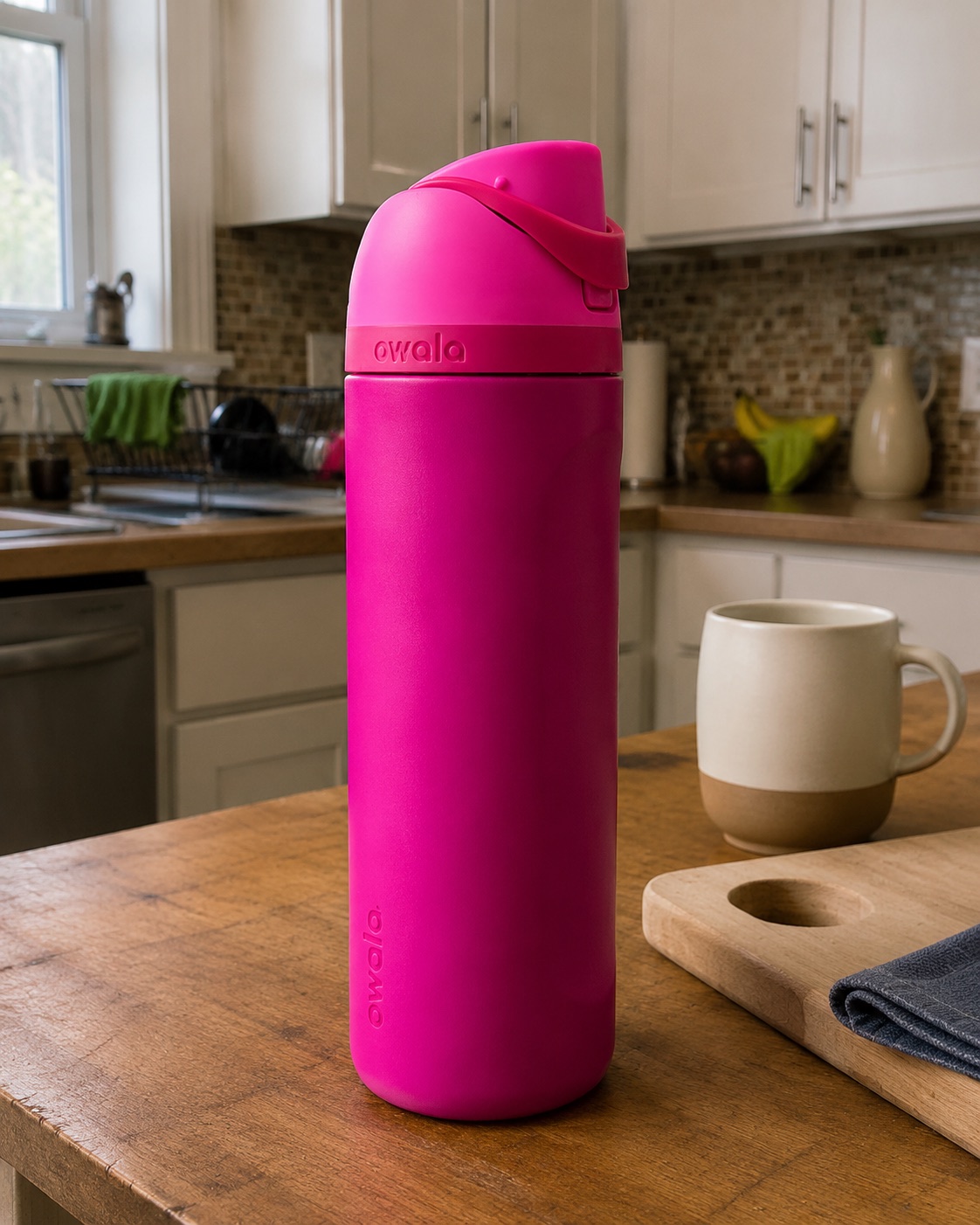
1. Owala bottle: from product view to park lifestyle
Input: a full product view and a spout detail. Output: a tabletop product view, hand-held scale, lid detail, park lifestyle scenes and an interaction shot. Use: help the viewer judge the product’s size, use and material response instead of seeing only an isolated packshot.
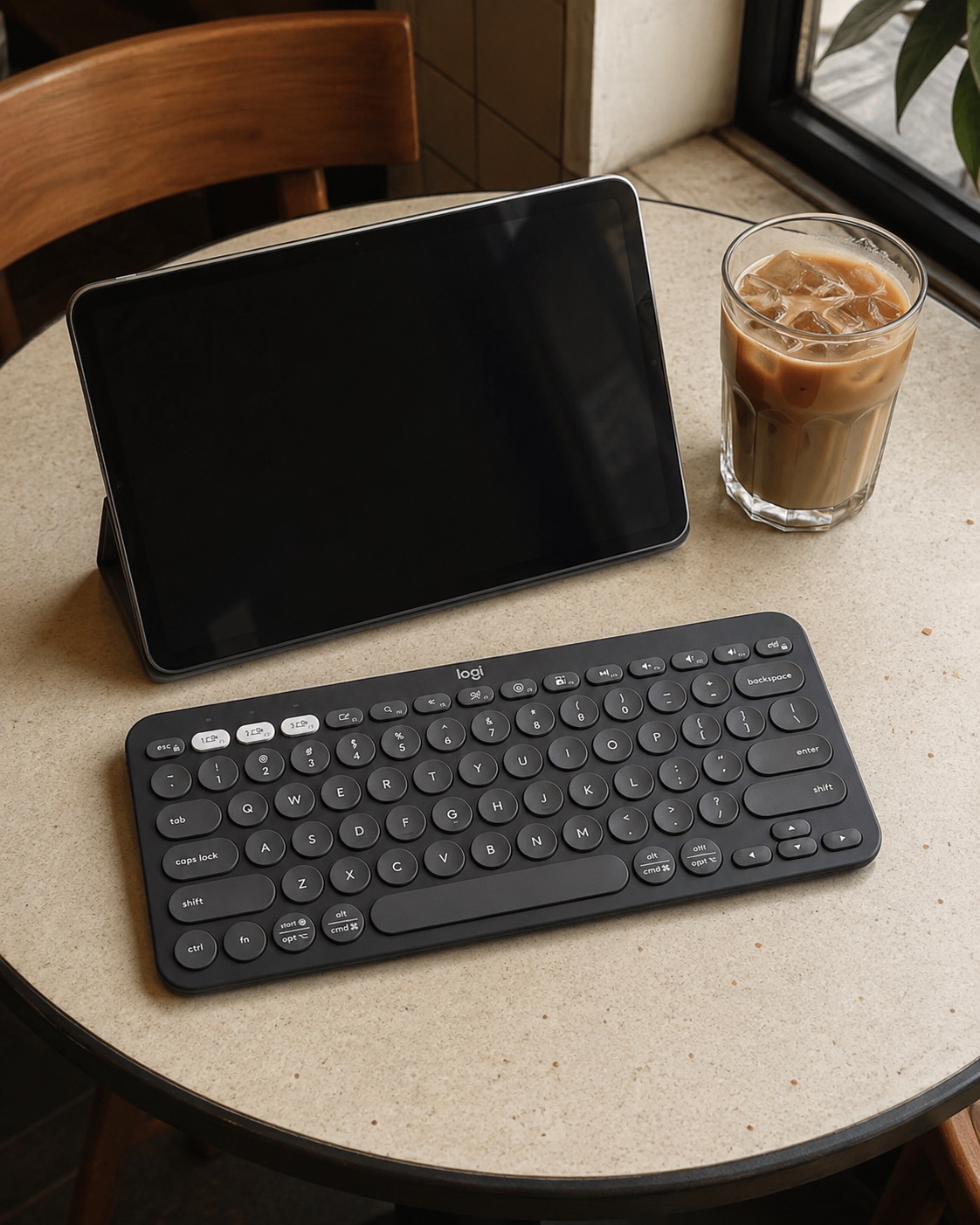
2. Logitech Pebble Keys: bringing structure into an everyday setting
Input: top, lifestyle and size reference views of the keyboard. Output: a cafe tabletop, portable interaction and key detail. Use: show the keyboard flat on a real support surface while keeping its key structure, desk relationship and perspective believable.
3. Catit Pixi fountain: realistic scenes still need physical logic
Input: product, water-flow and size reference views. Output: a sunroom scene, pet scale, water detail and a night-indicator shot. Use: show how the product sits, operates and relates to a pet’s size. When a powered device is shown running, the image also needs a believable power relationship.

Can you publish the results as-is?
The images can support social content, lifestyle additions to a product page or visual references for a later video workflow. Review them before publishing: check the product color and structure, packaging text, size relationship, hand or pet actions, and any support, power or operating state that may be impossible.
These images must not be presented as real buyer photos, customer reviews or purchase proof. They are UGC-style visual content generated from real product references. If they are used in advertising or on a platform with synthetic-media disclosure rules, complete the required brand and channel review first.
Three common concerns
“I am worried the result will be inaccurate.”
This is a reasonable concern. A hidden back side cannot be treated as known, and small packaging text may need another check. Multiple references, product-feature locking, size relationships, perspective control and physical support rules reduce drift, but they do not remove the need for review.
“Is one image enough?”
One usable product image can start the workflow, but front, side and detail views are better for stable product identification. When a structure is not visible in the references, avoid asking the scene to expose it as if it were confirmed.
“Can I use the image as proof of a real shoot?”
No. The images can show context, size relationships, operation and lifestyle use. They cannot replace testing, certification, battery data, medical claims or independent customer testimony. Treat the result as brand-produced UGC-style content.
Who should try it first?
This workflow is a good fit if you already have a product packshot but lack the lifestyle scenes needed for social or ecommerce content. Upload several reference views, choose the ratio and 1K or 2K output, review both groups, and pass the strongest images to content review, ad design or video production.
Before you start, confirm three things: you have usable references for the same product; you know the target aspect ratio; and you are ready to review product details and channel requirements before publishing. Then open the UGC Product Scene Images workflow, upload the references, choose the output settings and select the scenes worth taking forward.
For more guidance on reviewing visual content, read What Makes a Good Infographic?. If you plan to turn the results into social content, see How to Repurpose Content for Social Media Into a Reviewable Image Card Series.
Conclusion
UGC Product Scene Images does not turn one generation into a complete commercial shoot. It changes the first decision from “organize another shoot” to “upload real product references and explore six scene directions.” Keep product review, text review and channel disclosure in the loop, and the generated realism can support content without misleading the viewer.
About The Author