









Hi, I’m Vera, the SEO at Ima Studio.
Recently, the SEO agents I’ve built have become quite popular internally, and many colleagues have asked me how I did it. Well, I thought it was a simple task, but I’ve realized it’s not as straightforward for everyone.
AI agents have been active online for the past year, but many people haven’t really adopted them yet. Maybe only a handful of programmers or AI product managers are using them.
Or maybe, like many of my colleagues, they work in no-code fields. When they hear that they can create an AI agent, their reaction is probably something like, “Oh no, I can’t do that.”
So, I’ve written this tutorial to help you understand and use AI agents.
By the end of this post, you’ll know what an AI agent is, how to create one, what tools you can use to build it, and when to use one.
What is an AI Agent?
If you’re not familiar with AI agents, you probably know about ChatGPT, Claude, or DeepSeek. These are large models that you’re familiar with — they can think and understand your conversations. Now, you’ve already grasped half of what an AI agent is.
An AI agent is essentially these chat-based AI models with “arms.” It allows them to do more than just talk. It enables them to help you complete tasks.
Here’s a simple example: Let’s say you need to create a promotion speech PowerPoint. When you ask an AI for help, it gives you a bunch of text that could be used in a PowerPoint. But when you ask an AI PowerPoint Agent, you’ll get a complete, polished presentation with both text and images.
That’s the difference.
How to Create an AI Agent: Tools and Steps
Now, I bet you’re asking, “Where can I create an AI agent? And how can I do it if I don’t know any code?”
Before we dive into building one, let me introduce a few free tools that allow you to create AI agents.
Dify.ai
Dify is a beginner-friendly tool with a visual interface that allows you to create AI agents without any coding knowledge.
Coze
Coze is a tool developed by ByteDance (the parent company of TikTok). It’s great for building chat-based AI agents with an intuitive interface.

n8n & Make
Make and n8n are great tools for those who want to create more advanced AI automation flows. These platforms allow you to create visual workflows to connect different actions, like generating text, posting to Notion, sending emails, and much more.

There are many other similar tools, but these are some of the easiest ones to get started with.
Step-by-Step Guide: Building an AI Agent with Dify
Let’s now dive into how to actually build an AI agent. For this tutorial, I’ll use Dify since the audience here may be quite new to AI, and Dify is an easy place to start.
I’m going to show you how to build an SEO Title Generator Agent because that’s an area I specialize in.
You might not know what SEO is, and that’s okay! All you need to know is that this agent is built to help generate titles.
An agent must be built on a clear process, so first, you need to understand your process.
For me, the process of writing a title looks like this:
- Start by identifying the keywords.
- Search those keywords in Google’s incognito mode to find the top-ranking titles.
- Use AI to analyze the differences and identify opportunity gaps.
- Finally, combine the article’s content with the findings to create a competitive title.
So, the input for this title generator agent is the keywords and article content, and the output is a perfect title. The middle step is simply gathering search results from Google for the keyword.
Now that we have the process clear, let’s start building our first AI agent!
Step 1: Register on Dify
Go to Dify.ai, sign up for an account, and log in.
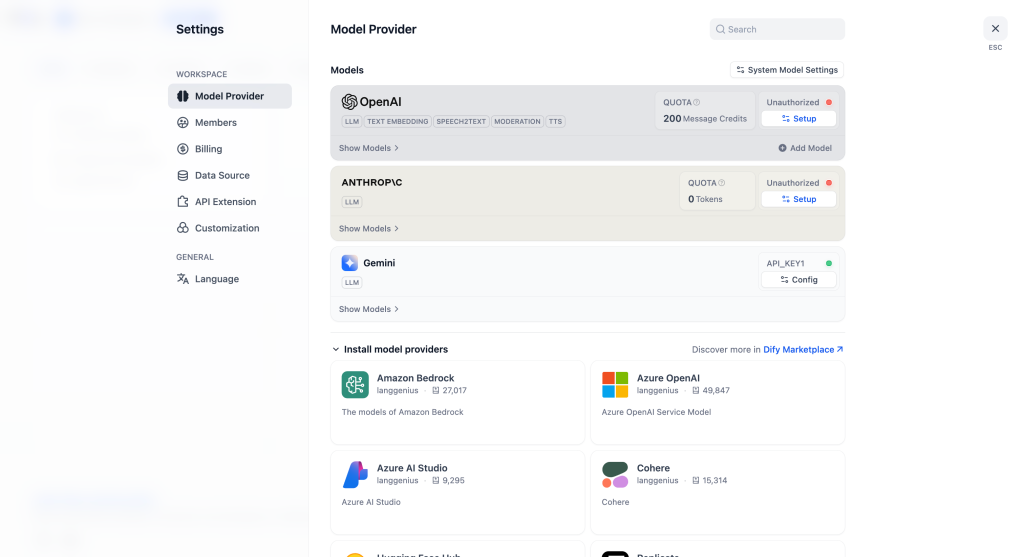
Then, go to Settings and input your API Key for the model. If you don’t know where to find your API key, you can ask your AI for help. It can totally assist with that.
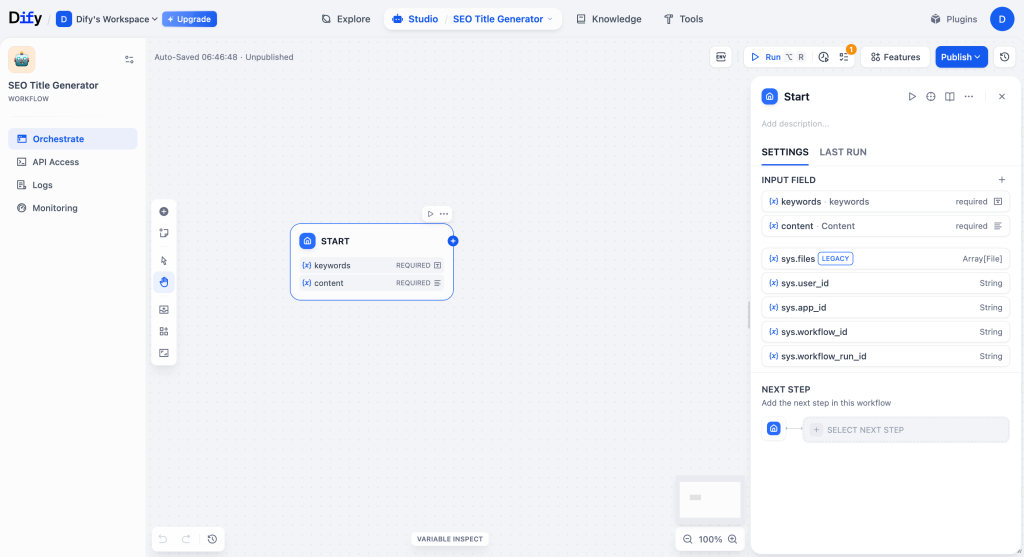
Step 2: Create the Workflow
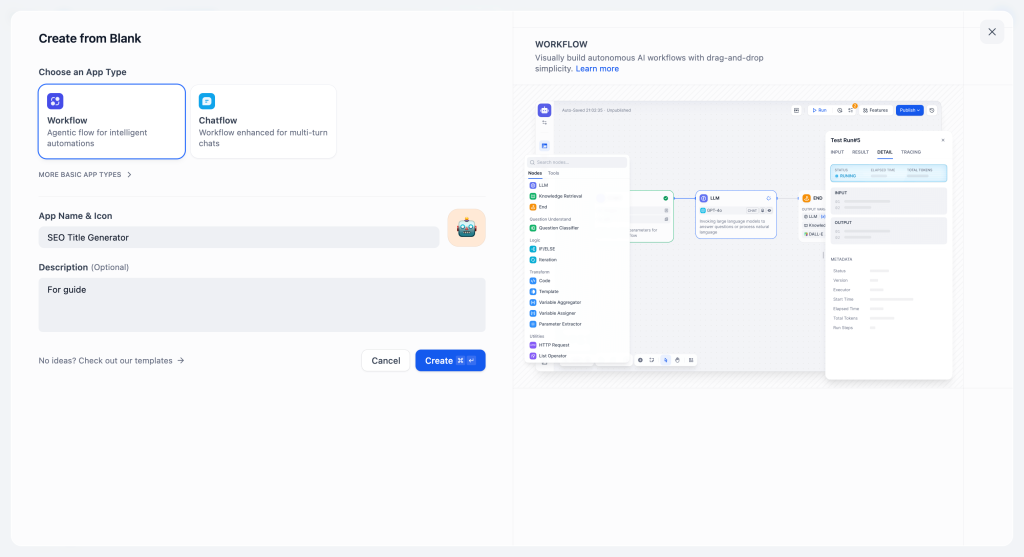
Click on Create New Workflow.
Then, click Input to create two variables: one for keyword and another for content.
Set the content variable’s max length to 5000 characters.
Step 3: Add the Google Search Tool
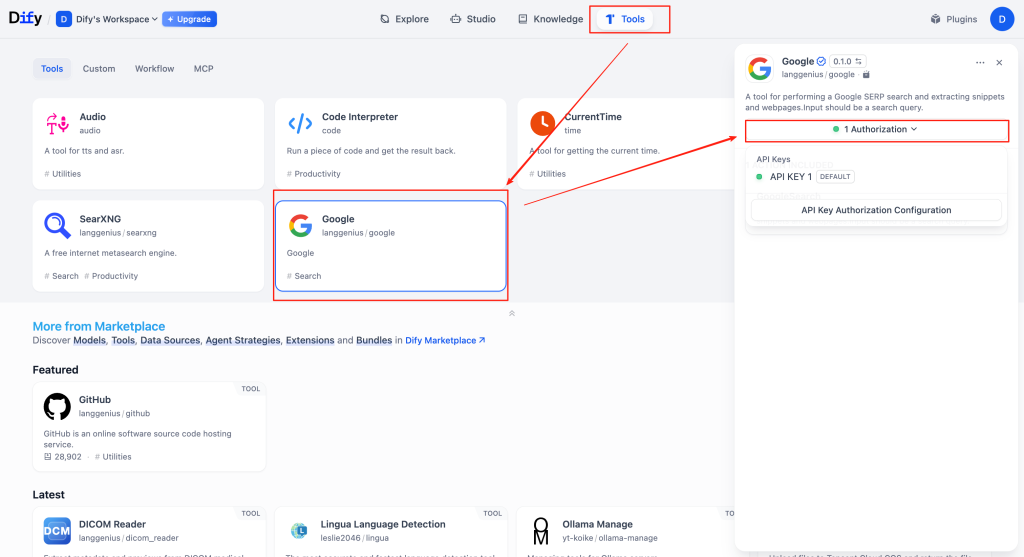
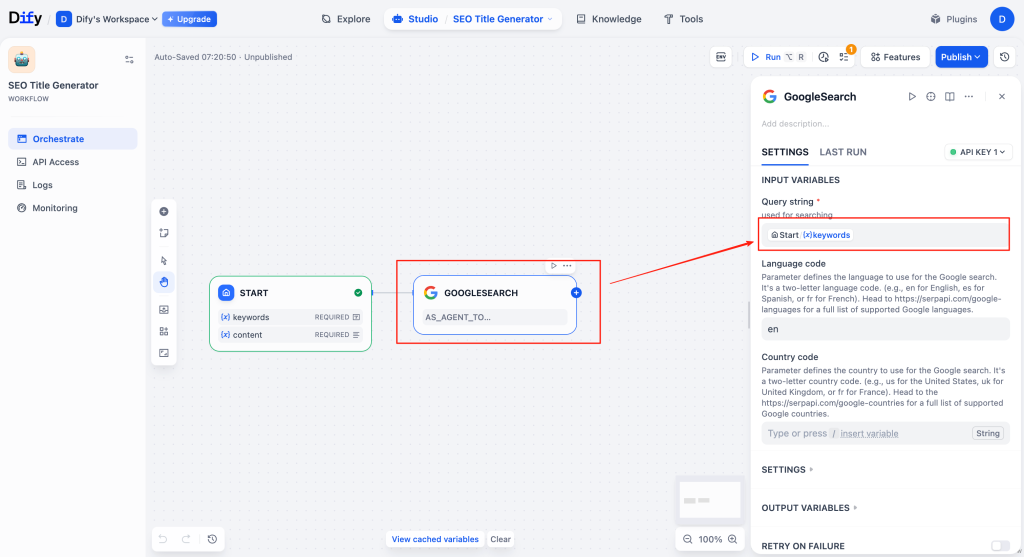
Next, add a Tools node and select the Google Search tool.
Head over to SerpApi to get your API key, authorize it, and then use the keyword as the input for the search.
Step 4: Add the LLM Node
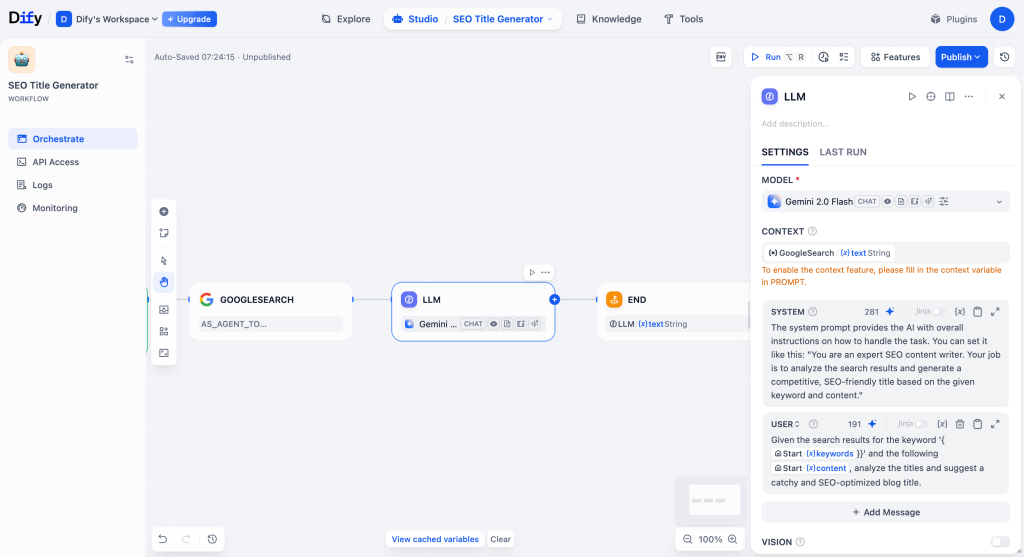
Now, add an LLM (Large Language Model) node. Set up the model and prompt as follows.
- System Prompt:
The system prompt provides the AI with overall instructions on how to handle the task. You can set it like this: “You are an expert SEO content writer. Your job is to analyze the search results and generate a competitive, SEO-friendly title based on the given keyword and content.” - User Prompt:
The user prompt tells the AI how to process the specific inputs (keywords, content, and search results). For this, we’ll input the keyword and article content, and the search results from Google will serve as the context for generating the output. The prompt could look like this: “Given the search results for the keyword ‘{{keyword}}’ and the following content, analyze the titles and suggest a catchy and SEO-optimized blog title.” - Context:
The context for the AI will be the Google search results gathered earlier. These search results serve as a reference for the AI to compare titles, identify trends, and generate an optimized SEO title based on what’s already ranking.
After setting up the system and user prompts, add an End module to output the generated title.
Step 5: Test and Publish
Once everything is set up, it’s time to test your agent.
- Test It:
Enter a sample query, such as: “How to create an AI agent” You might get something like:- “How to Create an AI Agent (No Code Step-by-Step Guide)”
- “Build Your First AI Agent for Free — Beginner Tutorial”
- “No Code AI Agents: A Complete Starter Guide”
- Publish It:
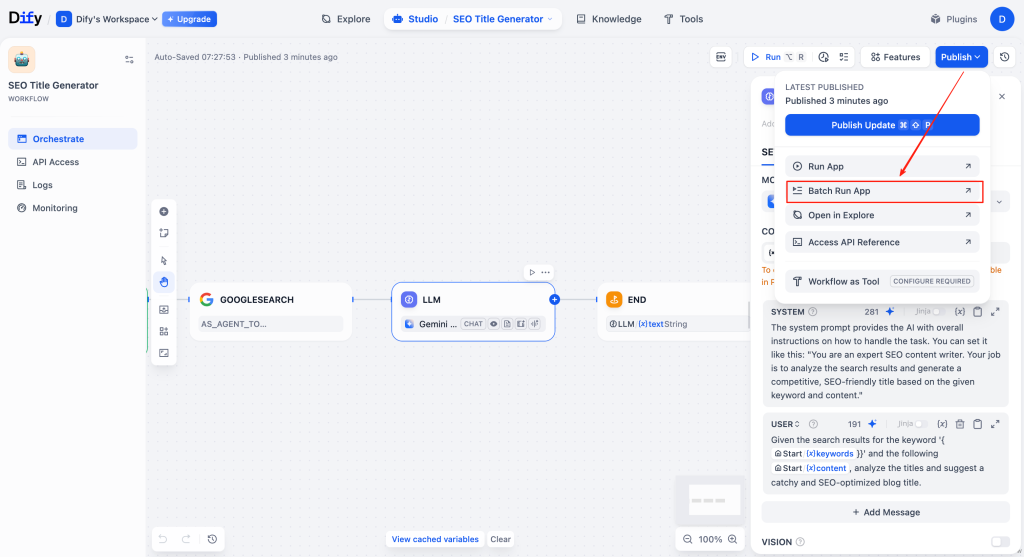
After testing, click Publish to make the agent live.
Then, click Batch Run App to run the agent for multiple inputs. - Share the Link:
Once you’ve published the agent, copy the link provided. You can now share this link with anyone, and they can use the agent you created.
Congrats — you’ve just built your first AI agent!
Where Things Actually Get Complicated
This agent works, sure. But what if you want it to do more?
- Research keywords
- Check competitors
- Rewrite based on tone
- Push results to Notion or WordPress
- Generate thumbnails or social captions
- Schedule posts automatically
This is where things shift from:
“I can build an agent”
to
“Oh, this is basically system design.”
This is the point where most beginners give up.
Not because they aren’t smart — but because the cost (time + mental load) doesn’t match the return.
The Alternative: Let the Agent Build the Agent
Most people don’t actually want to build AI agents.
What they want is the end result that the agent produces.
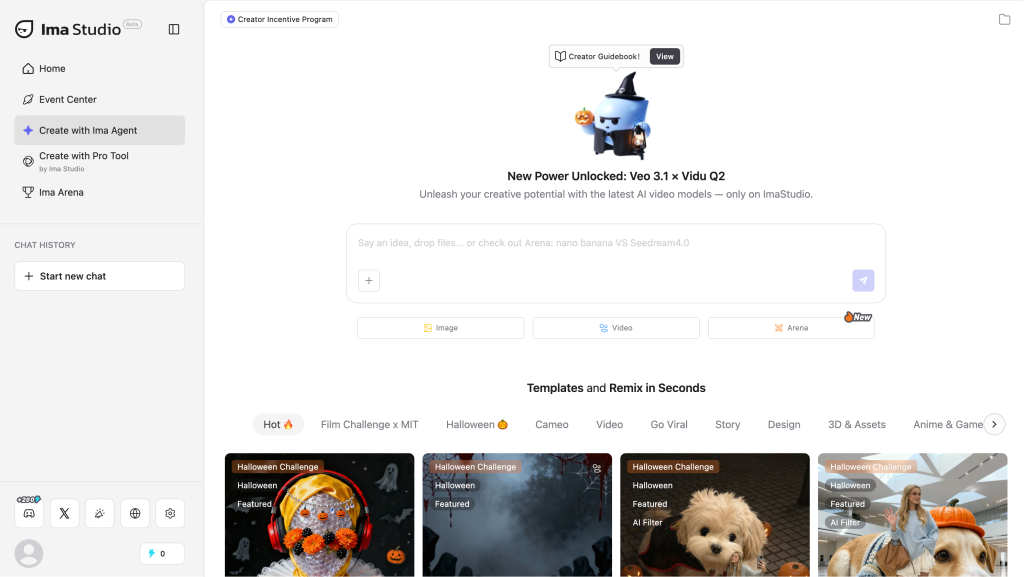
This is where Ima Studio comes in.
What Ima Studio Does Differently
You don’t build workflows.
You just tell it what you want.
Example prompt:
“Create SEO titles for my blog, analyze competitors, and schedule the post.”
What happens behind the scenes:
- The system automatically plans the task chain
- It selects the right models + tools
- It runs the workflow from start to finish
- You receive the final output — without touching any prompts, settings, or automation nodes.
In short:
Building it yourself | Using Ima Studio
You design the workflow | The agent designs itself
You maintain the logic | The agent adapts automatically
You spend time learning tools | You just describe the outcome
One is DIY.
The other is Done-For-You by the agent itself.
Both are valid.
So Should You Build or Not?
Here’s the honest take:
- If you enjoy experimenting → build your own agent first
- If you just want results → use an auto-agent
No right or wrong.
Just choose based on your time and patience.
If You Want to Try Ima Studio
You don’t need to know anything about prompts.
You don’t need any workflow experience.
You don’t need to understand model selection.
Just describe the task.
Try it once.
You’ll immediately feel the difference between an agent that answers vs. an agent that acts.
About The Author