








Ever filmed a clip that looked amazing, but only to realize it plays way too fast? You try to rewatch that perfect jump, dance, or slow walk, but it flashes by before you can appreciate the moment.
Most iPhone users may face this exact frustration:
How to slow down a normal video, not just one shot in Slow Motion mode? 🤔
This guide walks you through three built-in iPhone methods: Photos, iMovie, and Slow Motion recording.
And besides these, the final mysterious one is a smarter AI method that makes slow motion to another level.
Slow Down a Video on iPhone with Built-in Methods
1. Camera App — Record in Slo-Mo Mode
The easiest way to capture smooth slow motion is to record directly in Slow Motion.
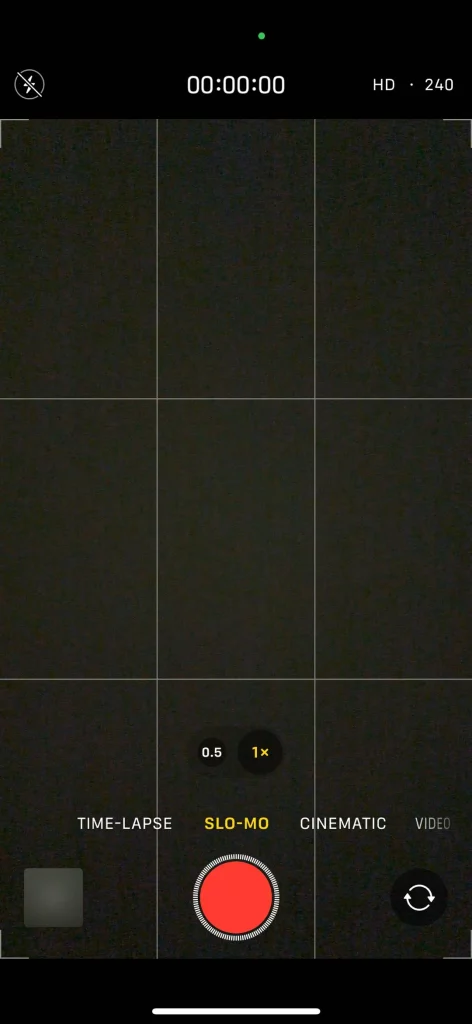
Steps:
- Open Camera on your iPhone.
- Swipe modes until SLO-MO appears above the red shutter button.
- Tap the double-arrow icon to switch between front and rear cameras.
- Tap the red record button to start, then tap again to stop.
- Tap the thumbnail in the lower-left corner to preview.
- Tap Edit, then drag the speed slider to adjust which parts stay slow; tap Done to save.
💡 Tip: Shooting at 120 fps or 240 fps yields smoother motion but larger files and requires more light.
2. Photos App: Adjust Slo-Mo Segments
If your clip was shot in SLO-MO mode, you can fine-tune which part plays in slow motion directly in Photos.
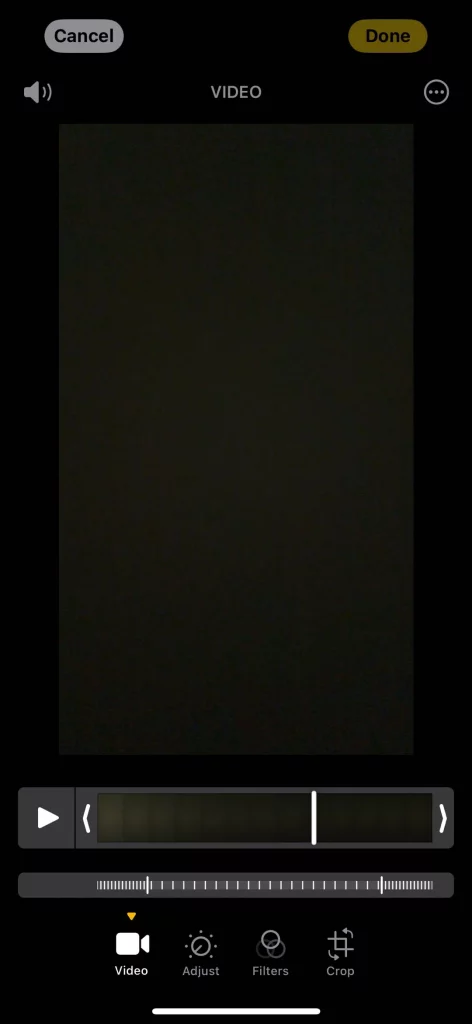
Steps:
- Open Photos → Albums → Media Types → Slo-mo.
- Choose your video and tap Edit.
- Below the timeline, wide bars represent slow motion, dense bars mean normal speed.
- Drag the two tall white markers to define where the slow motion starts and ends.
- Tap Done to save.
💡 Tip: This works only for SLO-MO recordings, not normal videos.
3. iMovie App: Slow Down Regular-Speed Videos
For normal clips, iMovie gives you full control over playback speed.
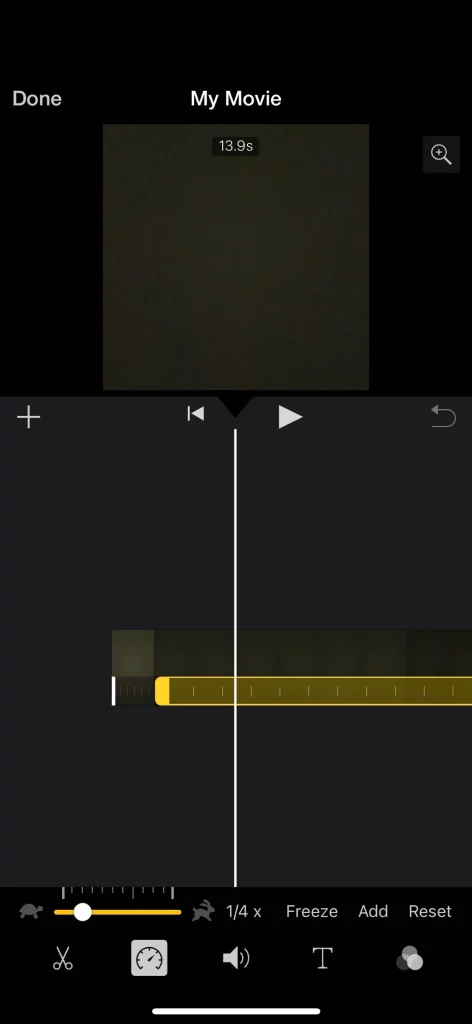
Steps:
- Launch iMovie, tap Continue if prompted.
- Tap Create Project → Movie, choose your clip, then tap Create Movie.
- On the timeline, select your video and tap the Speed icon (speedometer).
- Drag the yellow slider left to slow down (up to ⅛ speed) or right to speed up (up to 2×).
- Tap Play to preview, then Done → Share to save.
💡 Tip: In Project Settings, toggle “Speed changes pitch” if you want the sound to follow speed changes.
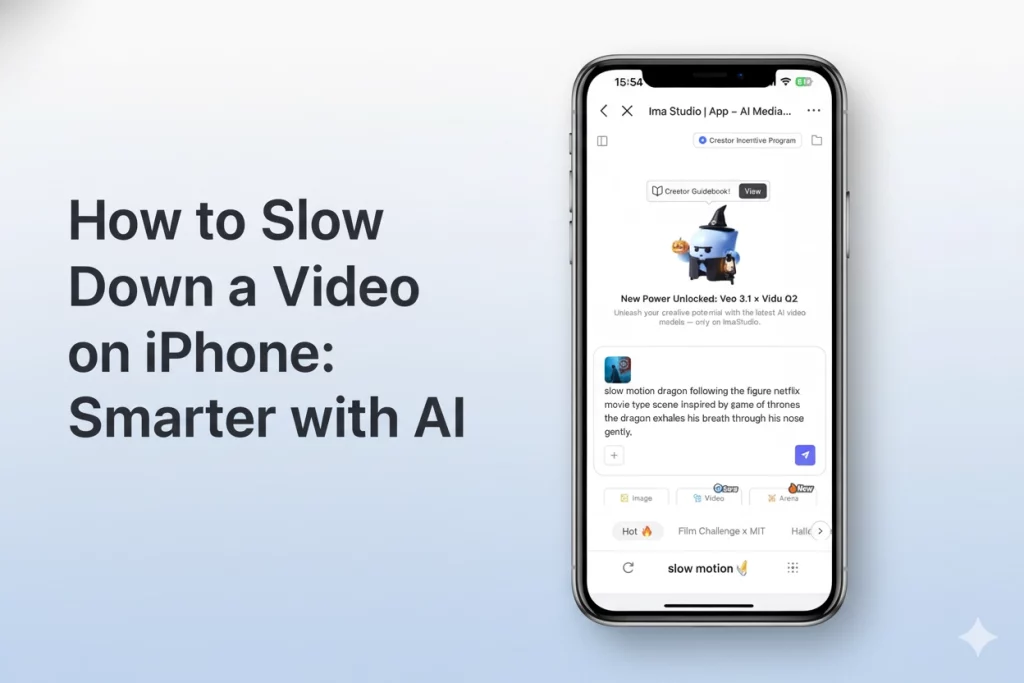
How to Use Ima Studio for Slow Motion
These built-in methods work well for basic editing, but when you’re aiming for higher quality and a more automatic process, it’s time to try Ima Studio’s AI-powered Agents.
It may sound advanced. Actually, it only takes 3 simple steps — no skills required! Let’s get started:
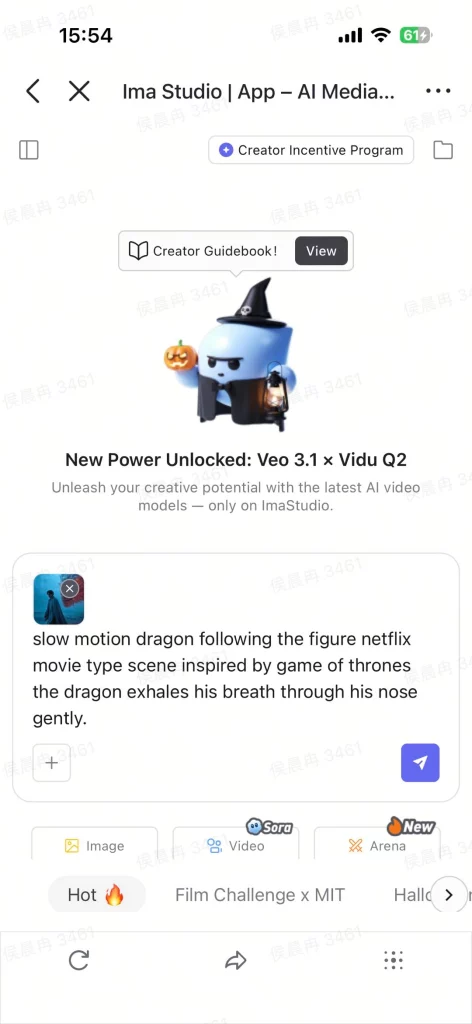
Step 1: Upload
Open Ima Studio’s creation page with your browser.
Upload your video, and then type a short prompt to describe what you want.
⚡️Or choose the creative, ready-made template to reuse.
Step 2: Generate
Ima’s intelligent agent system automatically selects the best model for your video and processes it in under 30 seconds.
Step 3: Download & Share
Get a smooth, detailed slow-motion video in HD or 4K, watermark-free, and share it directly to TikTok or YouTube Shorts.
💡Tip: You can also click “Publish” to save your work as a reusable template on Ima Studio and inspire others in the community.
Why you’ll love it:
- 🎬 AI-reconstructed frames for ultra-smooth motion
- ✨ HD/4K output without watermark
- 🧩 Template-based workflow, one click to create and share
- 🎵 AI-generated soundtrack that fits your video
Creative Ideas with Ima Studio’s Slow Videos
AI-powered slow motion isn’t just for showing things in detail, and it’s a creative tool.
Here’s how creators on Ima Studio are using it:
🤳Cinematic Vlogs
Turn your everyday moments from city walking, sunsets, to traveling into dreamy, film-like sequences. Slow motion adds emotional depth and makes your even ordinary clips look cinematic.
💃Dance & Performance Edits
Use slow motion to highlight every excellent movement and expression with perfect timing. Dancers and musicians may use Ima Studio to make their performances look smooth, rhythmic, and full of energy. More immersive!
☕️Ads & Product Reels
Showcase your product in style with the splash of perfume, the swirl of coffee, or the flutter of fabric. Ima Studio helps brands create professional-grade slow-motion ads effortlessly. Save money & time!
Explore More About Ima Studio
Only AI video generation for slow motion?
Ima Studio, your intelligent media agent, goes far beyond that!
Powered by 10+ top AI tools like Nano Banana, VEO3, and Suno, Ima Studio fuses multimodal creation across video, image, and audio. Make every process effortless and inspiring – just by chatting!
Discover what else you can do with Ima Studio:
Compare 6 latest top performance models side-by-side, test their outputs, vote for your favorite, and uncover your own creative style.
🎃 Halloween Monster Creation Challenge
Join the community event where creators push the limits of imagination with AI.
🎬 Ima Studio x MIT AI Film Hack
A global creator challenge blending film, art, and AI. Join now for a chance to win cash prizes and exclusive memberships!
✨ Ima Studio brings together everything you need to create with AI, from ideas to finished works, all in one place.
Final Thoughts
In the end, slowing down a video isn’t just about adjusting speed. Instead, it’s about capturing emotion and rhythm in every frame of your videos.
That’s where Ima Studio stands out: it doesn’t stop at editing but empowers you to create.
With its AI agent system powered by 10+ foundation models, you can transform simple clips into expressive, professional-grade visuals in seconds. 🤩
Join thousands of creators exploring multi-model AI creation on Ima Studio — where one prompt brings every idea to life.
FAQs
Can I slow down a video on my iPhone?
Yes. You can use the built-in Photos app, iMovie, or Slo-Mo mode in the Camera app for basic edits, though they may be time-consuming and with many restrictions when compared to AI processing with Ima Studio.
Does Ima Studio work on both mobile and desktop?
Yes. Ima Studio runs smoothly in your browser on any device — no installation required. Once registered, you’ll get 200 free credits to try text-to-image, image-to-image, and image-to-video generation.
How long does AI Slow Motion take to process a video?
Usually less than 30 seconds. It depends on your video length and selected model. Ima handles everything automatically. One prompt, and one run to get a high-quality output.
Can I download videos without a watermark?
Yes. All outputs from Ima Studio are watermark-free, even in HD or 4K. Users can start with 200 free credits to get clean videos without hidden traps!
Do I have to write professional prompts?
No. Just type a simple sentence, and Ima Studio’s agent will analyze your description and files, then handle everything for you automatically. You can also reuse or remix templates in Ima’s community and share your own to inspire others.
About The Author