









For a long time, if you wanted to use Linux tools on a Windows laptop, you basically had two options:
- Install a fragile dual-boot setup
- Run a slow, resource-hungry virtual machine
With the Windows 10 May 2020 update (version 2004), Microsoft released something that completely changed my workflow: WSL2 (Windows Subsystem for Linux 2).
WSL2 lets Windows and Linux live together on the same machine in a very natural way. After using it for a while, I honestly don’t feel the need to mess with dual-boot or full VMs anymore.
What WSL2 Is Like in Real Use
After some time using WSL2 daily, here’s what stood out for me:
- Full Linux environment inside Windows
I can run a real Linux distribution directly in Windows without rebooting or switching systems. - Easy file access
Linux in WSL2 can easily access almost all files on my Windows machine. That makes it simple to develop on Windows and then run and test on Linux without copying files back and forth. - Docker works normally
Docker runs fine in this setup, so I can do backend and container work on Windows while still having a native-feeling Linux environment under the hood. - Mixed command usage
Windows command line can call Linux tools (and vice versa), and they can share environment variables.
In practice, that means I can chain Windows and Linux commands together in one workflow.
For development, this really feels like Windows and Linux are “merged” instead of being two completely separate worlds.
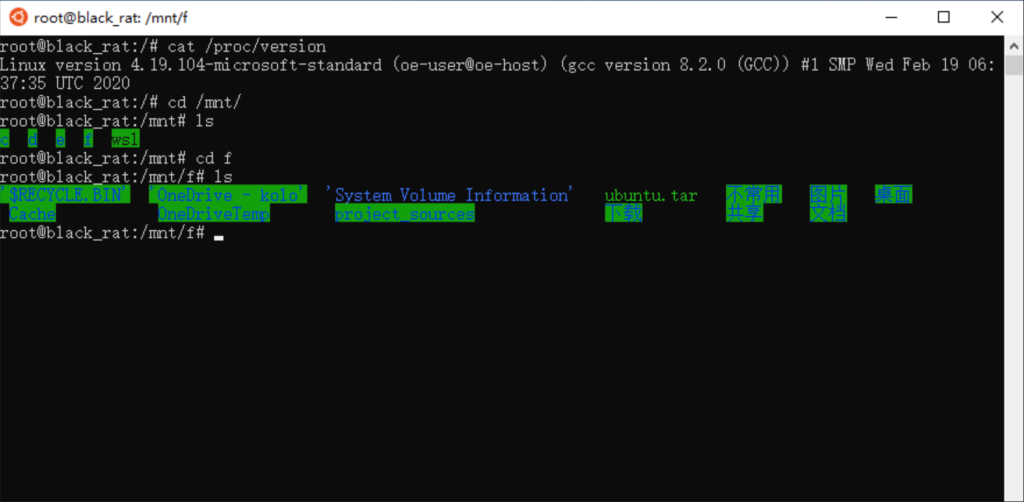
How to Install WSL2 (and What to Watch Out For)
Microsoft’s official documentation for installing WSL2 is actually quite detailed and worth following:
Official docs: https://docs.microsoft.com/windows/wsl/
But there are a few practical issues that the docs don’t emphasize enough. Here are the main points from my own setup experience.
1. Check Your Windows Version (Must Be 2004 or Later)
WSL2 requires Windows 10 version 2004 (May 2020 update) or higher.
You can check your version like this:
- Press
Win + R - Type
winver - Look at the version information in the popup window
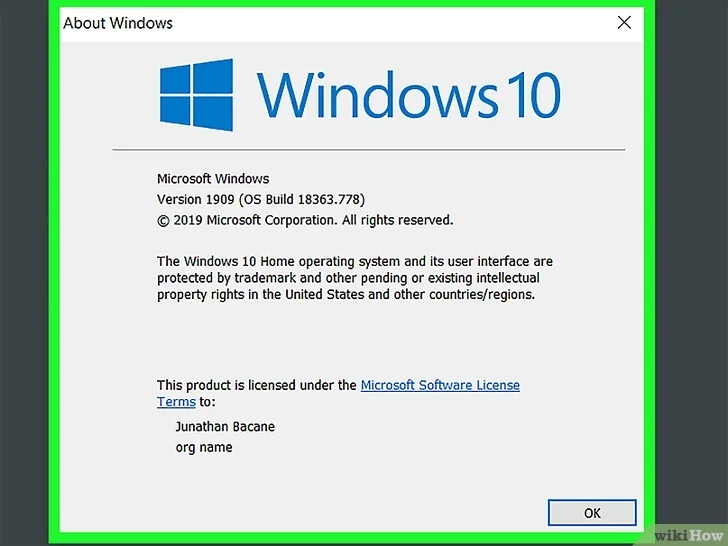
If the version is below 2004, you’ll need to update Windows first.
2. Updating to 2004 Manually
When I did this, the 2004 update wasn’t pushed automatically yet, so I had to use the Windows 10 Update Assistant to upgrade manually.
During the upgrade, I ran into two common issues.
Issue 1: “Disk layout not supported for UEFI firmware”
The installer may complain that your disk layout isn’t compatible with UEFI for this update.
The general fix is to go into the BIOS/UEFI settings and adjust things according to the guidance in relevant tutorials (partition style, boot mode, etc.). The exact steps depend on your machine, so I followed a detailed online guide to make my disk layout acceptable for the update.
Issue 2: Update failures unless offline
Another problem I hit was update failures when staying connected to the network during installation.
What finally worked for me:
- Let the Update Assistant download all required files
- Once the download is finished, disconnect from the network
- Then continue with the installation offline
After I did this, the upgrade completed successfully.
Of course, if you’re not in a hurry, you can also just wait for the automatic rollout of the update and avoid most of this manual trouble.
Why WSL2 Is Worth the Effort
Once everything is set up:
- I stay in Windows for UI, tools, and daily work
- I get a real Linux environment for development, Docker, and server-side tasks
- I no longer have to maintain a dual-boot system or a heavy VM just to run Linux
If you’re doing backend, DevOps, or security work and still switching between Windows and Linux all the time, WSL2 is absolutely worth a try.
This article comes from my own real-world experience setting up and using WSL2 on Windows 10. ChatGPT only helped me translate the content into English and polish the wording and formatting; all technical content and decisions are mine.
About The Author