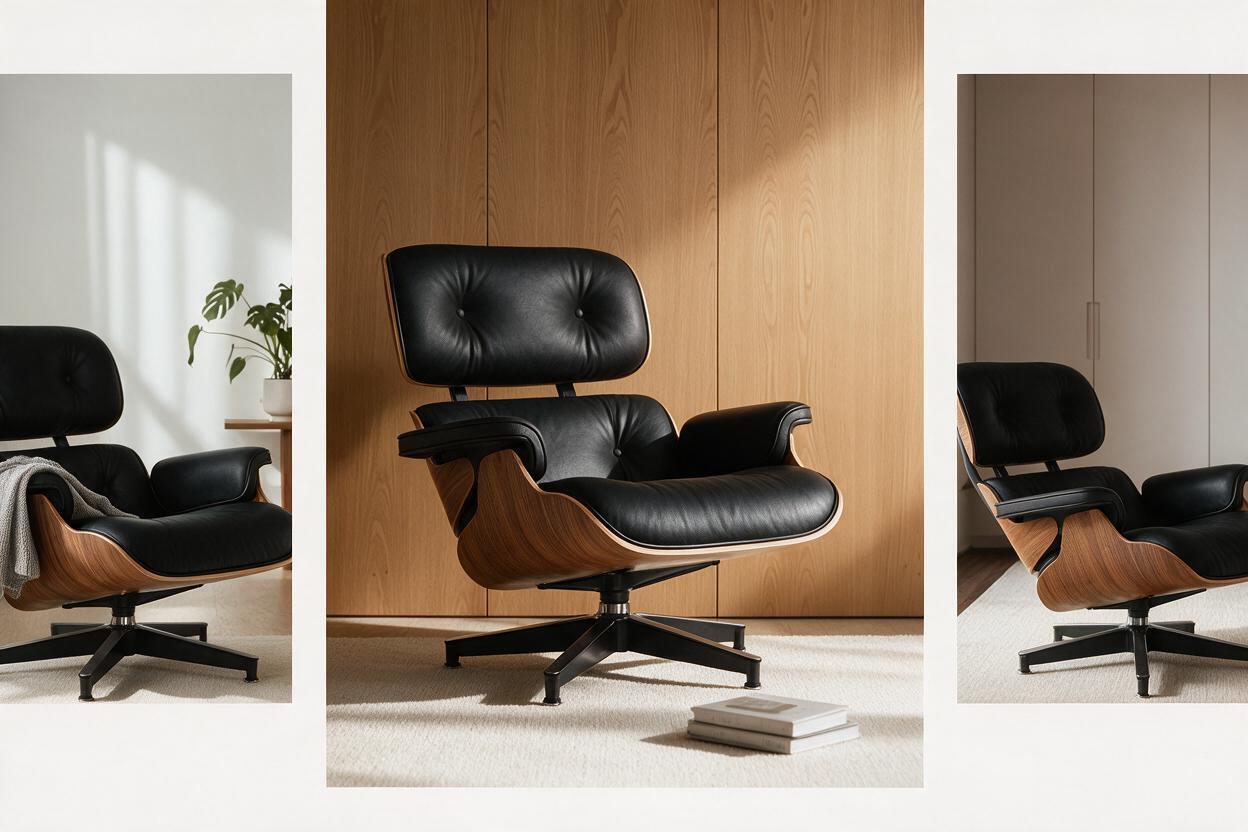
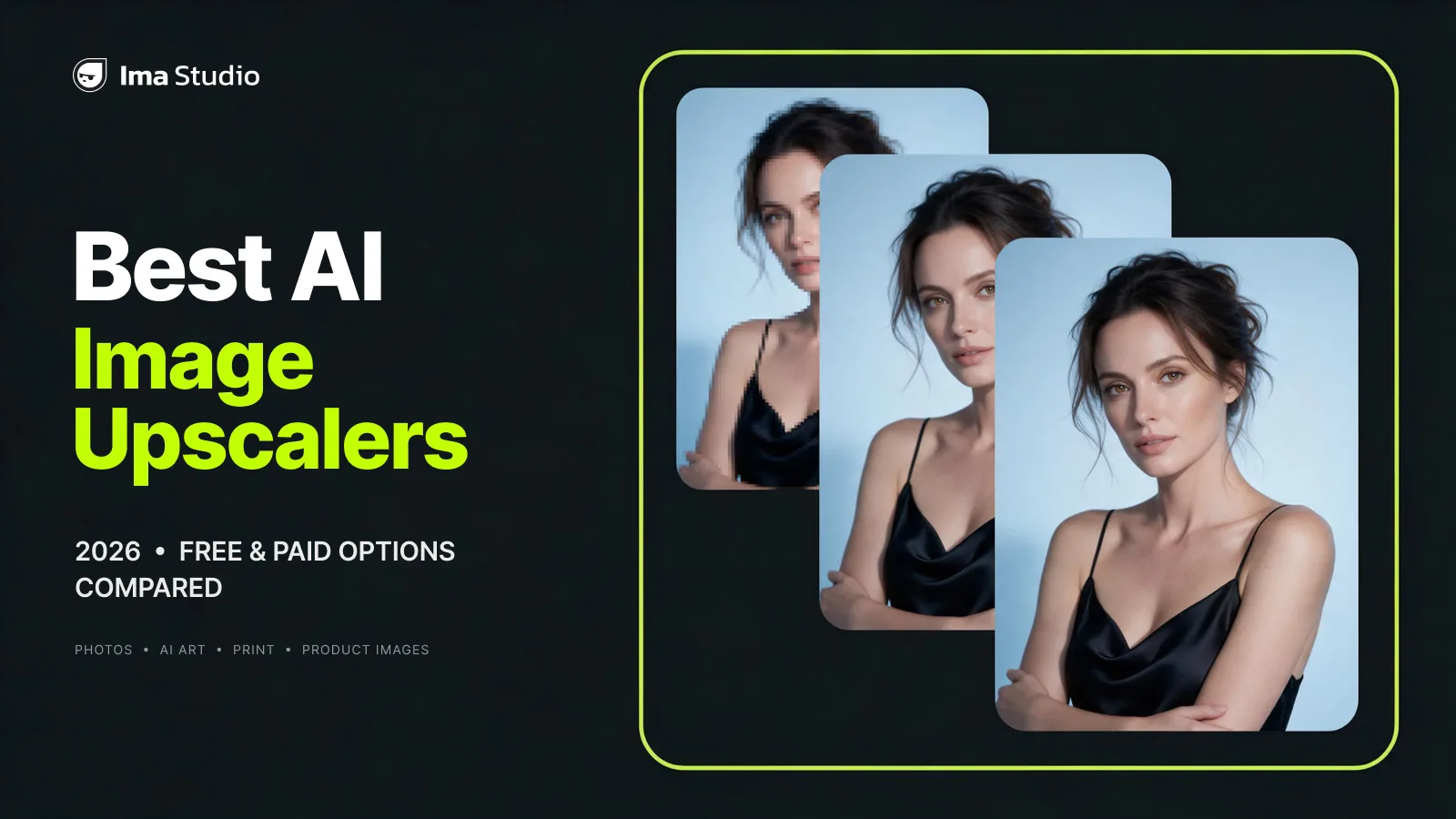
The best AI image upscaler depends on what you are enlarging. A family portrait needs recognizable faces. AI artwork may benefit from extra texture. A product photo needs accurate labels. A print needs enough pixels for its final size.
This guide compares six options across those needs, from free desktop software to tools for photographers and creative workflows.
Disclosure: IMA Studio publishes this guide and is included in the comparison. Recommendations are based on official product documentation and workflow fit rather than a completed side-by-side image-quality benchmark. Product information was rechecked on November 5, 2026.
Which AI Image Upscaler Is Best for You?
Quick answer: Start with Topaz Gigapixel for dedicated photo enlargement, Upscayl Desktop for free local processing, Magnific when you want creative detail added to AI artwork, Photoshop when upscaling belongs inside an existing editing workflow, Let’s Enhance for browser-based print and web output, and IMA Studio when you want to prepare photos, AI art, product images, and campaign assets through an online creative workspace. The right choice depends on whether you value fidelity, invention, local processing, output size, or workflow fit most.
Best AI Image Upscalers at a Glance
Use this table to build your shortlist. The recommendations describe where each tool is worth considering; they are not a ranking of which produces the sharpest image.
| Tool | Consider it for | Access and cost | Main consideration |
|---|---|---|---|
| IMA Studio | Creators preparing AI images, photos, and campaign assets for larger uses | Online tool; check current processing options and cost | Evaluate the result on your actual image and intended output |
| Topaz Gigapixel | Photographers who want dedicated enlargement software and model choices | Paid desktop software with local and cloud rendering | Hardware, model choice, and commercial licensing |
| Magnific | AI artists exploring added texture and creative detail | Online platform; access depends on model and plan | Creative enhancement may alter details |
| Let’s Enhance | Browser-based enlargement for print and web | Free trial credits; paid subscriptions and bundles | Trial watermark and plan-dependent output limits |
| Adobe Photoshop | Designers who already edit and finish images in Photoshop | Subscription; model access depends on entitlement | Different models have different output limits |
| Upscayl Desktop | People seeking free, local image enlargement | Free and open source | Requires compatible hardware |
The practical starting point is your existing workflow. If you already use Photoshop, try its available upscaling options before adding another subscription. If you want a free desktop option, investigate Upscayl. If you are preparing creative assets online, include IMA Studio’s Image Upscaler in your shortlist.
How We Evaluated These AI Image Upscalers
This is a researched shortlist, not a scored lab test. We checked each tool’s official product page or documentation on November 5, 2026, then compared the factors that change a real buying decision: suitable image types, faithful versus generative enhancement, local versus cloud processing, output limits, free-access restrictions, hardware requirements, and fit with the rest of the editing workflow.
- Official facts: model names, processing modes, limits, plan restrictions, and hardware requirements come from first-party sources linked below.
- Editorial judgment: each “Choose it when” recommendation maps those facts to a reader and use case.
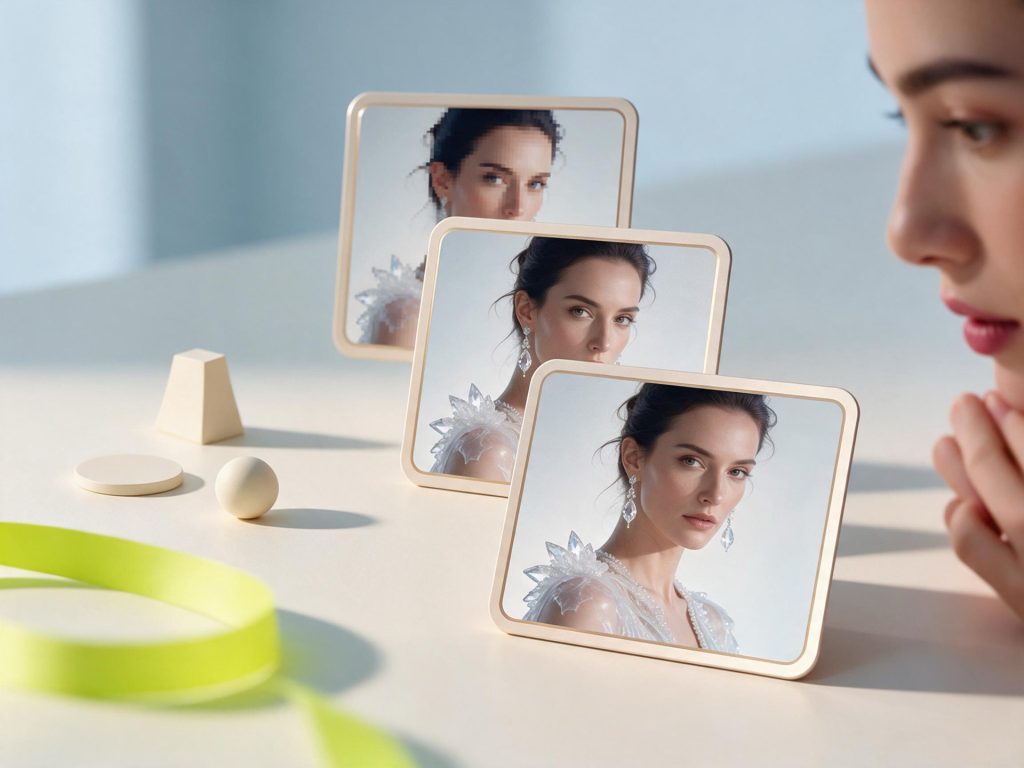
- Evidence boundary: IMA images in this article illustrate IMA use cases. They do not prove that IMA produces better output than the other tools.
What Goes Wrong When You Choose the Wrong Upscaler?
The expensive part is often the rework after export. A portrait may need another pass because the face changed. A product image may need its label and logo rebuilt. A print file may need to be processed again because the selected output still lacks the required pixels. A free trial may also become unusable for the final job because of a watermark, export limit, hardware requirement, or commercial-use restriction.
This guide reduces that rework by matching the tool to the image and final use before you process a full set. Start with one difficult representative file, inspect the details that matter, and only then commit to a subscription or batch.
Which Images Need Upscaling?
Photos and portraits
A portrait can look fine on a phone and fall apart when cropped for a profile image, presentation, or framed print. Check eyes, eyelashes, hairlines, teeth, and skin texture after enlargement. Extra sharpness is useful only if the person still looks right. Compare the output with the original instead of judging it in isolation.
Old and low-resolution photos
Old family photos may combine limited resolution, fading, scratches, compression, and missing detail. Upscaling addresses image dimensions. Restoration addresses damage. You may need both. If you still have the physical photograph, try a better scan before processing a small copy downloaded from a messaging app.
AI art, illustrations, and wallpapers
AI-generated artwork often needs enlargement for a wallpaper, portfolio, poster, or print. Here, adding detail may be part of the goal. A soft fantasy scene might benefit from richer fabric or stone texture. A clean illustration may need the opposite: consistent outlines and flat colors.
If the image needs changes before enlargement, our Nano Banana generation and retouching guide covers a related creative workflow.
Design assets and social media images
Designers and content creators often inherit small JPEGs, compressed screenshots, or graphics exported for the wrong placement. Before enlarging them, check whether a higher-resolution original exists. A vector logo or editable design file is usually a better starting point than a screenshot of it.
Images for printing
A photo that fills a screen may still be too small for a close-viewed print. Start with the physical dimensions and the printer’s requested resolution. Adobe identifies 300 pixels per inch as a common standard for high-quality prints, while noting that large-format work viewed from farther away can use lower resolutions.
| Print size | Pixel dimensions at 300 PPI |
|---|---|
| 8 x 10 inches | 2,400 x 3,000 pixels |
| 12 x 18 inches | 3,600 x 5,400 pixels |
| 16 x 20 inches | 4,800 x 6,000 pixels |
Product photos and advertising creatives
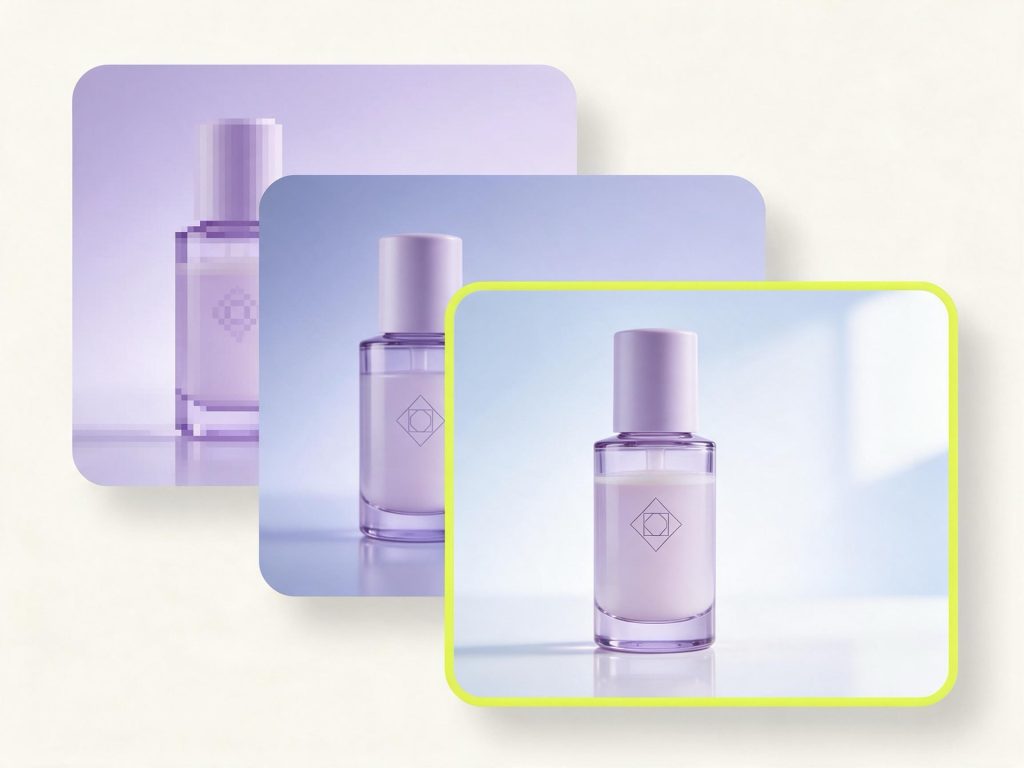
For ecommerce images, a believable result must also be accurate. Check packaging text, logos, product shape, material, and color. An attractive texture change can misrepresent the item being sold. For advertising graphics, keep editable text and logos separate where possible and add them after enlarging the underlying photo.
The Best AI Image Upscalers Compared
IMA Studio: an online option for creative assets
IMA Studio’s image upscaler is positioned for photos, AI artwork, product images, and campaign assets. Its public workflow is upload, enhance, and download. It belongs on your shortlist when you are preparing an existing image for a larger placement: an AI illustration for a portfolio, a photo for a presentation, or a campaign visual for a new format.
Choose it when: You want an online route for preparing creative images.
Check first: Available processing settings, output dimensions, current cost, and important details in your result. This guide does not claim that IMA preserves faces or text better than the alternatives.
Topaz Gigapixel: dedicated software for photo enlargement
Topaz Gigapixel offers specialized models including High Fidelity, Text & Shapes, Art & CG, and Face Recovery. Its official page lists local and cloud rendering. That makes it a useful candidate for photographers who want dedicated enlargement software and several approaches to try on the same source.
Choose it when: You regularly enlarge photographs and want dedicated model controls.
Check first: System requirements, current price, processing mode, and the license appropriate to your work.
Magnific: creative control for AI artwork
Magnific’s upscaler offers a Creative model with Creativity and Resemblance controls. Its official description positions those controls for added texture, variation, and managing closeness to the source. It also offers a Classic model for general enlargement.
Choose it when: Added detail is part of the creative brief.
Check first: Model access, credit requirements, and whether the result changes meaningful content. For a broader look at the platform, read our Freepik and Magnific review.
Let’s Enhance: browser-based enlargement for print and web
Let’s Enhance provides online image enlargement and enhancement. Its pricing page lists 10 signup credits with watermarked trial output, while paid plans increase output limits. It is worth considering when you want a browser-based service with clearly listed image allowances.
Choose it when: You want online processing for images intended for web or print.
Check first: Current watermarks, input limits, required output size, and credit terms.
Adobe Photoshop: upscaling inside an editing workflow
Photoshop’s Generative Upscale offers 2x and 4x options. Adobe documents Firefly Upscaler, Topaz Gigapixel, and Topaz Bloom, describing Gigapixel as preserving existing detail and Bloom as adding creative detail. Model availability and output limits differ.
Choose it when: Photoshop is already part of your production process.
Check first: Your subscription’s model access and the selected model’s output limit.
Upscayl Desktop: free, local image enlargement
Upscayl Desktop is a free, open-source option for Windows, macOS, and Linux. Its official repository states that it needs a Vulkan-compatible GPU and warns that many integrated GPUs will not work. It also distinguishes enlarging low-resolution images from correcting severe defocus.
Choose it when: Free local processing is a priority.
Check first: GPU compatibility and the terms of any models you use, particularly for commercial projects.
How to Compare AI Image Upscalers on Your Own Images
A sample portrait on a vendor’s website will not tell you how a tool handles your illustration or packaging photo. Use the same original file and target dimensions across your shortlist. Compare results at matching magnification, then view them at the size where they will actually be used.
| Image | Inspect closely | Reject the result if… |
|---|---|---|
| Portrait | Eyes, teeth, hair, and skin | The person’s appearance changes noticeably |
| Old photo | Faces, clothing, and damaged areas | Invented detail becomes misleading |
| AI illustration | Outlines, style, and repeated patterns | Added texture changes the intended look |
| Product photo | Labels, logos, material, and shape | Product information or appearance changes |
| Design graphic | Lettering, icons, lines, and gradients | Text becomes incorrect or edges develop halos |
Keep a record of the model, settings, output dimensions, processing time, and cost. If you need several attempts, include them in the cost. A useful calculation is cost per usable image = total processing spend divided by outputs you can actually use.
Free vs. Paid AI Image Upscalers: When Is Paying Worth It?
A free tool can be enough for occasional enlargement. Paying becomes easier to justify when it solves a specific problem: required output dimensions, better controls, suitable commercial rights, or a workflow that fits repeated work.
- Can it produce the dimensions I need?
- Can I use and export the result under the relevant terms?
- How many attempts does an acceptable image take?
- Does it fit the amount of work I actually have?
How to Choose the Right Image Upscaler
Start with the image’s purpose. For portraits and family photos, prioritize recognizable features. For AI art, decide whether the job is faithful enlargement or creative enhancement. For print, calculate dimensions before processing. For product photos, treat labels and shape as accuracy requirements.
Then consider where you work. Existing Photoshop users should assess tools they already have access to. People who want local processing can investigate Upscayl or Gigapixel. Creators working online can compare IMA Studio, Let’s Enhance, and Magnific against their own files.
AI Image Upscaling FAQ
What is the best free AI image upscaler?
Upscayl Desktop is a useful starting point if you want free local processing and have compatible hardware. Online trial credits can help you evaluate other tools, but check export restrictions and watermarks.
How can I increase image resolution without losing quality?
Start with the highest-quality original available. Choose the required output dimensions, use restrained enhancement settings, and compare the result with the source. No tool can guarantee a faithful reconstruction of detail absent from the original.
Can AI upscalers fix blurry or old photos?
They may improve some images, but the source problem matters. Low resolution, motion blur, missed focus, scratches, and fading require different corrections. Preserve an untouched scan before processing an old photograph.
What is the difference between 4x upscaling and 4K?
A 4x scale usually multiplies both pixel dimensions by four. A 1,000 x 750 image would become 4,000 x 3,000 pixels. “4K” describes an output-resolution category rather than a multiplication factor, so check the actual width and height.
Can I upscale an image for a large print?
Yes, but calculate the required pixels first: pixels = print dimension in inches x target PPI. A 12 x 18-inch print at 300 PPI needs 3,600 x 5,400 pixels. Meeting that pixel target does not guarantee convincing detail, so inspect the result and order a proof for important work.
Will AI upscaling change faces, text, or logos?
It can, particularly when using models that add creative detail. Inspect these areas carefully. When possible, preserve editable text and vector logos, enlarge the underlying photograph, and place the clean elements afterward.
Can I use upscaled images commercially?
Check the source image rights, service plan, and any model terms. Upscaling does not give you rights to a photograph, artwork, or trademark you did not already have permission to use.
Does changing an image to 300 DPI make it clearer?
Changing resolution metadata alone does not add pixels. Without resampling, it changes how existing pixels map to physical print dimensions.
Which AI Image Upscaler Should You Choose?
| Your priority | A starting point |
|---|---|
| Free desktop processing | Upscayl Desktop |
| Dedicated photo-enlargement controls | Topaz Gigapixel |
| Creative detail for AI artwork | Magnific |
| Online enlargement for print and web | Let’s Enhance |
| Editing and finishing in Photoshop | Photoshop Generative Upscale |
| Preparing creative images through an online tool | IMA Studio |
For IMA Studio, start with one image that represents your real task: a photo, illustration, or campaign asset. Inspect the result at its intended size before using it in the final design.
Official Sources Checked
- IMA Studio Image Upscaler
- Topaz Gigapixel
- Magnific Image Upscaler
- Let’s Enhance pricing and limits
- Adobe Generative Upscale documentation
- Upscayl official repository
About The Author