











 Ima Studio
Black Friday is coming up, and your product ad still needs a few shots. You have a product photo to work with, but you need a slow push-in, a close-up of the lid opening, and a cut to a new angle. If the label changes or the lid won’t open, you’ll have to run the shot again.
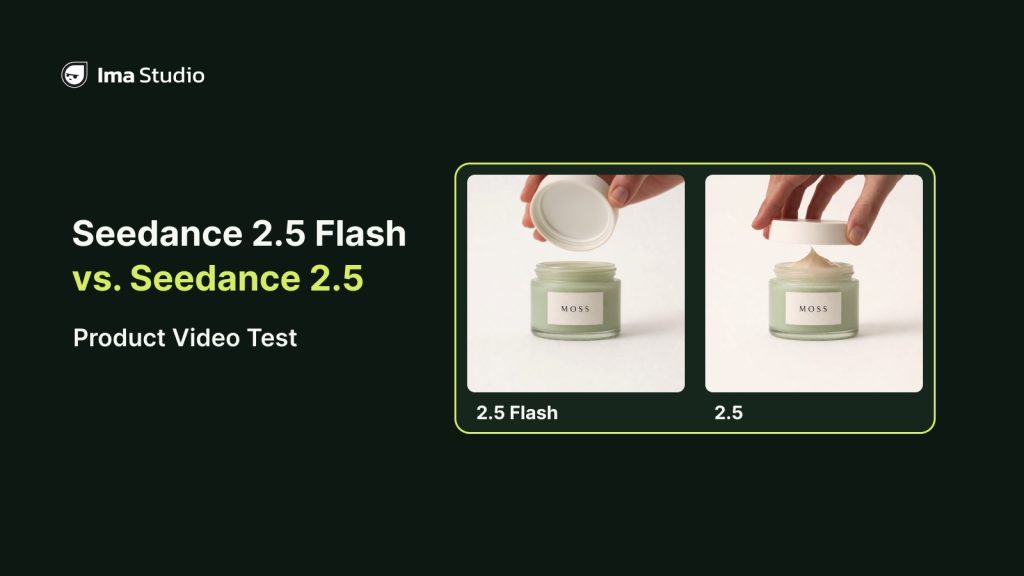
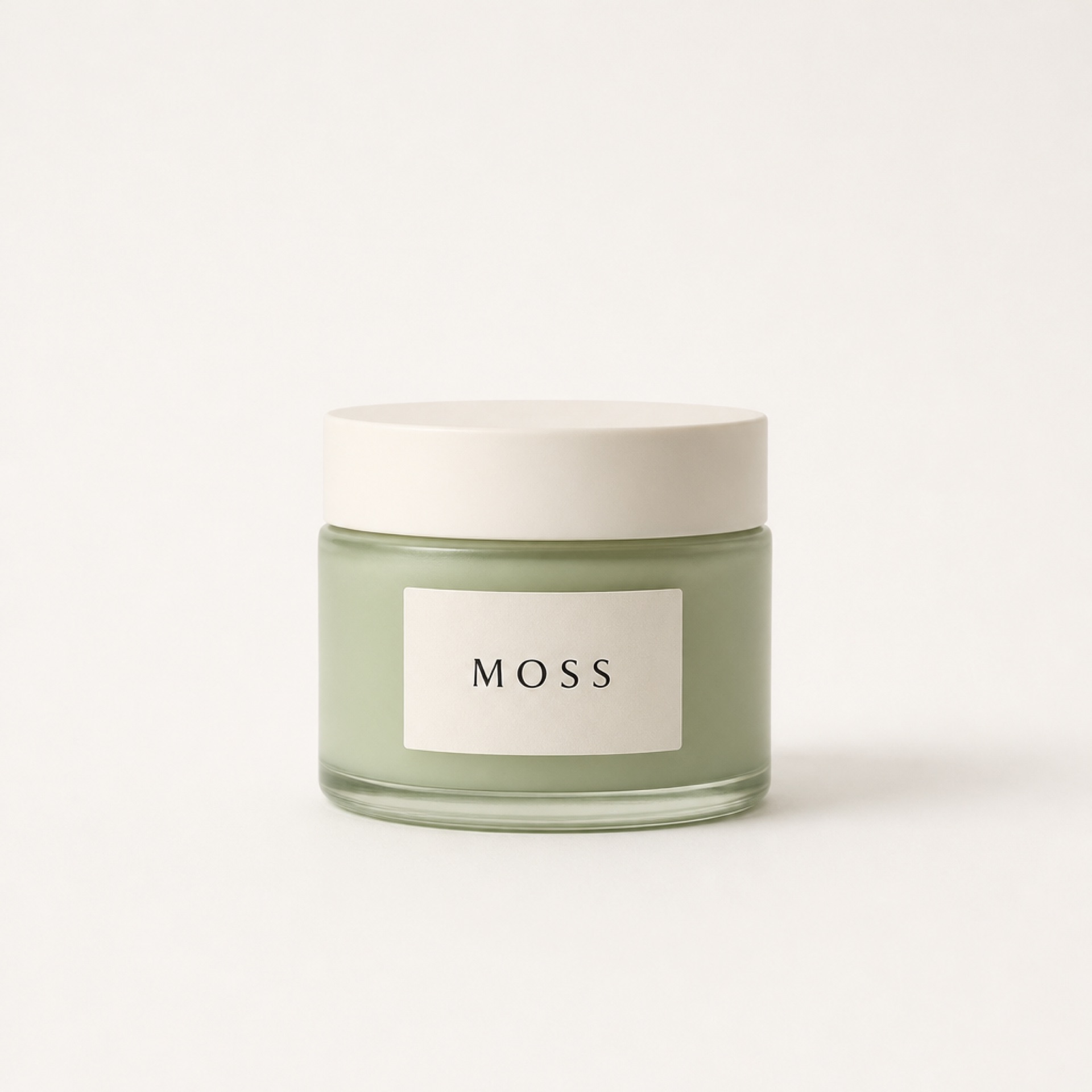
We tested Seedance 2.5 Flash and Seedance 2.5 in Ima Studio using the same photo of a fictional moisturizer jar. For each shot, both models got the same prompt. We wanted to see how long it took to get footage we could actually use.
In this small Test run, Flash gave us a usable push-in in 82 seconds. Seedance 2.5 gave us a usable cream reveal in 155 seconds. Neither take gave us the distinct three-quarter cut we asked for.
| Shot | Seedance 2.5 Flash | Seedance 2.5 |
|---|---|---|
| Label push-in | 82 s · Usable. The full jar stays in frame. | 155 s · Rework. The last frames crop the jar. |
| Open the lid and reveal the cream | 82 s · Rework. The lid comes off, but we can’t clearly see the cream. | 155 s · Usable. The cream is visible, with a stylized peak. |
| Cut to a three-quarter angle | 72 s · Rework. It cuts closer, with little change in angle. | 150 s · Rework. The second shot is still close to front-on. |
The lid-opening pair was submitted at the same time. Flash returned a file 73 seconds sooner, while Seedance 2.5 delivered the requested cream reveal on its first take. Two other requests hit the account’s concurrent generation limit and were submitted after the first batch. Their timings describe those individual requests under different queue conditions. We had one accepted take per model per shot and did not time any creative rework.
Try the same kind of shot in Ima Studio
The Test Setup
Both models got the same square reference image, a five-second image-to-video prompt, the 720p setting, adaptive aspect ratio and audio disabled. Our comparison used Ima Studio’s Test environment. The jar and label were made for the test. Sale text and pricing would be added in the edit.
For each clip, we checked that the requested action actually happened, the packaging remained recognizable and the shot could be edited without regenerating it. A small camera-framing difference was fine. A change to the product, a broken hand interaction or a missing cut meant the clip needed another take. Timing starts with the task request and ends when our poll first sees a media URL for a shot we later pass in review. That includes waiting for the service and the polling interval. It excludes editorial review and download time.
The five-second 720p settings were quoted at 133 Test points for Flash and 173 for Seedance 2.5 when we prepared the requests. Those are the catalog quotes for this Test setup. Actual charges and production pricing were outside this test.
Three Product Shots to Compare
1. Push In and Keep the Whole Jar in Frame
Flash held the entire jar and kept MOSS readable. The standard version pushed closer until the crop cut into the lid and jar. That ending could work as a label insert, though this brief called for the whole pack to stay on screen.
Start from the supplied product photo. The moisturizer jar stays on the white studio surface while the camera slowly pushes toward the front label for five seconds. Preserve the exact jar shape, lid, label layout, color and lighting direction. Keep the product fully in frame. One continuous shot, no hands, no captions.
2. Open the Lid and Show the Cream
Both versions lifted the lid. Flash left the cream hard to see from this camera height. Seedance 2.5 brought the cream up into view. If the ad is selling the texture, that’s the shot to show the reviewer.
Start from the supplied product photo. In a continuous five-second fixed-camera shot, one adult hand enters from above, grips the existing moisturizer lid, unscrews it and lifts it clear to reveal the cream. The jar stays upright and stationary. Preserve the exact jar silhouette, label layout and color. Keep the open jar and lifted lid visible at the end. No captions.
3. Cut to a Closer Three-Quarter Angle
Both clips cut to a closer shot and held the product identity. The change in perspective was too subtle to read as a distinct three-quarter shot. For that brief, give the model a second approved product photo from the intended angle and test the cut again.
Start from the supplied product photo. Show the original front-facing moisturizer jar for two seconds, then make one clean straight cut to a closer three-quarter angle of the same jar on the same white surface. Keep the original lid, label layout, jar shape and color consistent across the cut. Hold the second shot to the end. No hands, no captions.
If you’re building the whole ad after choosing an opening shot, the 30-second UGC prompt tutorial covers how to turn a product reference into a longer sequence. The commercial test of Seedance 2.5, 2.0 and Mini shows how those models handled a longer brief.
Which Version Should You Open First?
Start with Flash for a short packshot when the action is a single camera move. For a texture reveal that the ad depends on, the standard model gave us the better take here. If the brief depends on a precise angle or a specific interaction, review that moment before producing more variants from the same prompt.
Open image-to-video in Ima Studio. Select Seedance 2.5 Flash, add your own product photo and try the push-in prompt. Check the first and last frames together before you spend credits making more versions.
About The Author


 Will Your Amazon Listing Video Be Live Before Black Friday 2026?
 How to Use Seedance 2.5 in Claude with ImaStudio
 How to Generate AI Videos in Codex with ImaStudio
