











 Ima Studio
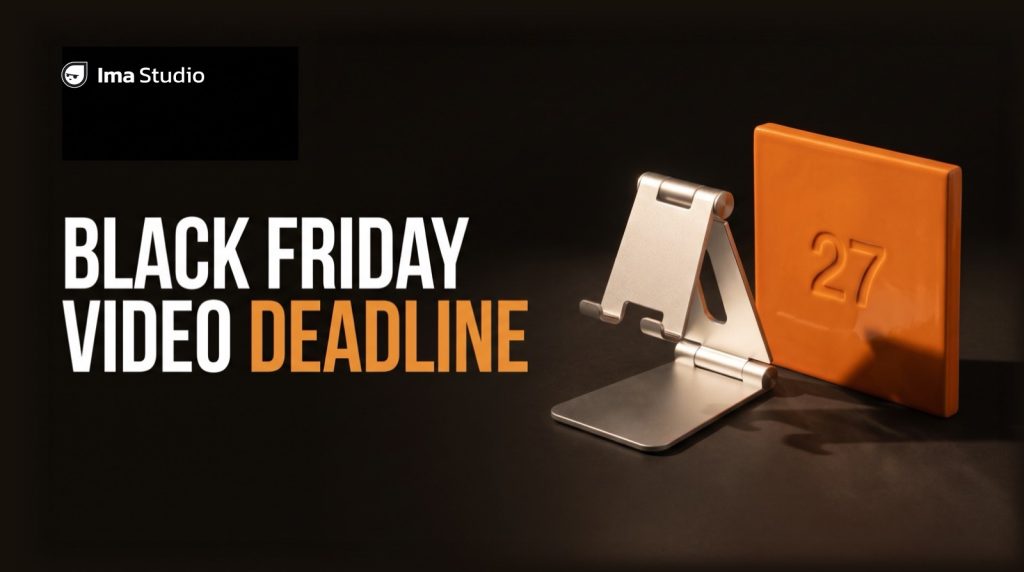
If you upload a new Amazon listing video on Friday, November 20, it could appear before Black Friday, November 27. Build your campaign around the product page shoppers can see today, though. Amazon says holiday review can take seven business days. After approval, the video typically takes up to another three days to appear. Amazon’s shoppable video guide
Create Your Amazon Product Video
If I submit today, what date should I plan around?
A November 20 submission that spends seven business days in review reaches December 1 or 2, depending on how Thanksgiving is counted. Both dates fall after Cyber Monday, November 30. An earlier approval changes the picture. If Amazon approves your video on Monday, November 23, its usual three-day display window runs through Thursday, November 26.
| Submitted | If Thanksgiving counts | If Thanksgiving is skipped |
|---|---|---|
| Friday, November 20 | Tuesday, December 1 | Wednesday, December 2 |
| Monday, November 23 | Wednesday, December 2 | Thursday, December 3 |
| Tuesday, November 24 | Thursday, December 3 | Friday, December 4 |
These are planning calculations. Counting starts on the next weekday and skips weekends. Amazon gives a seasonal review estimate without specifying its Thanksgiving staffing. The table ends at review. Check the live detail page before sending an email that tells shoppers to watch the video there. Amazon’s review and display guidance
What should I submit if the Black Friday offer might expire first?
Pick a question customers will still ask in December. For a folding phone stand, that might be “Will it lie flat in my bag?” A shot of the stand open, a close-up of the hinge and a final shot of the folded stand beside the bag answer that question. Leave the sale date and price out of the listing cut so it remains useful if approval comes late.
You can brief three edits from the same footage. These are example briefs you can adapt to your own product.
| Where it will run | What to ask the editor for |
|---|---|
| Amazon listing | Show the stand open and folded. Keep the final frame on its folded profile so a shopper can inspect it. |
| How-to demo | Use one continuous side view of a hand adjusting the hinge. If you only have still photos, shoot the movement before promising a demo. |
| Black Friday social post | Open on the folded stand coming out of the bag. Put the verified offer and end date in the editable social caption so you can update them separately. |
Can I use my Amazon product link to start the edit?
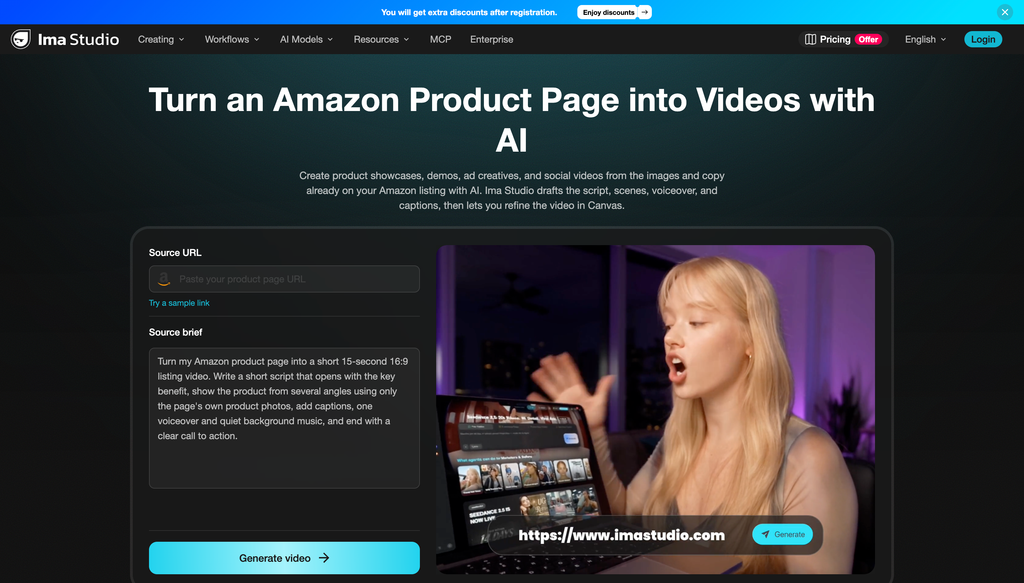
Paste the listing URL into Ima Studio and tell the editor which question the video should answer. The sample link opens a project with the product URL and brief already filled in. If the brief calls for a hinge opening or a clasp closing, supply that footage yourself. A still photo can show its shape, but leaves the movement to guesswork.
Copyable brief
Make a product overview for my Amazon listing using the photos and footage I provide. Answer one question a shopper has before buying: [question]. Open with the clearest view of [feature], then show [detail] and [product in use]. Add captions that also work with the sound off. Use the exact model and color in my listing. Flag any shot that needs new footage. Keep prices and sale dates out of this version.
Can I upload a 15-second social cut to my listing?
Check the uploader for your specific placement before exporting. Amazon’s shoppable video guide lists a 1–12 minute file length, while its creative advice discusses successful 30–90 second videos. For a listing overview, a 60-second edit fits both published ranges if your uploader accepts it. Keep the 15-second version for a placement whose requirements you have checked. Amazon’s specifications and examples
If you are budgeting time for the social edit, our three-shot Black Friday product video test shows which clips needed another attempt. For a presenter-led variation, follow the product-photo-to-avatar-ad walkthrough.
Where do I check whether shoppers can see my video?
- In Seller Central, open Catalog → Upload and Manage Videos. Select the file, associate the correct ASIN, review the thumbnail and submit.
- Return to the same screen to check the status. If Amazon rejects the upload, open Manage to read the reason before revising the file.
- Open the ASIN as a shopper. If the status is Published but the video is missing from the main media block, check the image count. Amazon’s guide says that placement requires fewer than six images. Amazon’s upload and troubleshooting instructions
If Black Friday arrives while the video is still in review, link your campaign to the product details already visible on the page. Save the evergreen demo for the listing and use your separate social edit where you control the posting date.
Create Your Amazon Product Video
About The Author


 How to Use Seedance 2.5 in Claude with ImaStudio
 How to Generate AI Videos in Codex with ImaStudio
 Seedance 2.5 Flash vs Seedance 2.5: How Fast Can You Get a Usable Product Video?
