






You have a product photo. Now you need a launch image, a gift-season concept, and a social ad that gives people a reason to care.
Each visual has a different job. The launch image introduces the product. The gift concept gives it an occasion. The ad needs a point of view.
If GPT Image 2.5 is enabled in your ImaStudio workspace, you can start with a prompt or image references, choose a model, and save or download your results. Here are eight creative workflows to explore, with example prompts you can adapt to your own brief.
The prompts below are starting points, not tested performance claims. Review every output against your product references and approved copy before publishing.
What changes with GPT Image 2.5?
OpenAI introduced ChatGPT Images 2.5 on September 8, 2026. The launch post describes sharper details, more natural lighting, richer textures, stronger reference fidelity, more precise edits, and better consistency across multiple turns. OpenAI also reports up to 50% lower generation latency compared with Images 2.0. That figure is an OpenAI claim, not an ImaStudio benchmark. Read the official announcement for the source wording.
The API release names two model options with different priorities. GPT-Image-2.5 Flare is positioned as the faster default for everyday and higher-volume work. GPT-Image-2.5 Sunburst is positioned for demanding generation and more precise editing, with longer generation times. Choose based on the work you need to finish, then compare results using your actual references. These descriptions come from OpenAI’s release; this article does not present an independent model ranking.
For a closer look at the release claims and editing controls, read what changed in ChatGPT Images 2.5. If model choice matters to an ecommerce workflow, see our controlled GPT-Image-2.5 Sunburst and Nano Banana Pro comparison.
1. Give one product three different reasons to appear
Before picking a background, decide what the image should communicate.
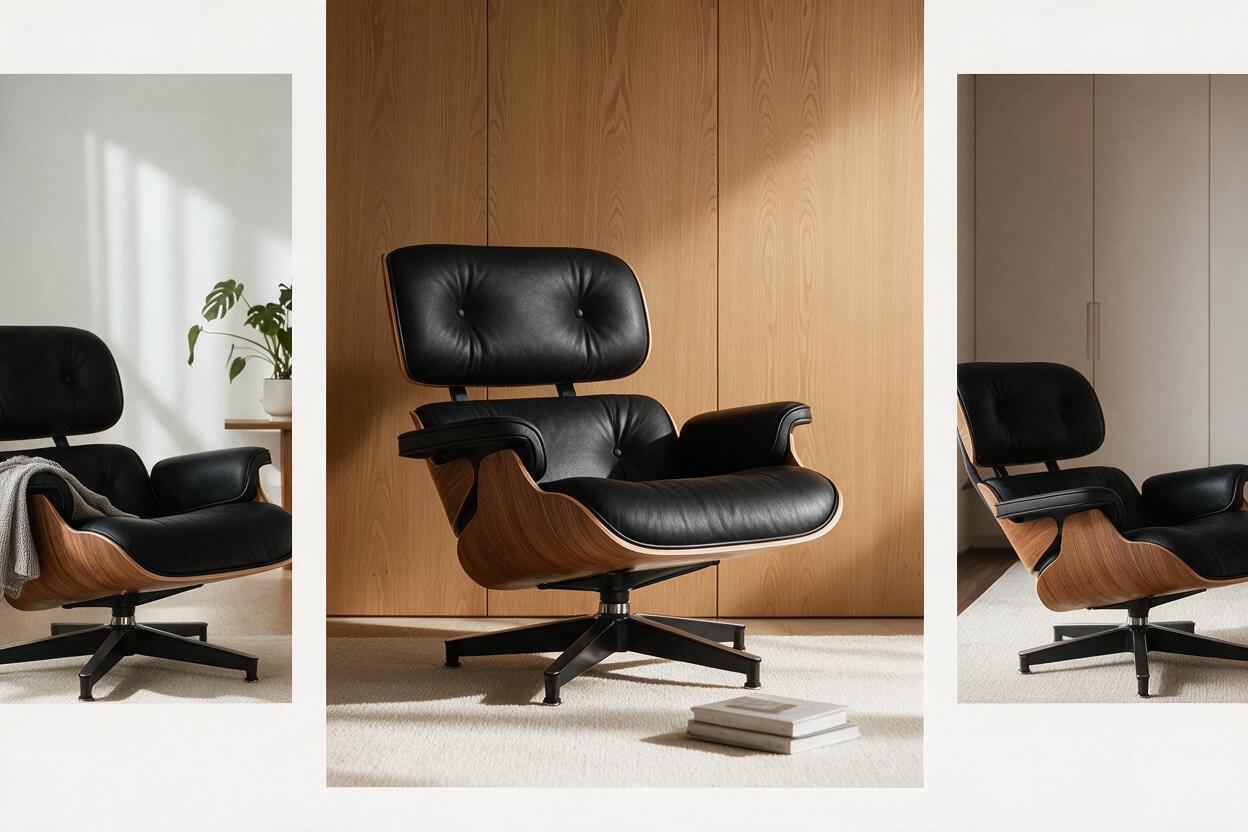
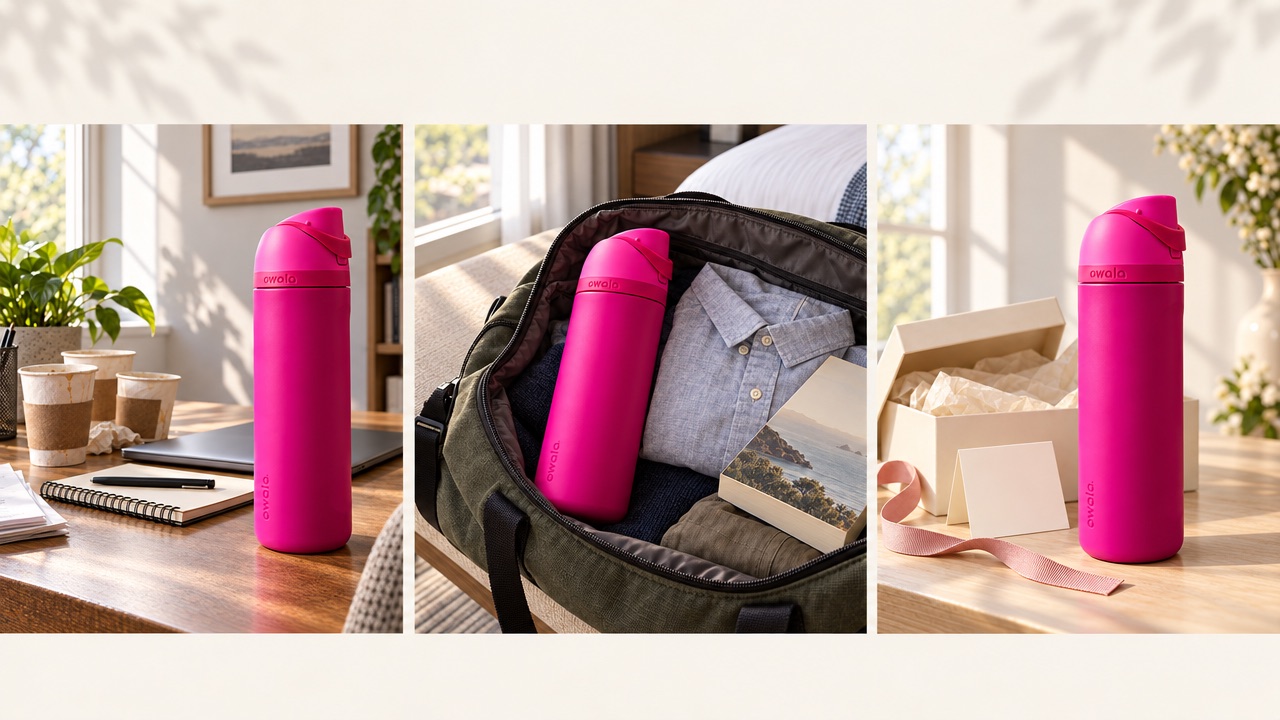
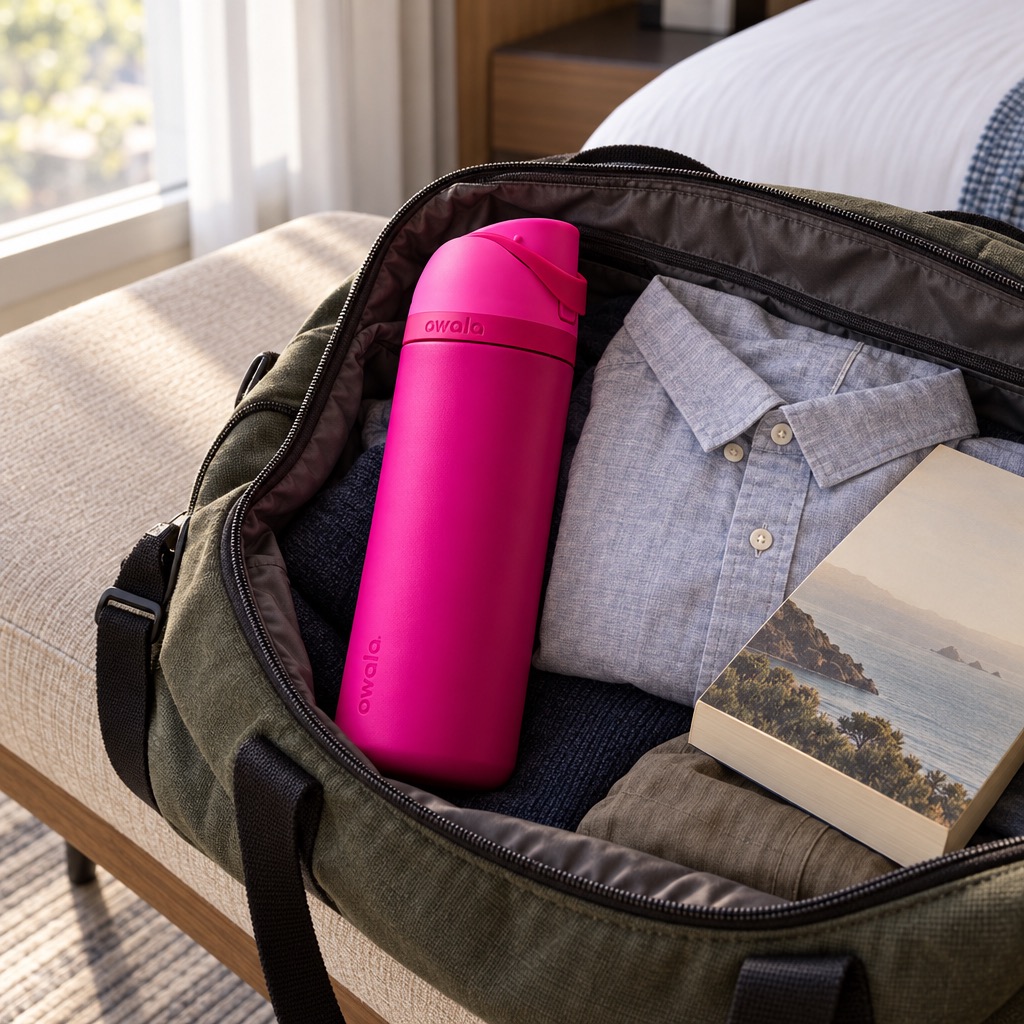
For a tumbler, try a home-office routine, a travel bag, and a thoughtful gift. Those directions speak to habit, convenience, and gifting. Generate each separately so you can judge the idea on its own.
Example prompt
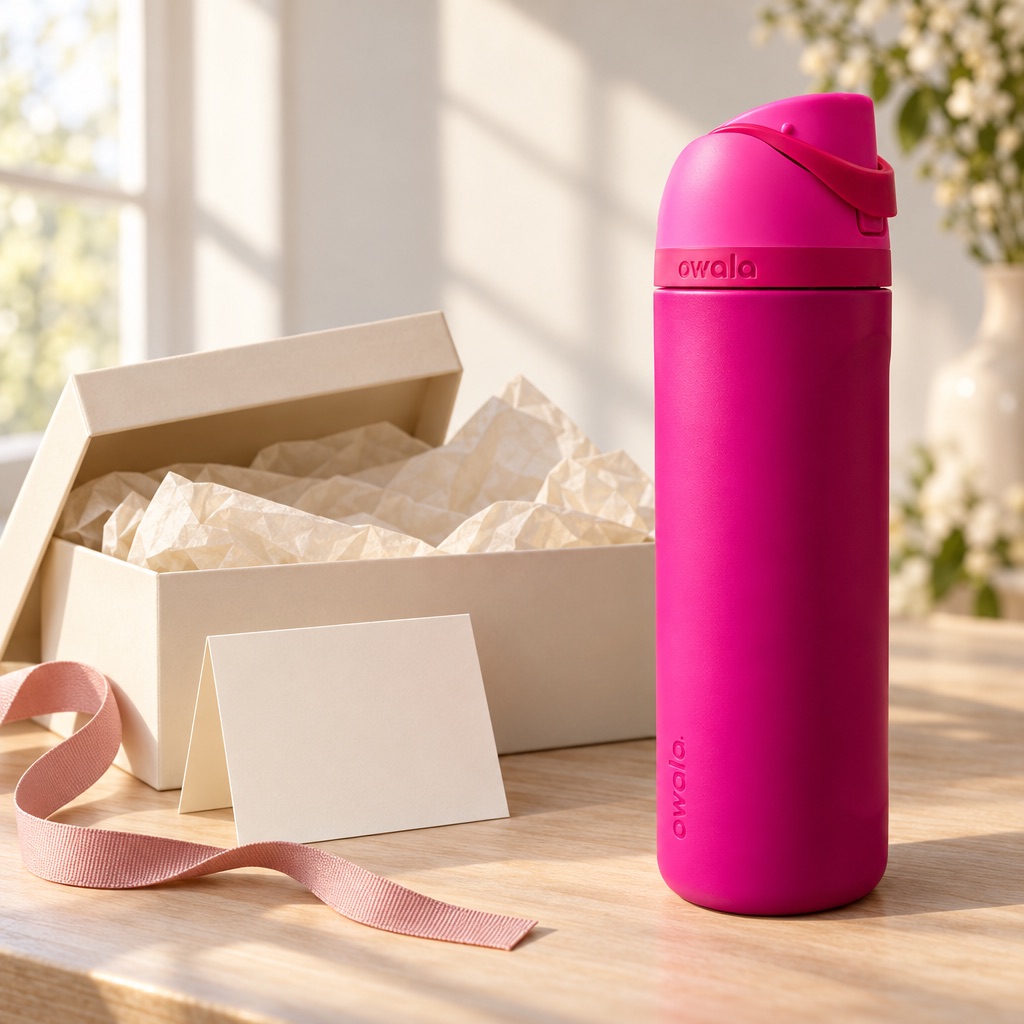
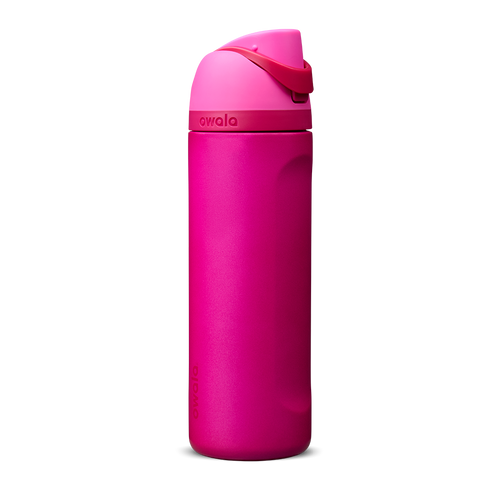
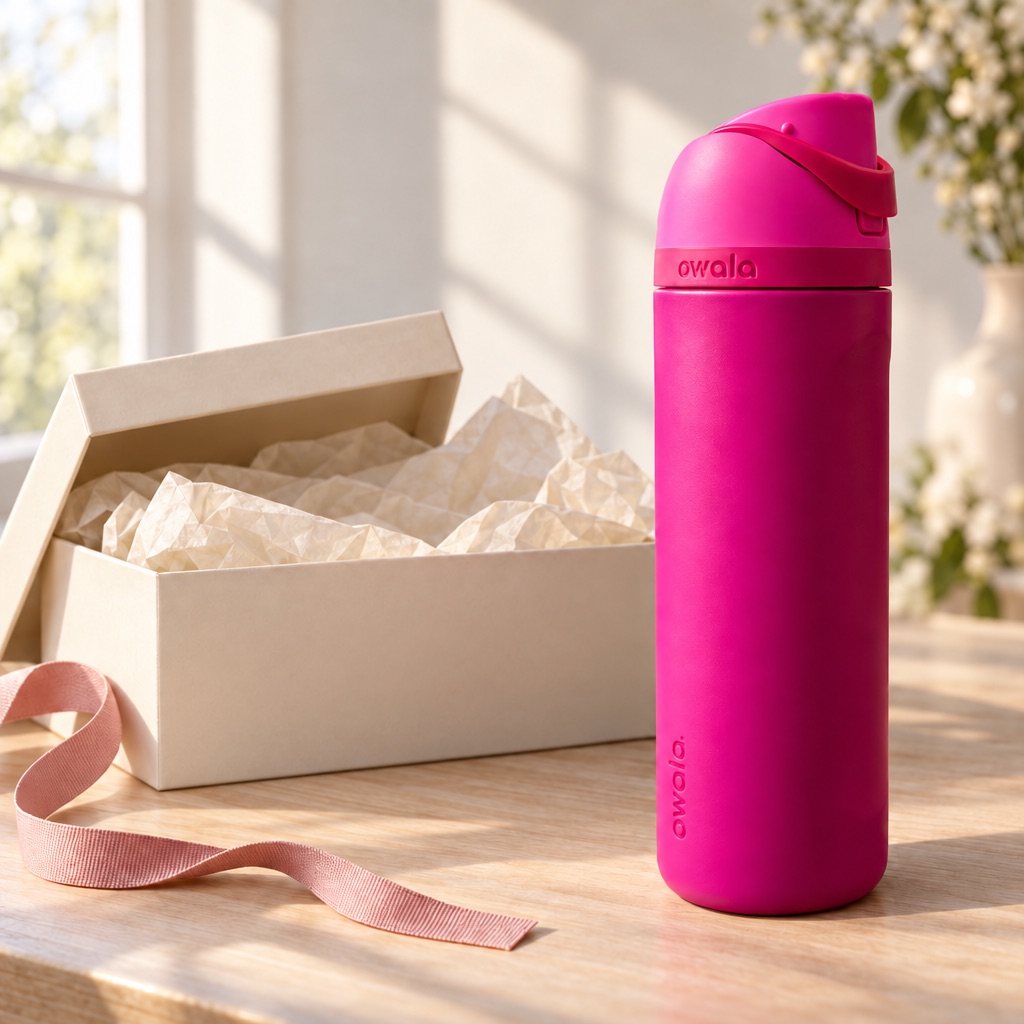
Create a gift-focused campaign concept using the uploaded tumbler photo. Place the tumbler beside an open cream-colored gift box on a pale wooden table, with a folded blank card, a narrow ribbon, and soft afternoon window light. Position the product on the right and leave clear space on the left for copy to be added later. Match the reference tumbler’s body shape, lid, handle, colors, and visible logo. No additional products or invented text.
For the next direction, change the occasion and props. Compare whether the image makes the intended use clear at a glance.
2. Turn an ad hook into a visible situation
“A product on a counter” leaves most of the advertising work to the caption. A recognizable situation gives the viewer something to respond to.
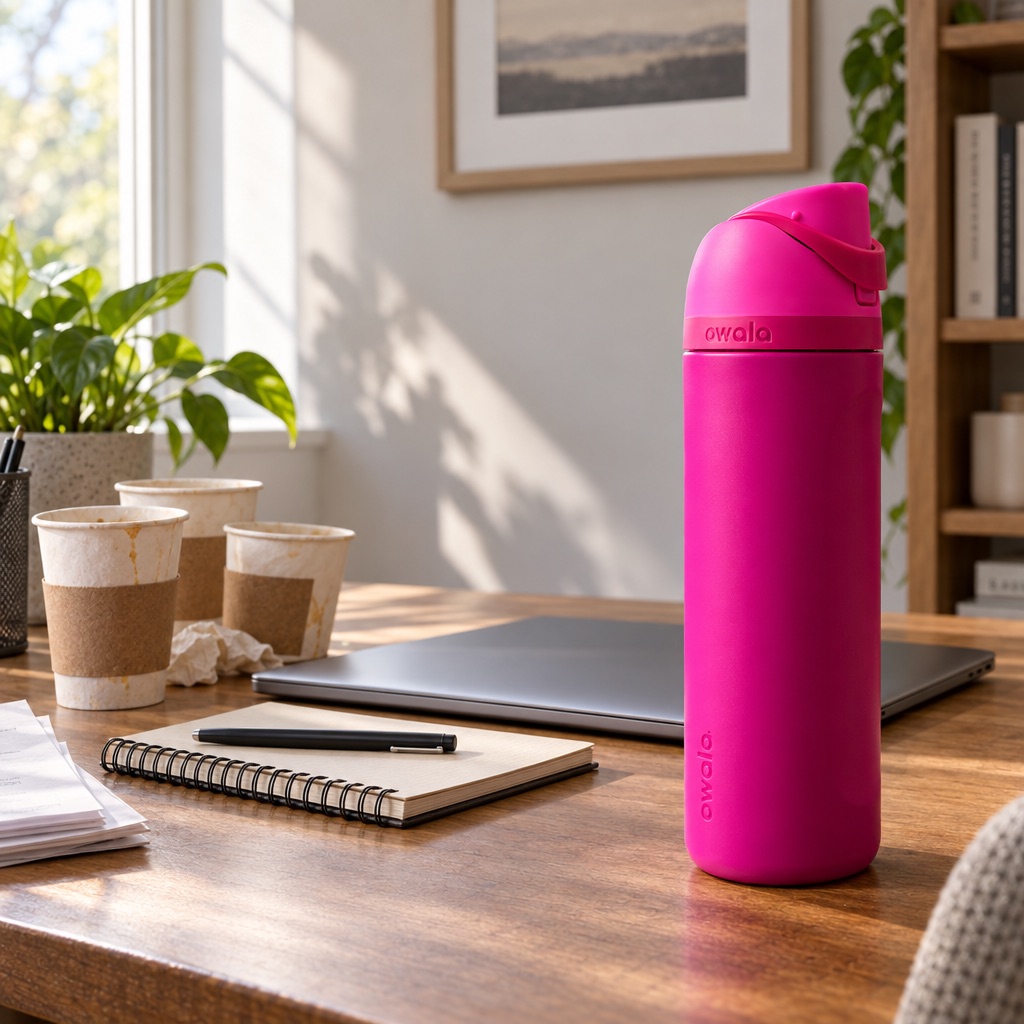
Imagine an insulated tumbler ad with the hook: “Your desk called. It wants fewer coffee cups.” The visual could show a busy desk, several empty takeaway cups, and the tumbler as the clear hero.
Example prompt
Make a square social ad concept for the reference tumbler. Show a believable home-office desk after a busy morning: three empty disposable coffee cups sit in a small cluster at the far left; the reference tumbler stands prominently at the right. A closed laptop and notebook provide context. Use ordinary morning daylight and realistic proportions. Keep the tumbler design faithful to the reference. Leave the top quarter uncluttered for a headline. No generated copy.
This tests a creative premise. Claims about temperature retention, capacity, or sustainability still need product evidence.
3. Explore seasonal campaigns around the same product
Use the calendar to change why the product matters.
A home fragrance can appear in a reading corner, a dinner-party setting, or a holiday gift scene. Choose props that tell the occasion without burying the product in decoration.
Try a seasonal direction before adding prices or offers. Once the visual works, add the brand’s approved promotion. A holiday image should not invent a discount or suggest accessories are included in the purchase.
4. Adapt campaign copy for another market
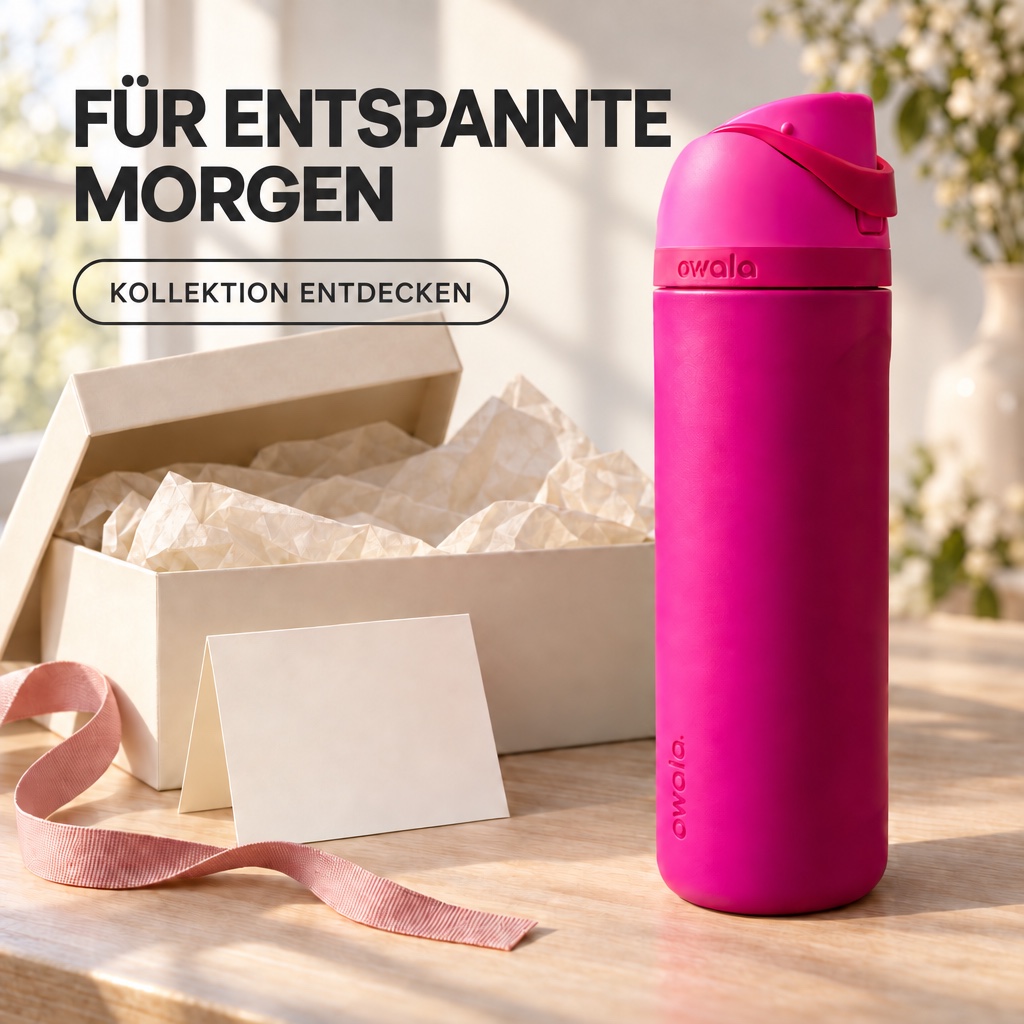
An approved visual gives you a starting point for a localized version. Keep a record of the source copy and supply the replacement wording yourself.
Example edit prompt
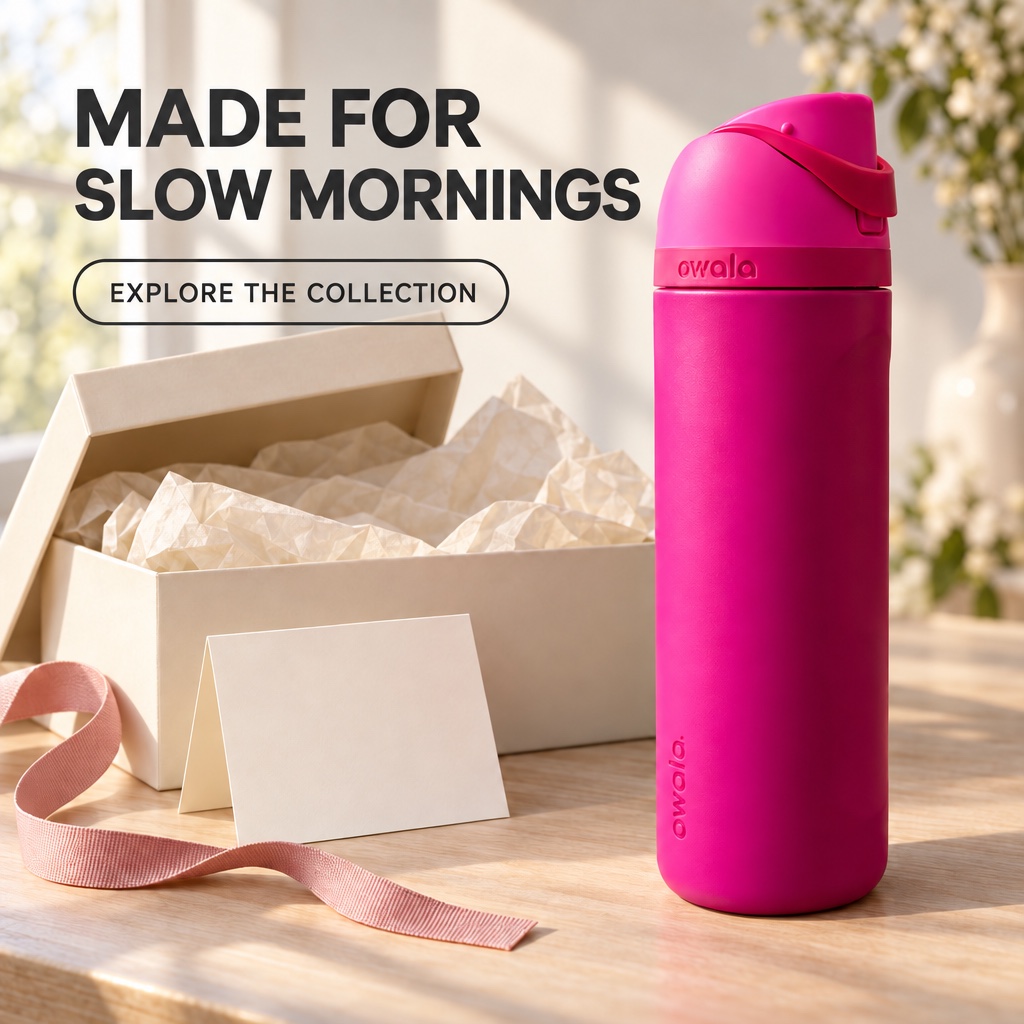
Replace the headline “Made for slow mornings” with “Für entspannte Morgen”. Replace the CTA “Explore the collection” with “Kollektion entdecken”. Keep the product, background, color palette, headline placement, and surrounding design as close to the input as possible. Use those two German strings exactly and introduce no other text.
OpenAI’s release describes more precise editing and better handling of complex layouts. Your own output still needs a spelling and layout check, ideally from a fluent reviewer. Do not treat a readable first pass as proof that every localized version is publication-ready.
5. Explore fashion and portrait directions
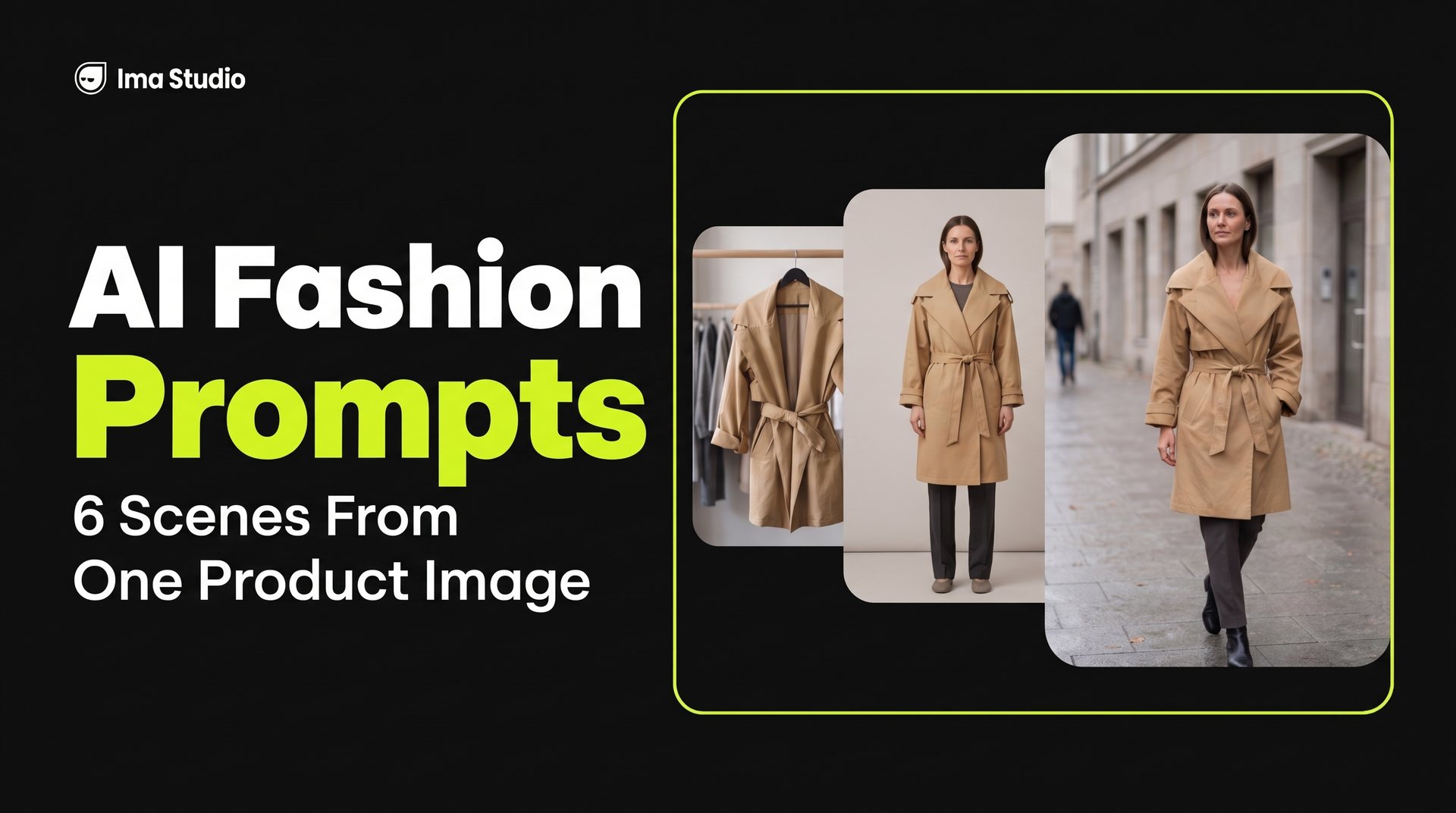
For a creator campaign, write a shot brief around the person, setting, and clothing references.
Give every reference a role: one for identity, another for the garment, and another for location. Avoid asking a single reference to communicate everything.
Example prompt
Image 1 is the person reference. Image 2 is the jacket reference. Create a waist-up fashion campaign concept of this person wearing that jacket outside a small neighborhood bookstore on an overcast afternoon. Use relaxed posture, understated styling, and documentary-style photography. Preserve the person’s recognizable facial features and hairstyle, and follow the jacket’s construction and colors. Do not add jewelry or printed text.
Treat these as styling concepts. Inspect the person and garment carefully, and do not use a generated image as evidence of real fit or sizing.
6. Give a recurring character a small story
A mascot becomes more memorable when something happens to it.
Try an original four-panel story: a cat notices a parcel, inspects the box, ignores the expensive contents, and falls asleep in the packaging. That gives a home or pet brand an everyday joke to build around.
Example prompt
Create one vertical four-panel comic using the original cat in the reference. Read top to bottom. Panel 1: the cat watches a sealed parcel on the floor. Panel 2: a hand opens the parcel while the cat peers inside. Panel 3: the unpacked item sits nearby, but the cat has climbed into the empty box. Panel 4: the cat sleeps curled inside the box. Use warm, lightly textured illustration, consistent markings, clear actions, and no dialogue or captions.
The format works best when the character, action, panel order, and text requirements are stated separately. Keep the story simple enough to review panel by panel.
7. Build a product explanation around verified facts
Give the viewer a short path through the information: what the product is, the relevant details, and the next action.
For an organizer, you might supply three approved labels: “Three compartments,” “Removable divider,” and “Wipe-clean surface.” Ask for a clean visual draft, then check every label and feature against the actual product.
For data-heavy charts, technical diagrams, or editable presentation materials, use a tool that preserves the underlying data and structure. An image can help explore the visual direction, but cannot validate its own content.
8. Make a small revision to an accepted direction
Once a concept works, identify the next decision precisely.
Example edit prompt
Remove only the folded card beside the gift box. Reconstruct the tabletop naturally where the card was. Retain the product, box, product label, camera framing, and existing lighting. Do not introduce replacement props or new text.
Compare the edit with the accepted version. Check the product and other details even when the request was small. Save a useful version before continuing, so you have a clear reference for the next revision.
Before you publish
Treat each output as a creative draft until it passes a human review. Check the product silhouette, label, materials, and any feature shown in the image against the source reference. Check localized copy with a fluent reviewer. Check that an ad concept communicates the intended situation without implying a product claim that has not been approved.
For a small edit, compare the new version with the accepted one instead of judging it on its own. A requested change can still affect a label, reflection, crop, or background detail.
Start with a real creative task on ImaStudio
If GPT Image 2.5 is available in your ImaStudio workspace, upload your references and describe the asset you need. Choose Flare or Sunburst when those options are shown, generate a first direction, and review it before saving, downloading, or continuing your work.
For a first exercise, take one product and write three briefs: introduce it, give it an occasion, and put it in a recognizable customer situation. Compare which image communicates its job most clearly. Then refine the strongest direction with one specific edit.
If your next task is brand identity rather than product shots, see how Logo Design turns a brief into three distinct directions before a designer’s first round.
For more ways to structure generation and editing requests, use the GPT Image prompt guide and its 35 examples as a starting library, then adapt the preservation constraints to your own product.
About The Author