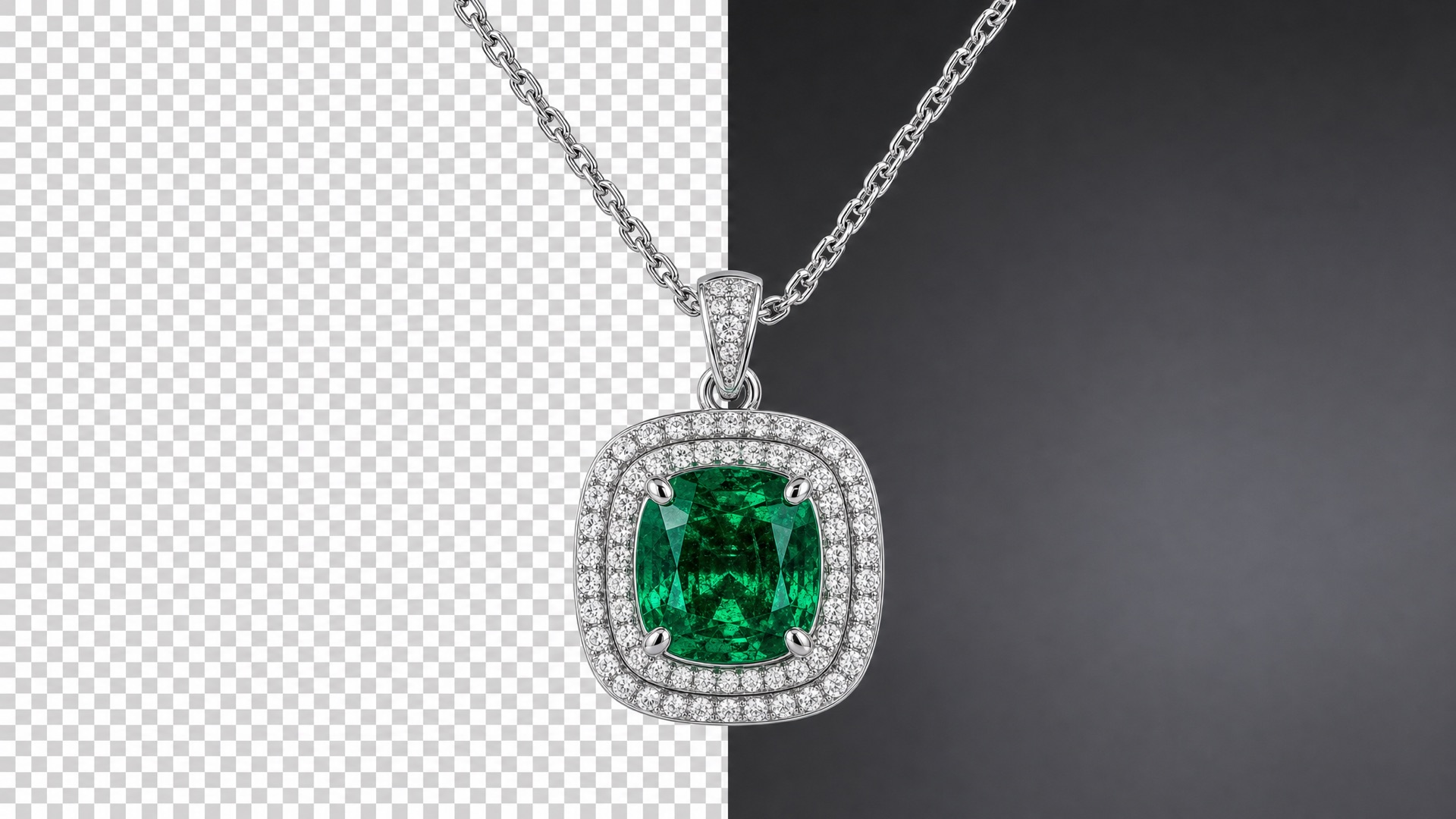
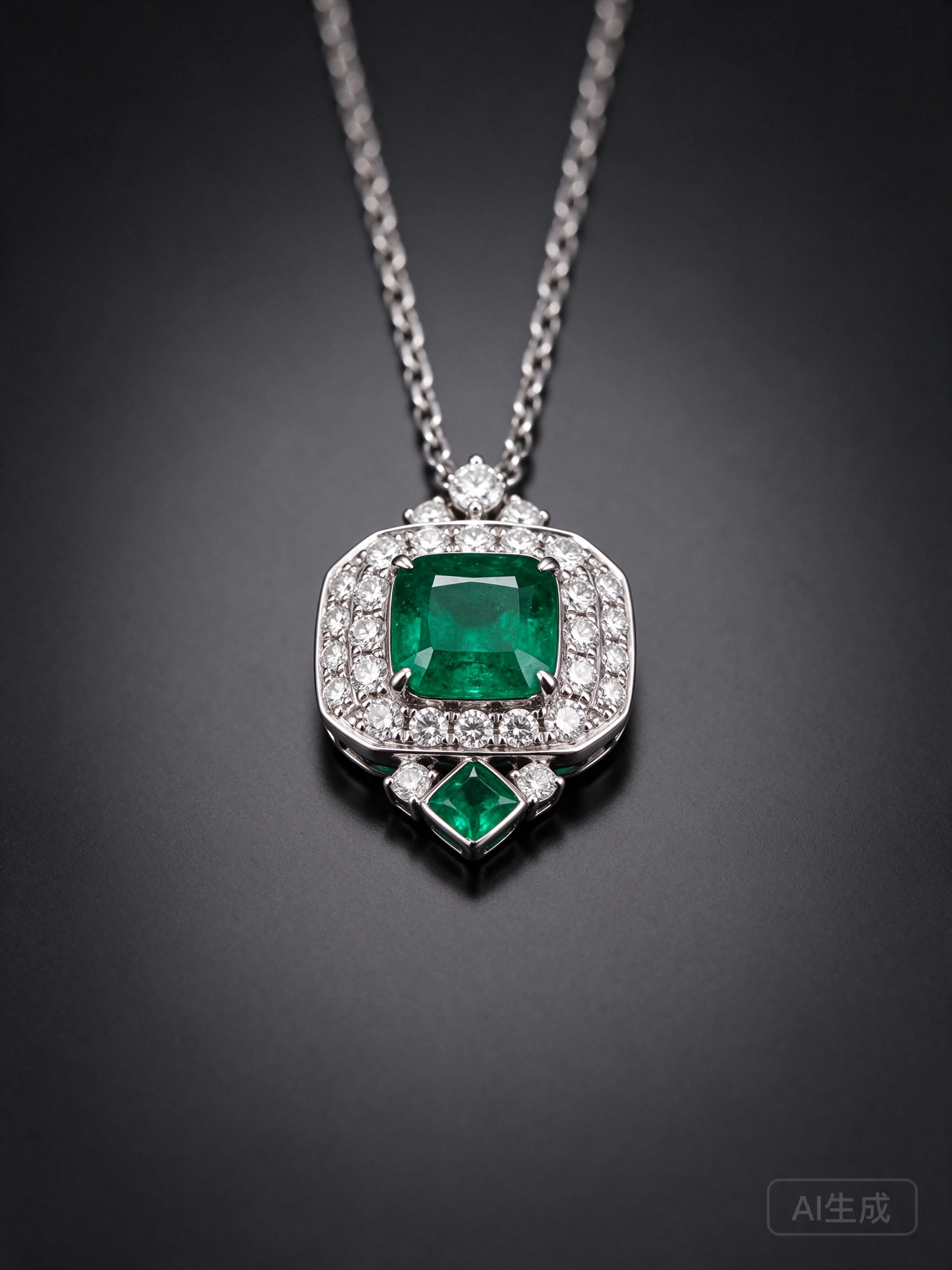
Seedream 5.5’s two headline upgrades — native transparent PNG output and stable multi-round editing — hold up on a real product shot. We generated one emerald necklace with a true alpha-channel transparent background, then relit that same necklace nine different ways from a single reference photo. The gem’s cut, inclusions, diamond arrangement, chain links, hanging angle, and background stayed consistent across all nine. These are our own runs on IMA Studio, not ByteDance’s launch demos.
Seedream 5.5 launched on November 9, 2026 with two claims worth checking: it can output transparent-background images directly (an RGBA file with a real alpha channel, no background removal needed), and it keeps the untouched parts of an image stable while you change the rest. ByteDance’s demos show up to 100 consecutive edits on a single portrait. We wanted to test the same ideas on a product image — the kind of shot you’d actually need for a store listing or an ad.
Test 1: a real transparent background
We asked the text-to-image model for a pendant necklace on a transparent background, saved as PNG. No background removal, no post-processing.
The result is a 1728×2304 PNG with a genuine alpha channel. About 86% of the pixels are fully transparent (the background), the pendant itself takes up about 13%, and the remaining 1% is the soft, semi-transparent edge between the two. That thin edge is the tell: the model produced a feathered transparency boundary, not a hard cutout. A cutout tool leaves a hard line; this looks like the object was rendered over nothing from the start.
So yes — Seedream 5.5 outputs a usable transparent PNG directly. For a product cutout, a sticker, or a layered design asset, that removes an entire background-removal step from your workflow.
Test 2: nine lighting setups, one consistent necklace
The stronger claim is editing stability: change one thing, keep everything else. We tested it on lighting — the variable that most often shifts how a product reads.
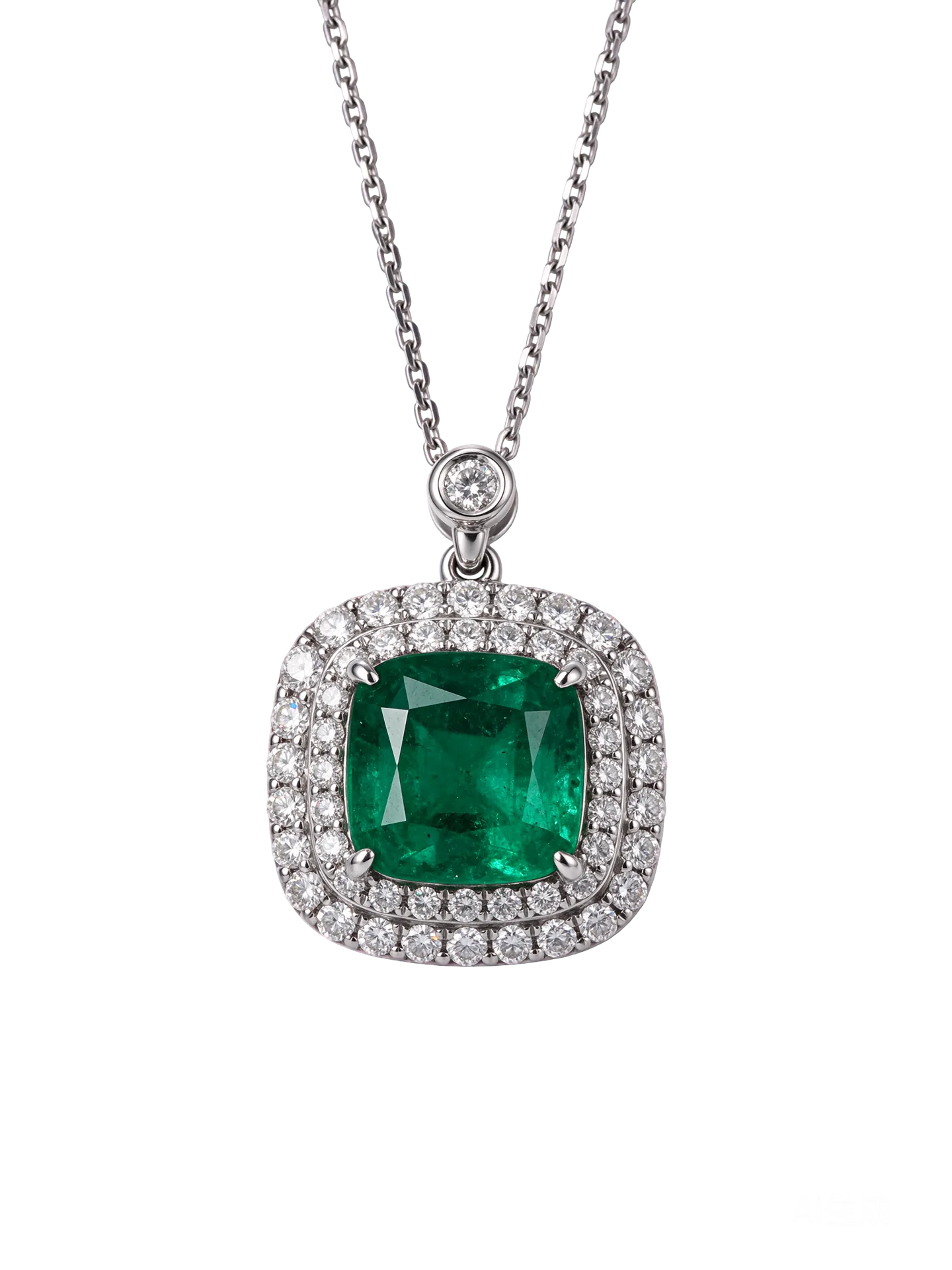
We started from one reference photo, the same emerald necklace on a deep-gray gradient background, and ran nine separate image-to-image requests. Every request used the same reference image, the same size and settings, and the same “keep the cut, color, inclusions, double-row pavé diamonds, chain links, pendant angle, camera view, crop, and background identical to the reference” instruction. The only thing we changed was the final sentence — the lighting direction.
The nine lighting setups we asked for: Rembrandt, butterfly, loop, split, clamshell, rim, double, broad, and narrow.
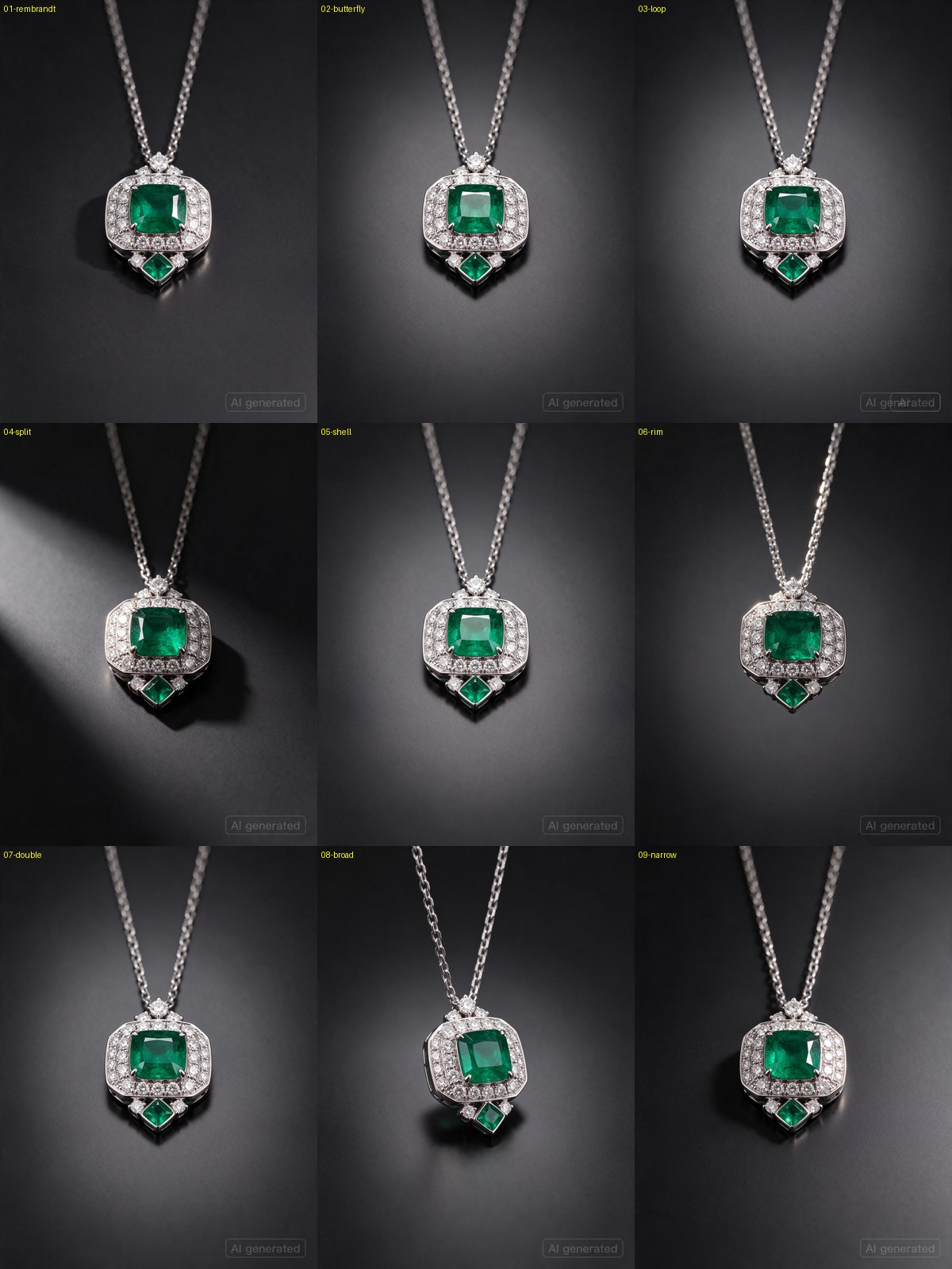
Across all nine, the necklace stayed the same piece: the same cushion-cut emerald, the same pavé diamond setting, the same chain links, the same hanging angle and crop. What moved was the light. That is the useful part for a product listing — you can iterate on mood without losing the object.
The prompt we used
To reproduce this, put the reference image in as the input, and change only the lighting sentence. The working prompt template is:
Using the emerald diamond pendant necklace in the reference image as the only reference, re-light it with image-to-image and produce a 3:4 vertical, 2K jewelry photo. Keep the cushion cut, color, and internal inclusions of the emerald; the arrangement and size of the double-row pavé diamonds; the chain-link style and clasp of the platinum chain; and the pendant’s hanging angle, camera view, crop, and deep-gray gradient background exactly identical to the reference. Show only the pendant necklace from the reference, with no visible light fixtures, reflectors, text, or borders. This lighting: [your lighting sentence].
Then swap in one of these lighting sentences:
- Rembrandt — key light from the front left at about 45°, slightly above the pendant, leaving a small lit area on the right side of the emerald, a clear light/shadow transition across the facets, and a weak fill to keep shadow detail; the platinum frame picks up a directional highlight.
- Butterfly — key light directly overhead, the emerald’s upper and lower facets lit symmetrically, a centered highlight band across the stone, and diamond fire along the centerline.
- Loop — key light slightly forward of overhead with generous frontal fill, a short natural arc of reflection on the emerald’s edge, and a bright transition between the lit and shaded faces.
- Split — key light from the left at about 90°, the light/shadow split running down the pendant’s midline, the emerald bright on the left and dark on the right, with the shadow-side facets and diamonds still readable.
- Clamshell — soft frontal light bringing the emerald’s facets to similar brightness, a weak lower fill gently lifting the bottom of the stone and the platinum frame’s shadow, the crown slightly brighter than the pavilion.
- Rim — rim light from behind left and right tracing a thin bright edge along the platinum chain and pendant outline, the emerald’s front slightly darkened, facets and diamond settings still readable, the deep-gray background unchanged.
- Double — equal-intensity soft lights from the front left and front right at about 45°, the emerald’s facets evenly bright, diamond fire symmetric, metal reflections soft.
- Broad — the pendant turned slightly to its right, the wider left side lit by a front key light while the narrower right side falls into soft shadow.
- Narrow — keeping the same turn, a light from the front right illuminates the narrower right side while the wider left side falls into soft shadow, emphasizing the right-side facets and fire.
Try it in IMA Studio
Both tests are reproducible in your browser. For the re-lighting (image-to-image), open the IMA Studio creation page with Seedream 5.5 preselected:
https://www.imastudio.com/ai-creation/image-to-image?m=doubao-seedream-5.5
Then it’s three steps:
- Upload your reference photo and confirm Seedream 5.5 is the selected model.
- Paste the prompt template above and change only the lighting sentence (or write your own single change).
- Generate, then download the PNG.
Generation runs on IMA Studio credits rather than a separate subscription. At the time of writing, text-to-image is 7 credits for 1K and 12 credits for 2K, and image-to-image is 15 credits for 1K and 21 credits for 2K. Check the creation page for current pricing before you spend.
What we did and didn’t verify
- This is one emerald necklace, one transparent-background run, and nine independent re-lighting requests from the same reference — not an overall ranking of the model.
- We tested “change one variable, keep the object.” We did not run ByteDance’s 100-round sequential-edit demo; our nine re-lights each started from the original reference, not from the previous output.
- We reviewed the results by eye for subject consistency, not by pixel comparison.
- The pricing above is credits on IMA Studio, not a cash-price or free-use promise.
About The Author