








A full-look reference can carry unwanted bags, jewelry, socks, and shoes into an AI try-on. This tested prompt separates target garments, preserved details, and explicit exclusions.
The two images below came from the same model photo and the same clothing reference. Only the instruction changed.
The quick answer
To control what transfers into an AI model try-on image, write the request in four layers: target garments, reference-image roles, preservation rules, and exclusions. Keep the model photo responsible for identity and pose. Keep the clothing photo responsible for garment construction. Name every visible accessory or extra layer that must stay out.
Why “put this outfit on this model” is underspecified
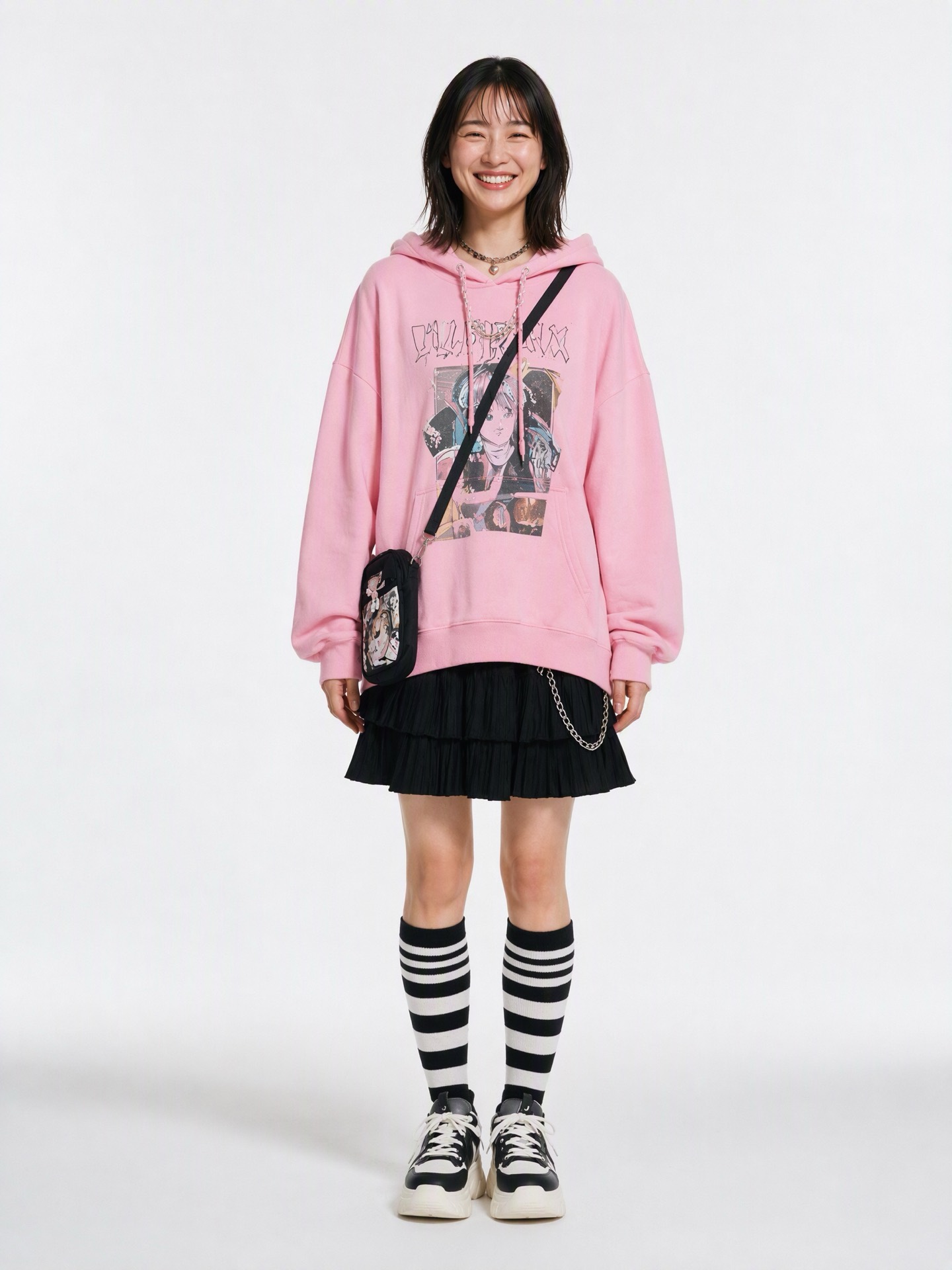
A full-look reference is packed with decisions. Our clothing image contained a pink graphic hoodie, a tiered black skirt, a crossbody bag, layered necklaces, a skirt chain, striped socks, platform sneakers, earrings, and a different hairstyle.
The short request—“Put the outfit from Image 2 on the model in Image 1”—did not say which of those elements mattered. The generated result copied the complete look. It was visually coherent. It was also the wrong answer if the actual target was only the hoodie and skirt.
That distinction matters. A good-looking image can still fail the product task.
If you are starting with flat-lay or hanger photos rather than a full-look reference, begin with our broader workflow for creating AI model try-on images from clothing photos. If the garment photo itself needs work, see how to photograph clothes without a model before generating.
Give each reference image one job
These were the two inputs used in both tests.
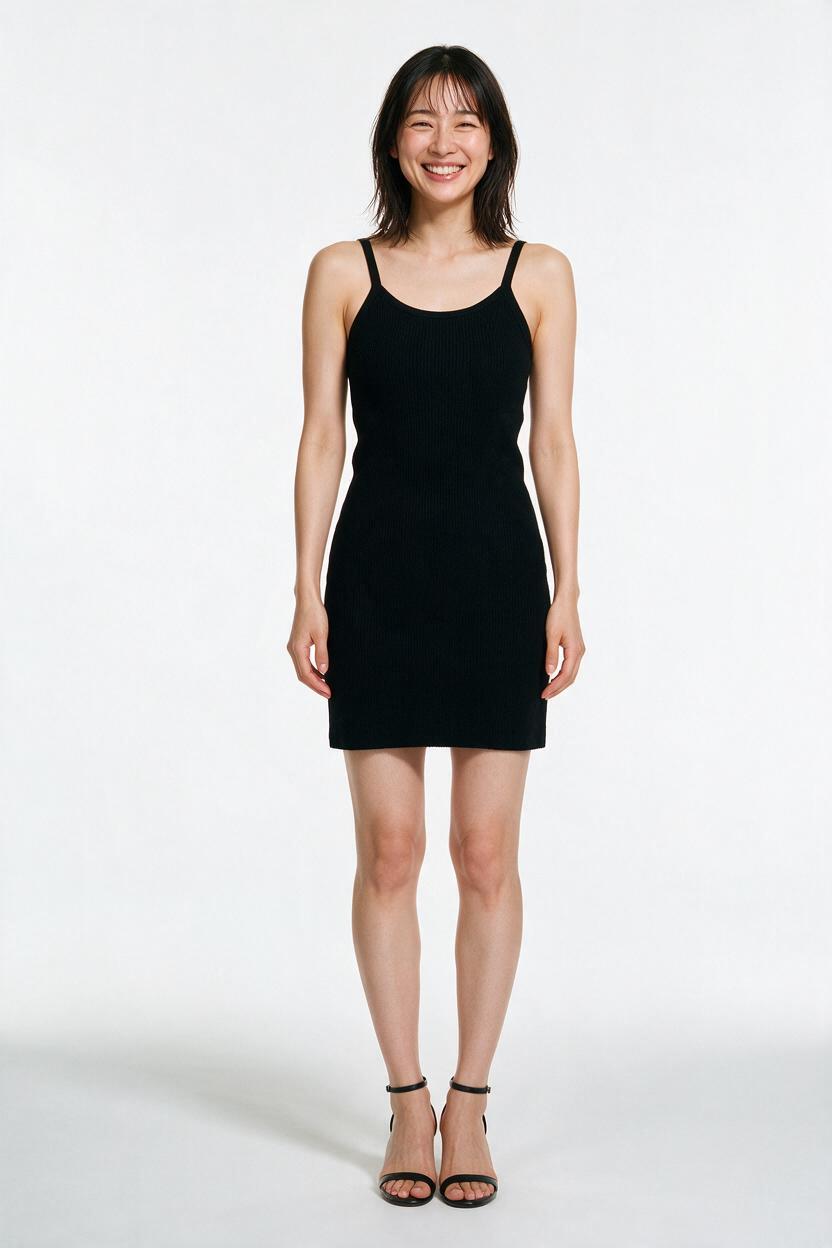
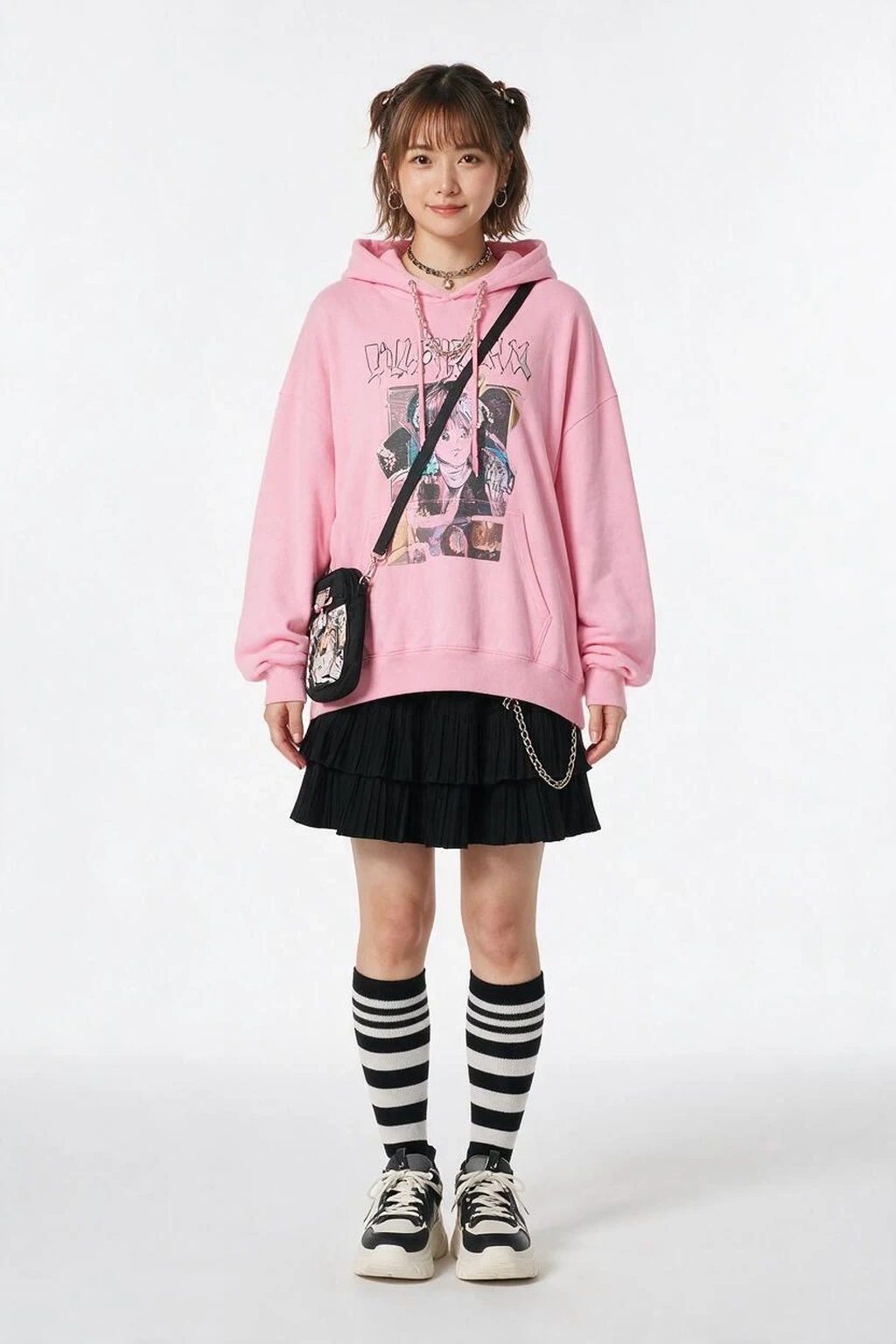
The model reference should control the person. The clothing reference should control only the garments you name. A scene reference, when you use one, should control the environment and light.
Write those responsibilities down. Do not ask the image model to infer them from upload order alone.
Build the prompt in four control layers
1. Name the target garments
Use garment roles instead of “the outfit.” In our test, the target upper garment was the oversized light-pink graphic hoodie. The target lower garment was the black tiered pleated mini skirt.
That one choice defines the scope of the edit.
2. Protect the source model
List the parts that should stay tied to the model reference: identity, face, expression, hair, body proportions, pose, framing, background, camera, lighting, and any original item you want to keep.
We explicitly kept the original black strappy heels. Without that line, footwear would still be an open decision.
3. Exclude visible extras by name
“No accessories” is weaker than a visible inventory. We named the bag, necklaces, choker, skirt chain, striped socks, platform sneakers, earrings, and pigtail hairstyle.
This turns each item into a review question. Is the bag gone? Are the socks gone? Did the original heels remain?
4. Describe natural fit without changing the body
Tell the model to adapt the garment to the existing person, not reshape the person to fit the garment. Ask for seams, folds, drape, overlap, contact shadows, and consistent light.
Copy this AI model try-on prompt
Replace the bracketed items, then remove any line that does not apply to your inputs.
Create one [FRAMING] AI model try-on image.
MODEL: Image 1 controls the same adult person, face, hair, body proportions, pose, framing, background, camera, and lighting.
CLOTHING: Image 2 supplies clothing information only. Do not copy its person, pose, hair, framing, or background.
TARGET UPPER: [garment, color, material, construction].
TARGET LOWER: [garment, color, material, construction].
KEEP: [original shoes, jewelry, or other visible item].
EXCLUDE: [name every non-target layer, shoe, bag, jewelry item, and accessory visible in the clothing reference].
FIT: Adapt the garments to the existing body with realistic seams, folds, drape, overlap, and contact shadows.
Do not change the body to fit the clothes. Do not add unrequested layers.
OUTPUT: [purpose], [aspect ratio], [must-show areas], no watermark.
We tested the same inputs twice
This was a controlled IMA Studio test, not a claim that every garment combination will behave the same way. Both outputs used the same source pair, the same full-body 3:4 goal, and one image per request.
The vague request
Put the outfit from Image 2 on the model in Image 1.
Keep the first model.
The source model remained recognizable, but every major styling element transferred: hoodie, skirt, bag, necklaces, skirt chain, striped socks, and platform sneakers. The instruction did not define a smaller target.
The controlled request
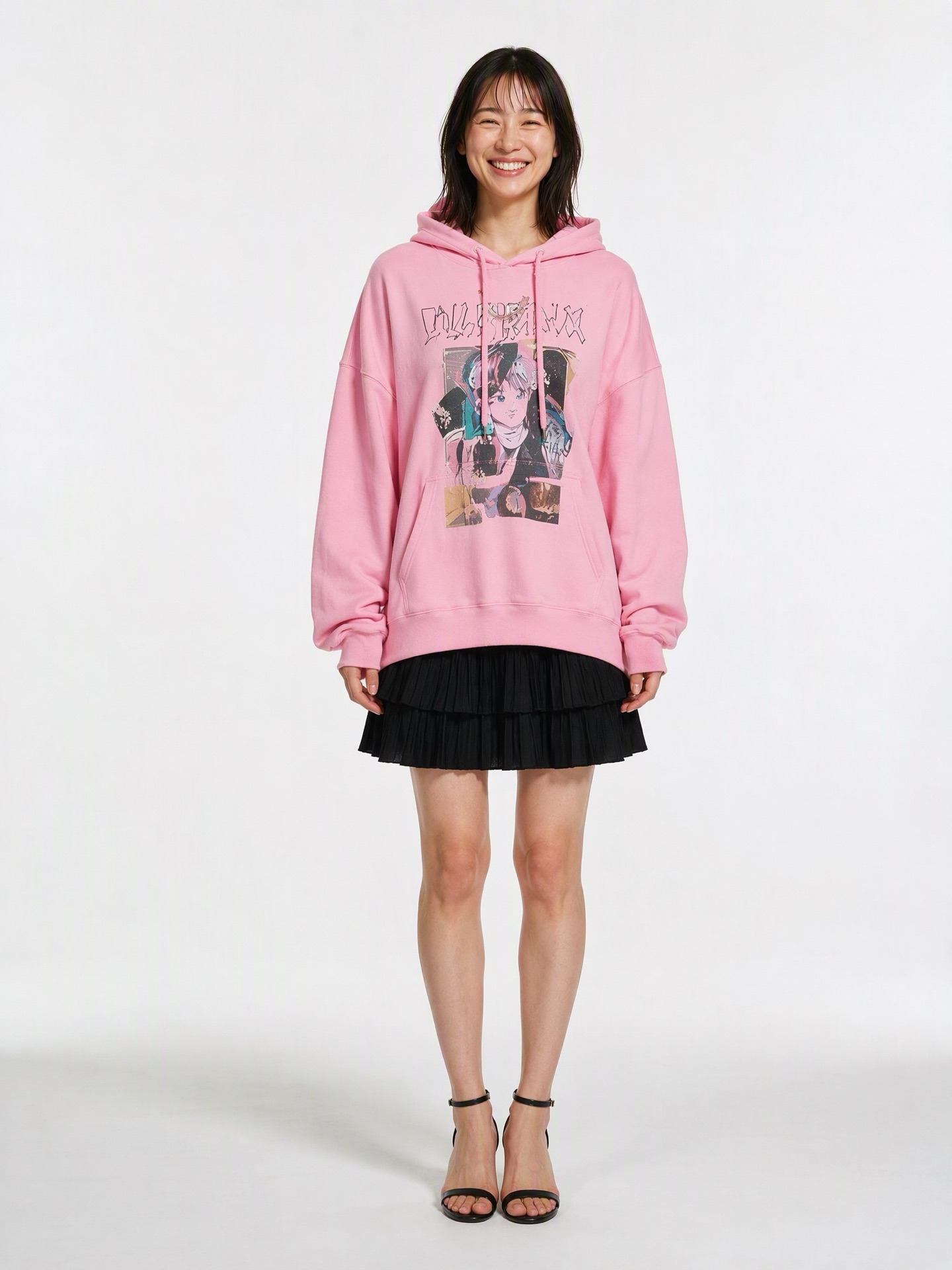
Image 1 is the model reference only. Preserve the same adult person, face, smile, hair, body proportions, pose, white studio background, lighting, and black strappy heels.
Image 2 is the clothing reference only. Do not copy its person, hair, pose, framing, or background.
Transfer only the oversized light-pink graphic hoodie and black tiered pleated mini skirt.
Exclude the bag, necklaces, choker, skirt chain, striped socks, platform sneakers, earrings, pigtails, and every other accessory from Image 2.
Fit the hoodie and skirt naturally. Do not change the body to fit the clothes.In the second result, the source identity stayed recognizable and the shoulder-length hair, smile, body proportions, straight pose, white background, full-body framing, and black strappy heels remained consistent. The hoodie and skirt transferred. Every named non-target item was absent.
One small tradeoff remained: the oversized hoodie covered much of the skirt. The black tiers were still visible, but a retailer who needs a clear waistband view should request a shorter hoodie treatment, a tucked front, or a separate detail shot.
Review the result in this order
- Confirm that every target garment is present.
- Check every named exclusion. Do not replace this with a general “looks right” judgment.
- Compare the face, hair, body proportions, pose, and original items with the model reference.
- Inspect garment edges, sleeves, waistbands, hems, hands, and overlap points.
- Confirm that the framing shows the product areas a shopper needs to see.
When a result fails, correct the failed rule. “Remove the crossbody bag and striped socks; keep the original heels” gives the next attempt a measurable target. “Try again” does not.
What a precise prompt cannot guarantee
A structured prompt reduces ambiguity. It does not turn a generative image model into a deterministic garment renderer.
Small printed details may change. Text-like graphics can become approximate. Fabric weight and drape can shift. Complex overlaps may need another pass. And an AI try-on image cannot tell a shopper how the real garment feels, stretches, or fits against physical measurements.
Use the output as visual content that still needs review. Do not present it as proof of physical fit.
Frequently asked questions
Should I describe every item in a full-look reference?
Name every target item and every visible item that must not transfer. You do not need to narrate irrelevant background details once the image roles are clear.
Can I combine garments from several images?
Yes. Bind each garment role to a source: “upper garment from Image 2; trousers from Image 3.” Then list the non-target items visible in those references.
Should I preserve the original pose and background?
Preserve them for controlled comparisons and consistent ecommerce sets. Allow them to change only when a new pose or scene is part of the actual deliverable.
Is a longer prompt always better?
No. A useful prompt assigns responsibility and defines constraints. Repeating adjectives does not add control.
Make the next result a correction, not another reroll
More predictable garment scope starts before generation. Assign each reference one job, name the garments you want, protect the parts that should remain consistent, and list the visible extras that must not appear.
The payoff is practical: if the output misses, you know which rule failed.
About The Author