





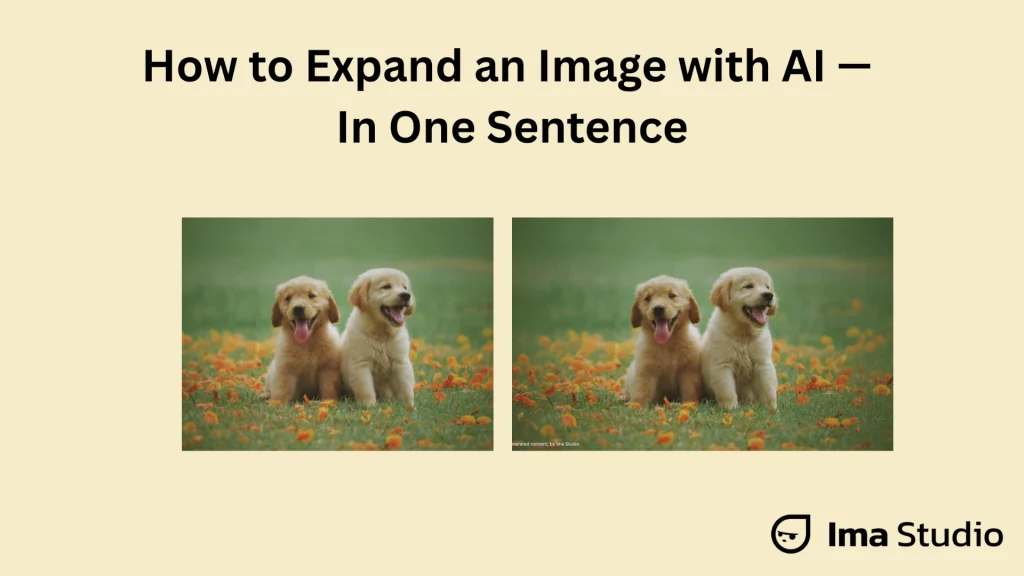
You’ve probably run into this situation before:
The picture looks good, but the frame feels too tight.
The subject sits right on the edge, the composition feels uncomfortable, or there’s simply no room for text or layout.
Or you’re trying to make a poster, a thumbnail, a banner, or a social media cover, and the image just doesn’t match the size you need.
Sometimes, you just want the image to feel more natural and complete.
But traditionally, such a simple intention turns into a frustrating workflow:
- Manually reverse crop to create space, then switch to another app to patch the background — time-consuming and often unnatural 😟
- Hand-painting in Photoshop requires skill and patience 🤯
- Single-function AI image expander tools still require multiple apps to finish everything — and exports are often locked behind paywalls 😠
It shouldn’t be that complicated!
In Ima Studio, it’s literally just one sentence.
Let’s walk through it together. ✨
3 Steps to Expand an Image in Ima Studio
Step 1: Input
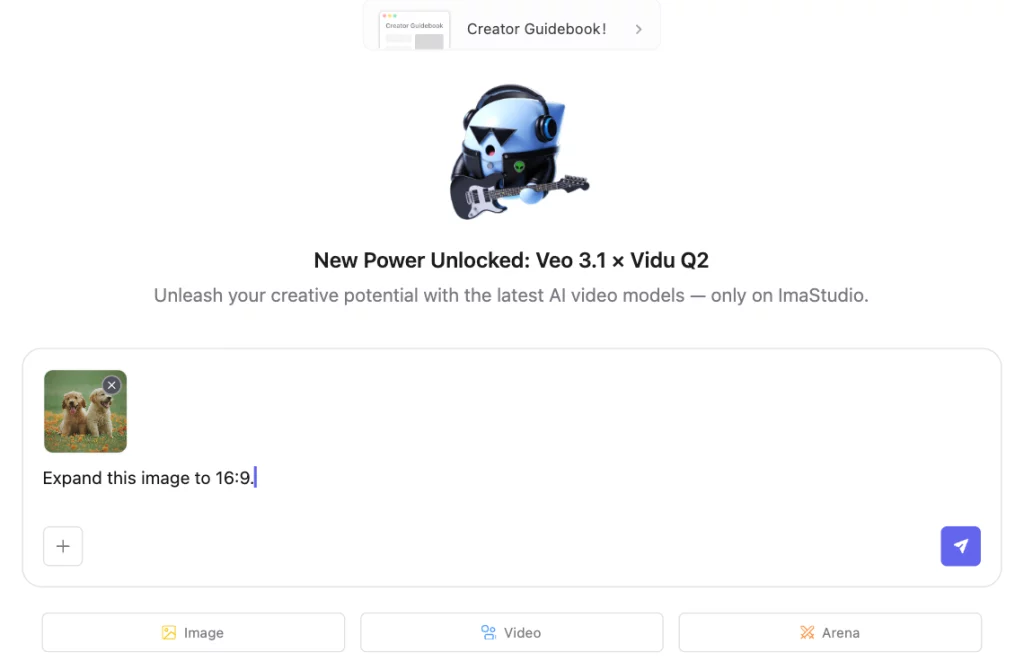
Upload your image and simply describe what you want:
Expand this image to 16:9.
Step 2: AI Generation
Ima’s creative agent analyzes your image + your words, then automatically selects the best model to generate a natural, seamless extension — usually in under 30 seconds.
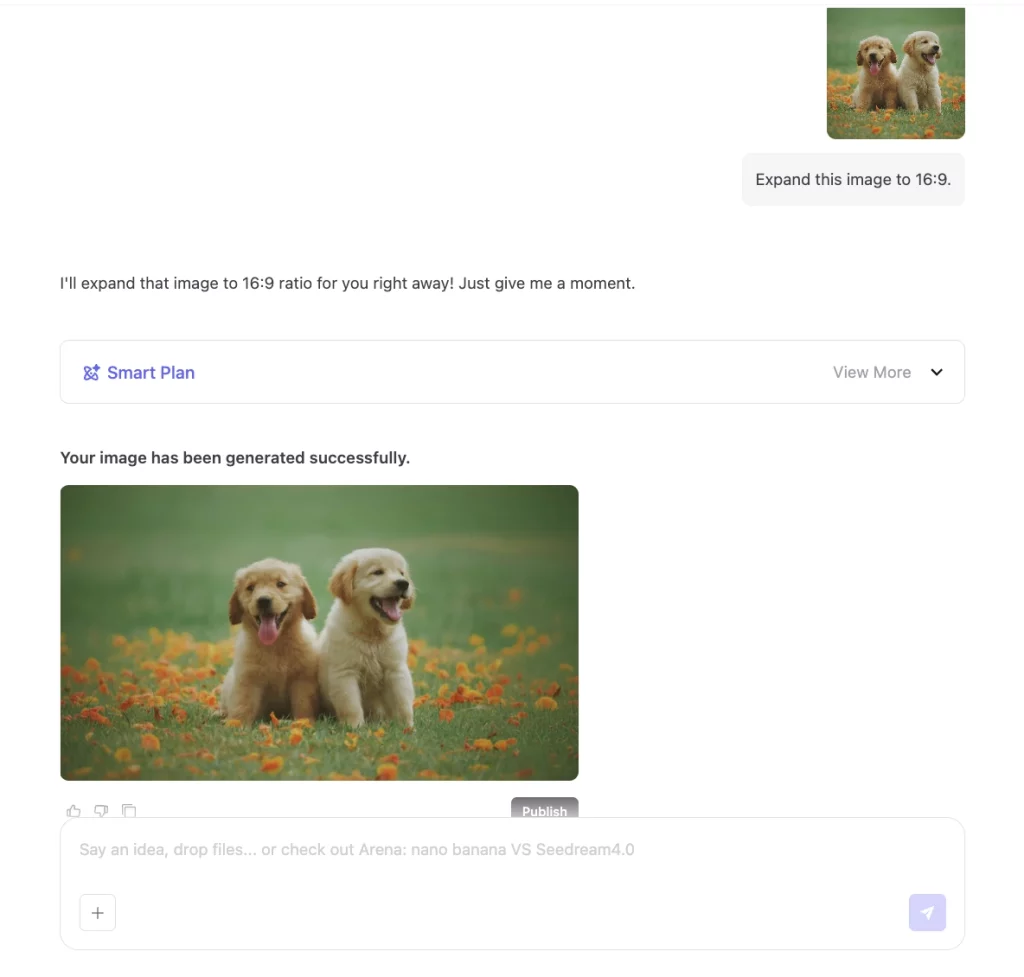
Step 3: Download
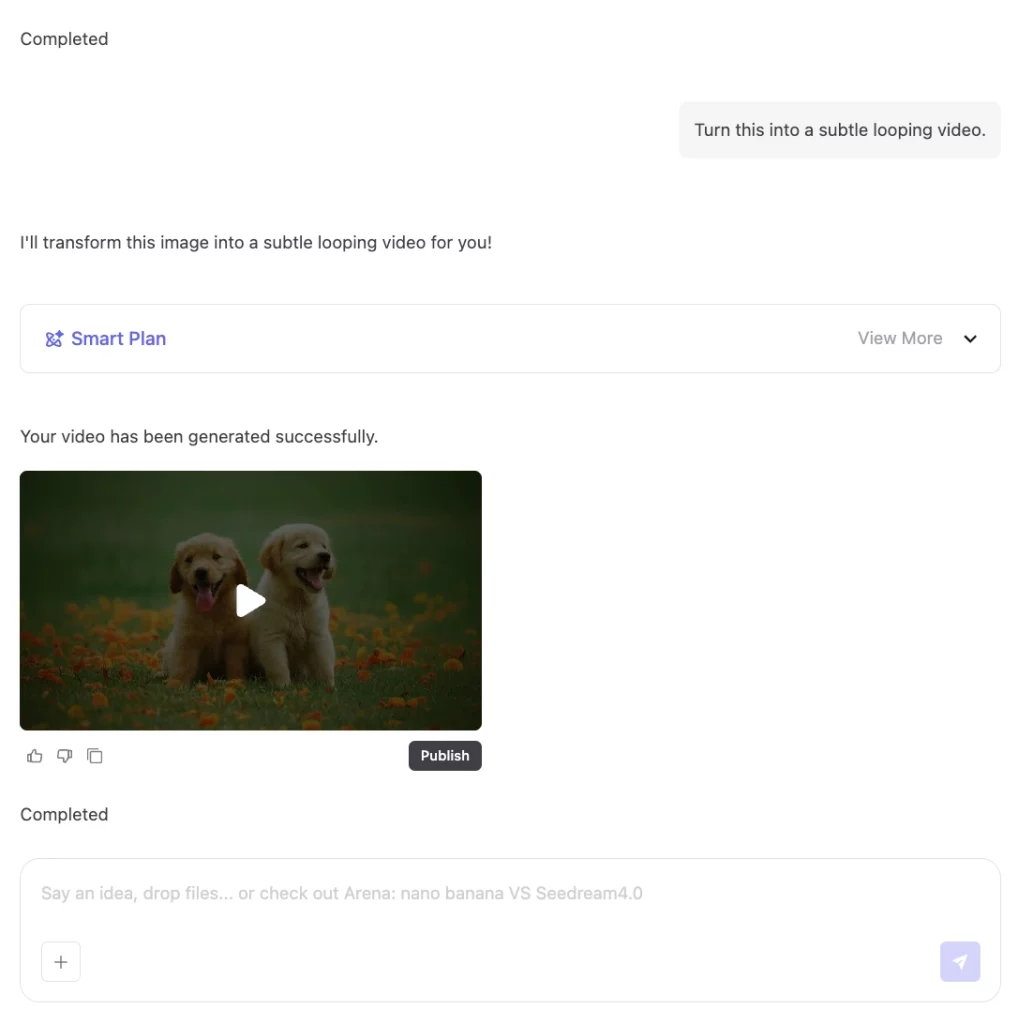
Satisfied? Click to download it in HD.
Or click “Publish” to Ima Studio’s community so others can reuse your template.
Want to keep editing? Just keep talking:
Turn this into a subtle looping video.
Make the colors warmer.
Ima Studio vs. Other AI Expand Image Tools
| Traditional Tools | Ima Studio |
| One page = one function | One chat = continuous editing |
| You have to decide which model to use | Ima automatically selects the best model (from 10+ leading models) |
| Editing breaks when switching between tools | Editing stays in one flow: Image → Video → Music |
| Requires skills & learning | Just describe your idea in natural language |
| Often desktop-only or device-limited | Web & mobile supported — create anywhere, anytime |
Who Can Use Ima Studio to Expand Images
🎨 Photographers
“The composition is great, but the subject is too close to the edge. How do I fix it?”
Ima’s AI agent can seamlessly extend the scene based on original lighting, depth, and texture, so the image looks like it was always meant to have that breathing room.
👉 Get better composition, without reshooting!
📲 Social Media Creators
“I want to post the same image to IG, TikTok, YouTube, but the ratios are all different.”
Ima Studio adapts the canvas to 1:1 / 9:16 / 16:9 without cropping the subject.
👉 Perfect for all platforms like IG, and Facebook. Stand out with excellent posts!
📢 Marketing & Branding
“The image looks fine on screen, but prints blurry for posters. What now?”
Ima expands and then upscales your image in high fidelity. The subject and background stay clear and natural.
👉Ideal for banners, exhibitions, brochures, & large-format print. Lower your costs!
💡 Personal Creative Play
“This photo feels too simple… I want something fun.”
Just upload it, and describe your idea. Ima will smartly choose the most creative model to create.
Make the dog look like it’s cooking in the kitchen.
👉Have fun with your imagination. Just explore freely — no pressure, no learning curve, just play AI.
Try Your All-in-One Creative Agent
Not a tool you have to learn — just a creative partner you talk to.
And when you’re ready to explore more:
- See how different models perform in Arena‘s model battle
- Join community AI Creation Challenge
- Or simply browse templates made by other creators Inside Ima Studio Community
Expanding an image is just the beginning.
Your creative flow can go anywhere from here!
FAQs About Using AI to Expand Images
How does AI expand an image?
The AI analyzes your original photo and naturally continues the background based on lighting, texture, and depth.
In Ima Studio, you just upload your image and describe what you want — the expansion is done automatically.
There’s no need to choose models or learn prompts.
The AI agent understands your intention and adapts to your style over time.
Is it free to use Ima Studio to expand my images?
Yes. After signing up, you’ll receive 200 free credits to try Ima Studio. You can expand images completely free using these credits.
You can also explore Ima’s text-to-image, text-to-video, and image-to-video tools to bring more creative ideas to life.
How long does it take to expand an image?
The whole process usually takes less than 30 seconds with Ima Studio’s AI agent.
No trial-and-error, no manual adjustments.
You get a seamless result in one run — and if you want to refine it, just continue chatting in the same task.
Do I need prompt-writing skills to use Ima Studio?
Not at all. Ima Studio, your all-in-one AI image expander is highly intelligent. Just upload your image and explain what you want in plain, natural language.
The AI agent (powered by 10+ next-generation models) understands your intent and handles the rest automatically.
Can I download the expanded photos in HD?
Absolutely. The outputs from Ima Studio are HD. You can download them directly. No hidden paywalls, no locked exports — trusted by millions of creators.
About The Author