











 Ima Studio
To use ImaStudio in VS Code, run MCP: Add Server from the Command Palette, choose HTTP, enter ImaStudio’s server URL, approve the sign-in in your browser, then ask VS Code’s chat agent to list the video models and make a clip. This guide gives the steps, the config file formats, how to check it worked, and what to ask first.
VS Code doesn’t make video itself. Its chat agent calls ImaStudio’s tools, which run video models on your ImaStudio points.
What you need
- An ImaStudio account with points. Every generation costs points, and the next sections show how to check the price first.
- VS Code with its AI chat features enabled. VS Code’s docs list three steps: enable AI features, open a local project folder, and select Copilot in the Session Target dropdown.
- A browser on the same computer, because the sign-in happens there.
- On a work account, your organization’s policy can affect MCP servers and sign-in, according to VS Code’s docs.
Add ImaStudio with the guided setup
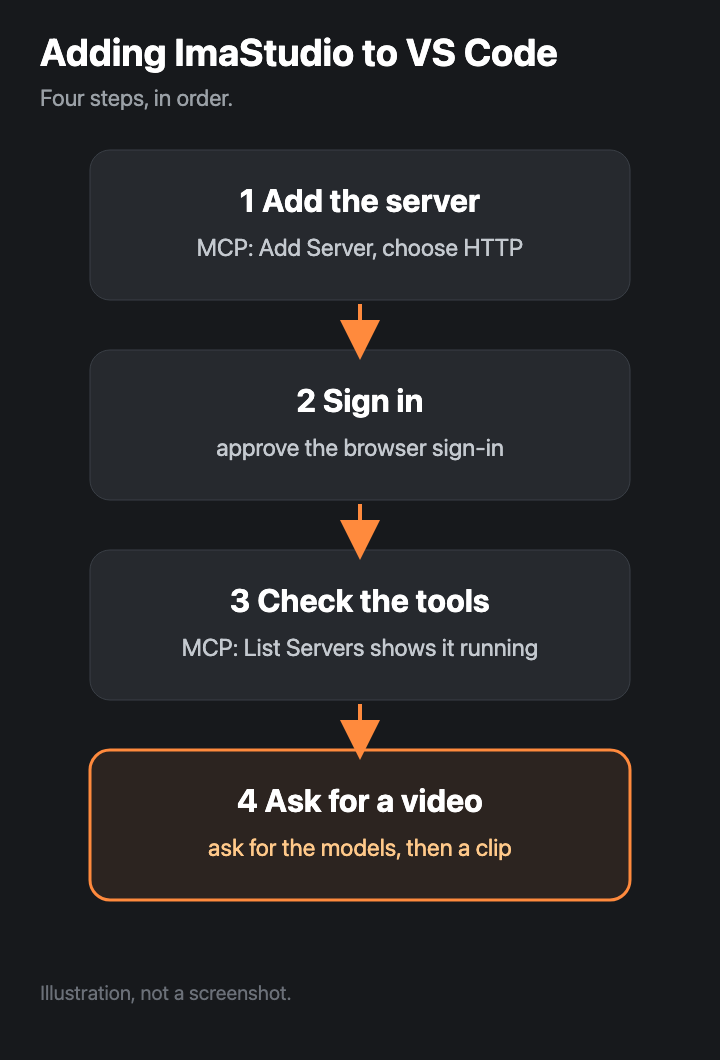
- Open the Command Palette and run MCP: Add Server.
- Choose HTTP (HTTP or Server-Sent Events).
- Enter
https://api.imastudio.com/mcp. Copy it from ImaStudio’s connection page, which has a VS Code tab. If that page’s instructions differ from this guide, follow the page.
You can reach the same place another way: run Chat: Open Customizations, open MCP Servers and choose Add Server (the + button) in the User group.
The config file it writes
VS Code’s docs describe two formats, and which one you get depends on the setup you use. The portable format uses mcpServers and lives in ~/.copilot/mcp-config.json for you, or in .mcp.json at the workspace root, which needs the experimental setting chat.mcp.workspaceRootConfig.enabled:
{
  "mcpServers": {
    "ima": {
      "type": "http",
      "url": "https://api.imastudio.com/mcp",
      "tools": ["*"]
    }
  }
}
The older editor-managed format, which the docs mark as deprecated for new setups, uses servers in .vscode/mcp.json:
{
  "servers": {
    "ima": {
      "type": "http",
      "url": "https://api.imastudio.com/mcp"
    }
  }
}
Use whichever file the guided setup wrote, and don’t mix the two.
Sign in
Complete the authorization when VS Code prompts you. If you miss the prompt, look for Authenticate in the server’s actions. Review any trust request before you accept it, and never paste credentials into the chat.
ImaStudio’s approval screen lists what you’re allowing. When we approved Codex, it said the app could view your canvases, create canvases and add, edit and delete nodes on them, and use your points to generate images, videos and audio. You can revoke access later in Settings → Connected apps.
For a pre-registered OAuth client, the portable format takes a flat oauthClientId field. ImaStudio’s Claude Code and Codex setups use the IDs claude-code-ima and codex-ima, but we haven’t seen one published for VS Code, so use the default sign-in.
Check that it works
- Run MCP: List Servers to open the server controls and confirm ImaStudio is there.
- In chat, ask a question before you ask for a video:
Which video models can you use through ImaStudio? For each one, tell me the durations and aspect ratios it supports.A list of models means it works. If the tools look out of date, run MCP: Reset Cached Tools. To turn the server off, open Chat: Open Customizations > MCP Servers and use the ellipsis menu to disable or uninstall it. The docs we read don’t say where server logs appear.
Make your first clip
VS Code chooses the relevant tools on its own, and you can expand a tool call in the conversation to inspect it. Name the model, the length and a spending limit:
Using ImaStudio, make one 5-second 16:9 video with Seedance 2.5 at 720p. Show me the price first and stop if it's over 250 points. Scene: a slow dolly-in on a steaming cup of coffee on a wooden table beside a rainy window, warm light, shallow depth of field, no people, no text.The settings, the price of each resolution and a real run are in our guide to use Seedance 2.5 with ImaStudio. The server and its tools are the same in VS Code.
Using it with your project files
When a file from your project goes in or a video file has to come out, the ImaStudio CLI is an option. We tested that route with Codex, not VS Code. See how to turn a local image into a video with Codex and the ImaStudio CLI.
Three things to watch
- Set a spending limit in your prompt, as above.
- Keep deletes deliberate. The server can delete nodes and whole canvases, so read each approval request.
- Expect the menus to move. VS Code’s MCP documentation currently describes two setups. If a command here doesn’t match your version, trust the editor and its docs.
FAQ
Do I need an API key?
ImaStudio’s connection page says you sign in with your account in the browser and no key is pasted into the chat. You still need an account with points.
Which VS Code version do I need?
The pages we read don’t name a minimum version. Use a current release.
Do I need a chat subscription?
The agent that calls ImaStudio is VS Code’s chat, so it has to be available to you. Plans and availability are VS Code’s and GitHub’s to answer.
How much does a video cost?
It depends on the model, the length and the resolution. The price list and a 5-second table are in our Seedance 2.5 guide, and the request above sets a limit.
Where to go next
For the same setup in a chat app, see how to generate AI videos in Claude with ImaStudio. For the model’s settings and prices, see how to use Seedance 2.5 with ImaStudio. Using Cursor instead? See how to add ImaStudio to Cursor.
How this guide was put together: the VS Code steps follow VS Code’s documentation as we read it on November 19, 2026, and the ImaStudio details come from its server and connection page. We haven’t run VS Code ourselves, so menu names may differ in your version. The cover was made in ImaStudio.
About The Author


 SeeDream 5.5 vs GPT Image 2.6 Sunburst vs Nano Banana 2.1 for Realistic Portraits
 MAGI-2 Explained: What Sand.ai’s New 480B Video Model Can Do
 How to Add ImaStudio to Cursor and Generate Videos
